Knowledge base
Runbooks, reference documents and instructions the agents read, the skill catalog per pillar, the Review queue that turns corrections into skills, and knowledge export and import.
How-to · Updated 2026-10-19 · Describes release 0.1.164
Concepts
Terms used across the whole product are defined in the Glossary chapter. These are the ones the Knowledge and insights pages introduce.
| Concept | What it is |
|---|---|
| Knowledge item | A named, versioned block of text owned by your tenant. Saving under an existing name creates a new version and deactivates the old one, so there is exactly one active version per name. |
| Always-in-context kinds | instruction, ontology and service_graph items are rendered directly into the agent's system prompt for every run — filtered to the agent's pillar when the item is pillar-scoped. |
| Lazily-loaded kinds | runbook and reference_doc items become SKILL.md files. Only their name and a one-line description sit in the prompt — the description: of a SKILL.md frontmatter when the body opens with one, otherwise its first line — and the agent loads the body with the fetch_skill tool when it decides the skill is relevant. |
| Skill | An entry in the effective catalog the agent works from, with provenance: builtin (shipped by us), customized (you edited a builtin), operator (your own runbook) or learned (a promoted proposal). |
| Skill proposal | A draft skill assembled from a template using rows the platform already holds, waiting in the Review queue. It comes from one of four sources: a correction you sent on an RCA, an observation the agent recorded during a run, an import from another workspace, or the automatic draft when an incident closed with a validated fix. No language model writes it. It is inert until an approver accepts it. |
| Estate x-ray | One self-directing read-only scan across one or more connectors, producing findings, pillar coverage, an entity graph and draft recommendations. |
| Entity | One {type, name, properties, relations, evidence} record the scan produced about a real thing in your estate — a service, a data store, a cluster, a queue. |
| Ontology / service graph | The set of entities, held as your tenant's active ontology knowledge item. Applying a scan's graph merges into it, so the model of your estate grows across scans rather than being replaced. |
| Artifact | An append-only output: a remediation pull request (pr), an estate x-ray report (report), an exported root cause analysis (export). Nothing edits one; only the data-retention sweep removes one, together with the closed record it belongs to (Agents and guardrails → Data retention). |
The knowledge base
Open Agent quality → Knowledge base to read or maintain context; its tabs are Knowledge, Agent skills and Review queue. They share these permissions:
| Tab | Read access | Change access |
|---|---|---|
| Knowledge | knowledge.view |
knowledge.manage |
| Agent skills | knowledge.view |
knowledge.manage |
| Review queue | knowledge.view |
knowledge.manage to edit; skills.approve to approve, reject or retire |
What the page shows
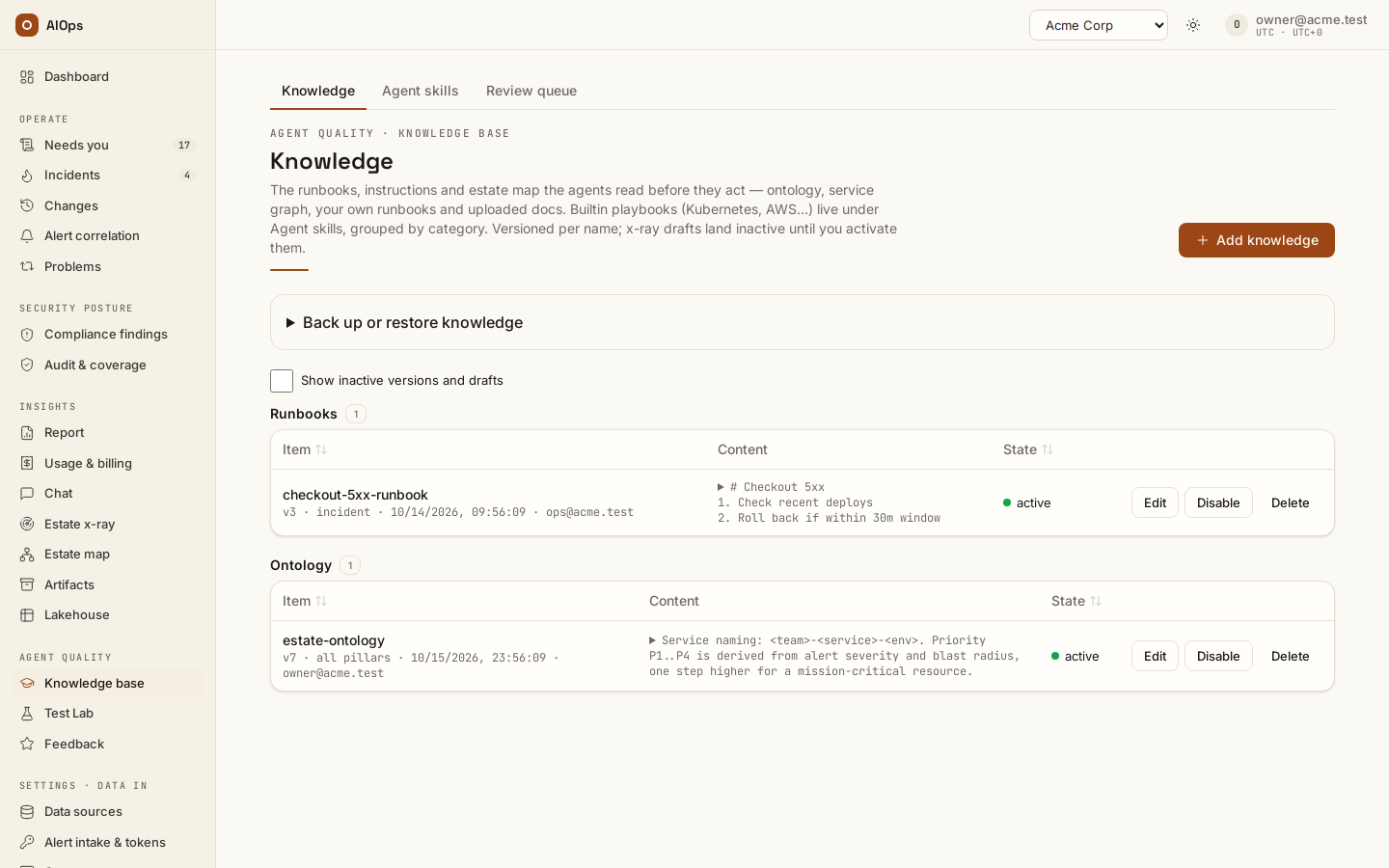
The Knowledge page groups active items into sections by kind — Runbooks, Reference docs, Agent instructions, Ontology, Service graph — each with a count badge. Per row:
- Item — the name, with
v<version> · <pillar>(orall pillars)· <last changed> · <by whom>(a save, Activate or Disable) underneath; by whom is a member's email, or Platform for an account outside your workspace, such as platform staff. A version an estate x-ray produced addsfrom estate x-ray <scan start>, a link to that run; a version saved before this release showsfrom estate x-rayonly when its scan is on record, and without the start time. - Content — the first ~300 characters, expandable inline.
- State —
activeorinactive. - Actions — Edit and Disable on active rows, Activate on inactive rows, Delete on any row. The whole actions column only renders with
knowledge.manage.
Shipped builtin playbooks are deliberately hidden here; they live under Agent skills, grouped by category. Tick Show inactive versions and drafts to reveal superseded versions and estate x-ray drafts awaiting review.
With the toggle on, every section lists the drafts waiting for Activate first, newest first, then the versions in use, then superseded history: the newest 20 superseded versions of each item, so an estate item the harvest re-saves many times a day does not flood the page. A waiting draft carries a Pending activation badge next to its inactive state, and its row says when it last changed and by whom, and — for an x-ray draft — which run produced it (from estate x-ray with the scan's start time, linking to that scan). A version you turned off, with Disable or by activating an older version, is history, not a waiting draft. The toggle lives in the page address: /portal/knowledge?inactive=1 opens with it on, which is where the Review in Knowledge base → link on a scan leads after Apply as draft on a knowledge draft. After Use selected context the same link opens the page as usual — that context is already active.
Write a runbook
Requires knowledge.manage.
- Open Knowledge and select the Knowledge tab.
- Select Add knowledge.
- Choose Kind. It opens on
instruction; userunbookfor "how to handle X" procedures andreference_docfor background material — both become lazily-loaded skills. Useinstructiononly for short standing orders you want in every prompt. - Choose Pillar (empty = all). A pillar-scoped runbook is only offered to that agent; the list covers all seven pillars,
reportingincluded. - Enter a Name. Use a stable, descriptive slug such as
checkout-5xx-runbook— the name is the versioning key. The catalog gives each materialized skill an unambiguous fetch key; learned runbooks cannot overwrite operator knowledge with the same name. - Write the body in Content (markdown, YAML or JSON as text). Make the first line a one-sentence description of when to use it; that line becomes the catalog description the agent sees before it decides to load the full text. A body in Agent Skills format — opening with
---frontmatter — gives itsdescription:field instead (or, without one, the first prose line after the frontmatter). - Optionally select Upload text file to extract text from a
.txt,.md,.markdown,.log,.json,.yaml,.yml,.csv,.rstor.pdffile. Each file is capped at 5 MB and 200,000 extracted characters. Knowledge saves accept up to 100,000 characters per item. The extracted text is appended into the field and names the item if the name is still empty; nothing is stored server-side until you save. A file with no extractable text, or a renamed binary, is refused with an error. - Select Save knowledge.
You should see the item appear in its kind's section, badged active, at v1. The next agent run for that pillar picks it up.
To revise a runbook, select Edit and then Save new version. The old version is deactivated, not deleted, and stays in the history behind Show inactive versions and drafts.
Activate and deactivate
Requires knowledge.manage.
- Select Disable on an active item to take it out of every future run without deleting it. Version history is preserved.
- Select Activate on an inactive item to bring it back. Any other active item with the same name is deactivated automatically and the selected version keeps its recorded version number — there is exactly one active version per name.
- Select Delete only when the content should not survive at all. The confirmation names the item and version and states that it is removed permanently.
You should see the row's State flip between active and inactive, and the section count badge move by one.
Disabling a builtin skill is respected on upgrade: the platform never resurrects a default you switched off.
Agent skills
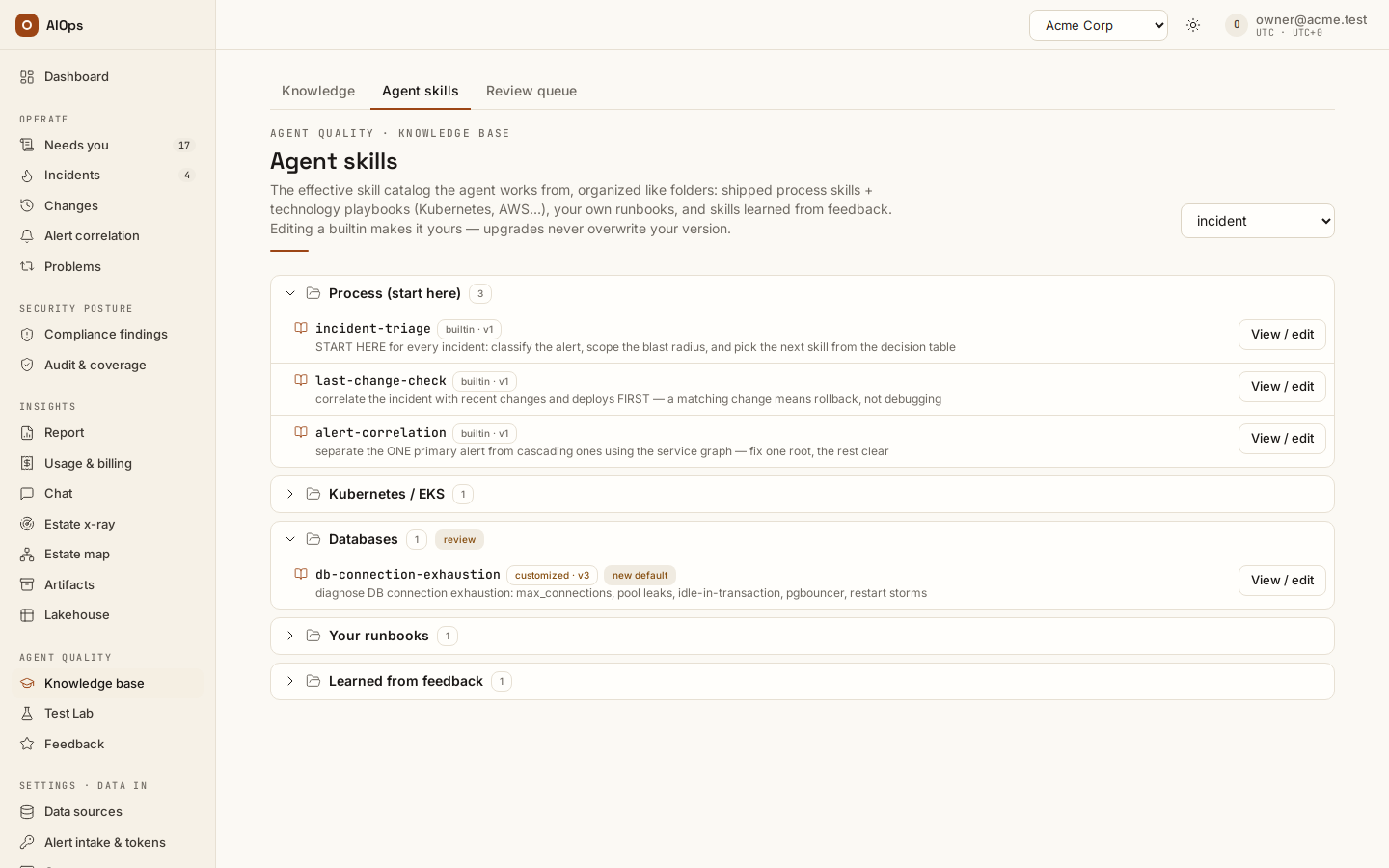
The Agent skills tab shows the effective catalog for one pillar, chosen with the selector in the header and opening on incident. It is organized as collapsible folders in this order: Process (start here), Kubernetes / EKS, AWS / Cloud, Databases, Networking & delivery, Messaging & jobs, Deployment & rollout, General, then Your runbooks and Learned from feedback. The catalog for a pillar contains that pillar's items plus every all-pillars item, and only runbook and reference_doc items appear — the always-in-context kinds are not skills. Each row carries a provenance badge and the skill's description line.
Editing a builtin makes it yours. Requires knowledge.manage.
- Select View / edit on a skill. The button reads View without
knowledge.manage. Rows with thelearnedbadge show a proposal link to the Review queue tab instead — a learned skill is approved, rejected or retired there, not edited here. - Edit the SKILL.md body (first line = catalog description).
- Select Save new version.
You should see the row's provenance badge change from builtin to customized. Platform upgrades will never overwrite it from then on.
Builtins you have not edited are refreshed from the shipped pack automatically on upgrade — superseded, version history kept — so you never have to chase those. Only a customized skill needs your decision: when we ship an improved default for one, the row shows a new default badge and the folder shows review. Open it (the dialog badge reads new default available), use View shipped default to compare side by side, then either keep yours or select Restore shipped default, which supersedes your version with the current default while keeping your content in the version history.
Review queue: turning a correction or an observation into a skill
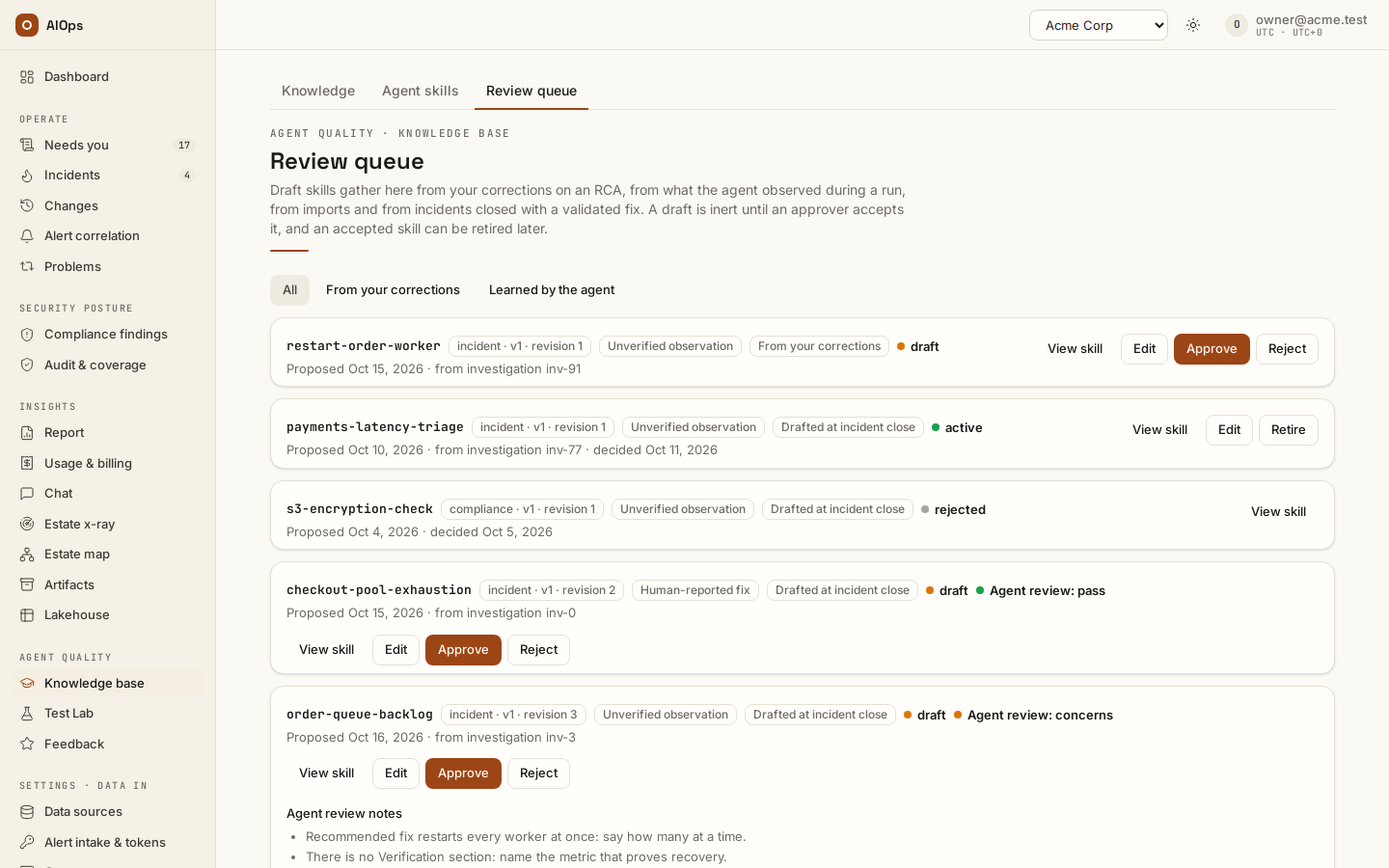
Runbook drafts reach the queue from four sources, and each card carries an origin badge: From your corrections (a Send correction on an RCA or an estate x-ray), Learned by the agent (an agent's propose_knowledge_update observation during a run), Imported (a manifest restored from another workspace) and Drafted at incident close (an incident that closed with a validated fix and no disputed feedback). The From your corrections and Learned by the agent chips narrow the queue to one source. None of these paths activates a runbook automatically: every draft waits here until someone with skills.approve accepts it, and the agent never reads a draft.
- To draft one from a specific incident yourself, call
POST /api/aiops/{tenant_id}/incidents/{incident_id}/runbook-draftor the MCP tooldraft_incident_runbook(knowledge.manage); the portal has no button for it. A finished investigation with a recorded analysis is required, expected/noise closures are refused, and a second call returns the draft already open for that investigation. - Under Review queue, select View skill. The card badges carry the version, draft revision and evidence level; an imported draft names its source workspace and reported evidence level.
- Read the draft, then select Approve (
skills.approve) and confirm. Reject closes a draft without making it available. - Retire removes an active runbook from future runs. Edit (
knowledge.manage) opens a draft or an active runbook as guided fields — Name, Description, Evidence level (keep it or lower it to Unverified observation, never raise it), Limits & constraints and Body — and saves a draft as its next revision, or an active runbook as a new draft version. After every edit an agent reviews the saved text and the card shows Agent review: pass, concerns, unavailable or pending; approving an edited revision before its review passes needs an Override note of at least 10 characters, kept with the approval, and the person who edited a revision cannot approve it while another approver exists.
Changing a runbook’s content makes that edited version an Unverified observation, even when its source incident had verified recovery. The original evidence level and version stay in its provenance. Approving edited instructions makes them available; it does not prove that the new steps have recovered a service. A name-only change preserves the evidence level: the form keeps the runbook's text byte for byte when only the name changed.
Each card shows its version and draft revision. If another reviewer changes the draft or active version while you are reviewing, the action returns a conflict. Reload and review the current content before trying again. Decisions and edits are audited.
Read evidence levels correctly
| Evidence level | Meaning |
|---|---|
| Verified recovery | A recorded executed attempt is followed by a cleared verification, with no later failed verdict, execution failure or rollback. A GitOps change also requires a matching merge before verification. |
| Human-reported fix | A person recorded how they fixed the incident; independent recovery evidence has not been established. |
| Unverified observation | An analysis, successful read, approval or agent observation. This does not prove a fix was applied or recovered the service. |
| Failure lesson | A disputed analysis or attempt that failed verification, execution or rollback checks. Keep its limits visible when writing guidance for another incident. |
Successful tool calls are listed as Observed successful tool calls. They are not a proven remediation sequence. A human report and the proposed fix of a closed incident are never silently described as validated. A historical muted closure without an explicit fix classification is an observation; its incident is not relabeled as known noise.
Automatic close drafts (Drafted at incident close) require usable recovery/report/failure evidence, a completed analysis and no disputed feedback. Feedback can also create a draft (From your corrections) on a first rating or a changed correction; after Send correction the incident keeps a line saying the correction is waiting in Knowledge base → Review queue and that an approver must accept it before the agent uses it on the next incident. Repeated identical feedback does not queue duplicates. Known-noise closures never teach a successful fix.
Check what the next investigation used
Approved runbooks appear in Agent skills with their version and source. The incident's Knowledge used list is derived from successful fetch_skill calls and shows the version actually fetched, including historical versions that have since been retired. Each row names the runbook and opens that exact version: a knowledge item or shipped skill opens read-only at the top of Knowledge (inactive versions included, as far back as the newest 20 per name; an older one says it is not listed), a learned runbook opens its card in Review queue. Below each row a line says what its evidence level means, in the words of the table above; a knowledge item or shipped skill at Unverified observation reads as written guidance instead, since it was not learned from an incident. Catalog availability alone does not mean a runbook was read.
Embedded agents and private-network agents load the same DB-backed catalog on new runs. Retiring or changing a runbook affects their next build. An already-built run keeps its captured approved bytes; Knowledge used identifies the version it actually read. The next investigation may also receive a bounded summary of earlier failed queries and later successful retries. It must check whether those observations still apply; changed permissions or data can justify trying a query again.
Back up and restore knowledge
Open Knowledge → Back up or restore knowledge.
- Select Export knowledge to download
knowledge-manifest.json. Check Include drafts and inactive knowledge to include the latest pending/inactive version alongside the active version. Older history stays in the source workspace. - In the destination workspace, select Preview import and choose the JSON file (
knowledge.manage). Review the create, conflict and skip decisions. - Conflicting names are skipped by default. Create a new inactive version for review keeps the destination's active version in use.
- Select Import for review. Knowledge lands inactive; learned runbooks land as drafts with new destination-owned IDs. Source approval never grants permission in this workspace.
- Review inactive knowledge under Show inactive versions and drafts, or runbooks under Review queue, then activate or approve with the appropriate local permission.
The manifest carries Markdown, logical identities, versions, pillar scope and source references. It excludes credentials, reusable secret references, raw tool records and execution permissions. Imported evidence begins as Unverified observation; the source's reported evidence level is retained as provenance. The format accepts at most 100 entries, 100,000 characters per item and 2 MB of content. Invalid imports are rolled back as one transaction. If the destination changes after preview, preview again before importing.
Use cases
Capturing tribal knowledge — SRE on call
The on-call engineer resolves a checkout latency incident by draining a stuck connection pool, something the agent did not consider. On the incident, they select Needs correction, describe what should have happened, and select Send correction. The incident now says the correction is waiting in Knowledge base → Review queue and that an approver must accept it first. The draft there carries the From your corrections badge and already contains the incident's root cause, their correction, and explicitly labeled observations from the recorded tool calls. The team lead reviews it with View skill and selects Approve. The next investigation of that shape loads it from the catalog. Nothing about the estate had to be documented in advance.
Troubleshooting
Symptoms specific to this page. Sign-in problems, missing nav entries in general, stuck or queued investigations, and $0.0000 costs are in the Troubleshooting chapter.
| Symptom | Cause | What to do |
|---|---|---|
| Knowledge shows fewer tabs than you expect | Each tab needs its own permission | Knowledge needs knowledge.manage, Agent skills knowledge.view, Review queue skills.approve. With one tab or none the strip is hidden and you land on the page you can use. |
| A runbook you saved is not changing the agent's behavior | Runbooks are lazily loaded, and may be pillar-scoped | Check the first line reads as "use this when…", check the pillar matches the agent, and confirm the row is active on the Knowledge tab. |
A knowledge item named datasource-scan-… appeared without you creating it |
A scan covering exactly one datasource saves its report as an active runbook | Expected. Review, edit or Disable it like any other runbook. |
Next steps
- Estate harvest and x-ray — a scan's drafts land here inactive, and the harvest keeps the ontology item current.
- Feedback — the corrections that become Review queue drafts start on an incident.
- Benchmarks and scores — prove that a new runbook moved the pass rate.
- Knowledge, x-ray and insights — the hub for every page of this group.