MCP server
Point an MCP client at your workspace: endpoint and authentication, client setup, the operations to start with, approvals, uploads, scans and lake queries.
Reference · Updated 2026-10-17 · Describes release 0.1.164
The tenant MCP server exposes the operations of the REST API to any MCP-capable client, under the same personal access token, scope and role; the named tools are listed in the MCP operation reference.
MCP server (tenant)
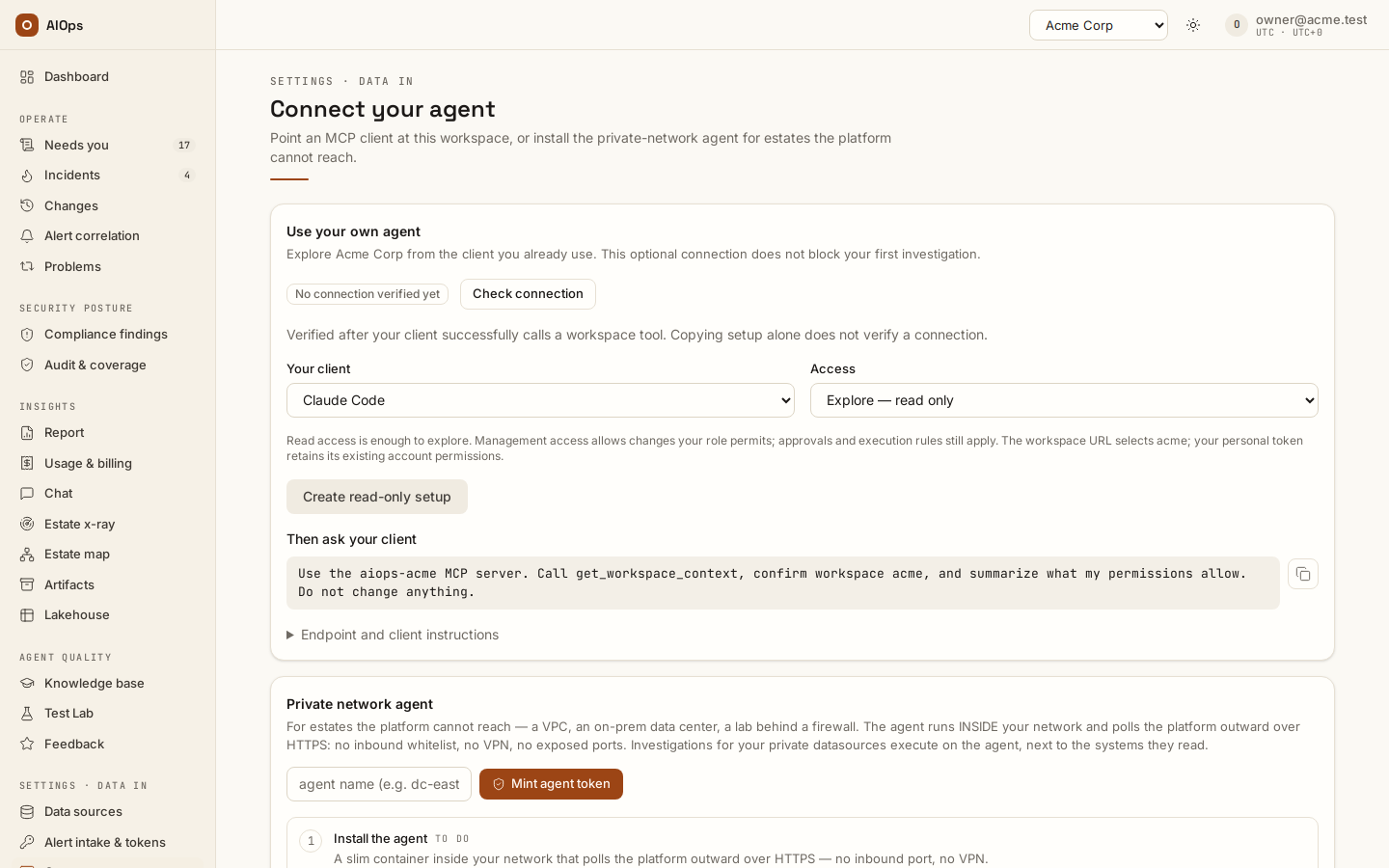
Watch: connect your own agent
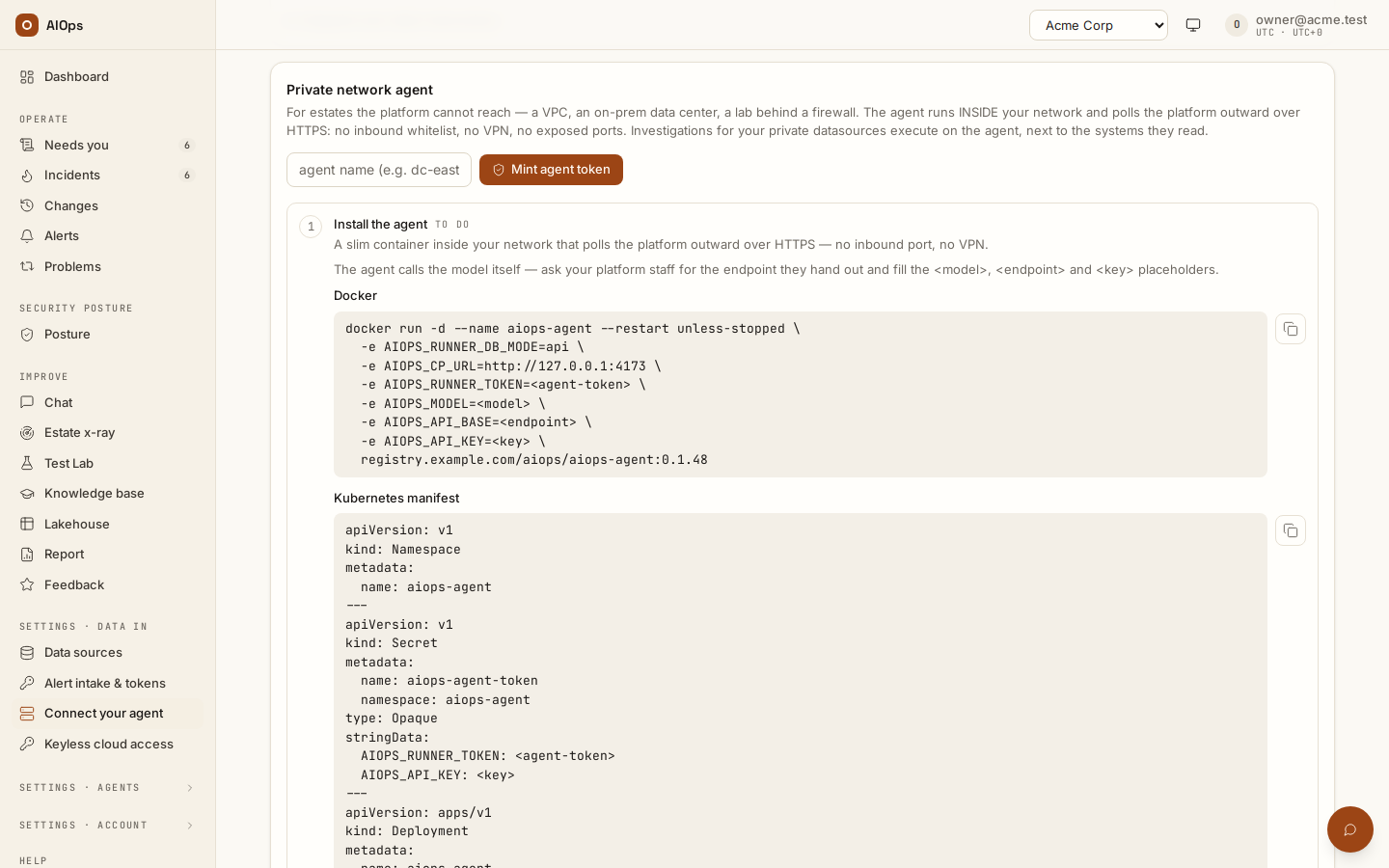
A walkthrough with English narration and synchronized captions: the private-network agent for an estate the platform cannot reach, and the read-only setup that points a client you already use at this workspace. It is a guided tour of those screens, not a click-by-click tutorial; no token value is visible in it. Recorded on the restored portal with sample data; these clips demonstrate the controls and do not prove real-cloud operation.
Video: Connect your own agent and the private-network agent — Watch (1 min) · Captions
Recorded 16 Sep 2026 on 0.1.74 — the page has changed since; see Connect a private network.
Endpoint and authentication
Use Connect your agent (in the product: /portal/connect/agent) to copy the address
for the selected workspace. The endpoint is on the API host and uses
streamable HTTP:
https://aiops.example.com/mcp/aiops?workspace=acme
Authorization: Bearer <your-personal-token>
The workspace selector binds calls to this workspace. Your personal token
retains its account permissions and scope ceiling; the URL does not create a
workspace-restricted token. Existing clients may continue using the unbound
/mcp/aiops endpoint. Both forms work with or without a trailing slash.
Your workspace role and token scope are checked for each call. Seeing a tool in the catalog does not grant permission to use it.
Add it to an MCP client
- Open Settings · Data in → Connect your agent and find Use your own agent. This connection is optional; your first investigation can proceed without it.
- Choose Claude Code, Cursor, or Codex. Keep Explore — read only for initial use. Manage — within my role creates a write token, still subject to your role, approvals and execution rules. Exploration does not require an admin token.
- Select Create read-only setup, then copy the complete client setup. It includes the current workspace URL and a new personal token. Place it in your personal client configuration, outside shared repositories. The raw token is shown only during this visit; leaving or switching workspace clears it. Existing tokens can be revoked in API tokens.
- Ask your client to call
get_workspace_context, confirm the workspace, and describe your current permissions without making changes. - Connection verified appears after a successful external workspace-tool call. Check connection refreshes this evidence. Creating a token, copying setup, and checking status do not verify the connection. The last call is historical evidence, not a live-session indicator.
The client-specific formats come from their official documentation:
| Client | Personal setup | Reference |
|---|---|---|
| Claude Code | One claude mcp add --transport http --scope user command with URL and bearer header |
Claude Code MCP |
| Cursor | Merge the generated mcpServers entry with url and headers into ~/.cursor/mcp.json |
Cursor MCP |
| Codex | Add the generated mcp_servers table with url and http_headers to ~/.codex/config.toml |
MCP configuration |
For another streamable HTTP client, expand Endpoint and client instructions and supply the URL and bearer token using that client's configuration format. The portal does not overwrite existing client configuration or change the client's approval settings.
Choose the operation you need
The MCP operation reference lists every named tool and its REST operation. The server advertises the current argument schema. Common starting points are:
| Task | Start with | Read the result with |
|---|---|---|
| Workspace overview | get_workspace_context, list_incidents |
get_incident, get_investigation |
| Connect and verify a source | create_datasource, test_datasource |
list_datasources, onboarding_status |
| Scan and review your estate | launch_xray |
get_xray_scan, then adopt_xray_context |
| Discuss an incident or scan | chat_ask with body.context |
get_chat_session |
| Review and release a fix | preview_remediation, then remediate_incident |
get_incident, the returned change record |
| Learn a reviewed runbook | list_proposals, edit_proposal, approve_proposal |
get_proposal, list_knowledge |
| Evaluate a model | upload_dataset, run_dataset |
get_benchmark, compare_benchmark |
Results contain status, the canonical API result in data, and relevant pagination/download headers. A job-start response is not a completed job: read its durable result before reporting success.
Request bodies and uploads
Path/query arguments stay at the top level. Structured request-body fields are normally nested inside body; follow the advertised schema for each operation:
{
  "name": "patch_datasource",
  "arguments": {
    "ds_id": "CONNECTION_ID",
    "body": {"description": "Production metrics"}
  }
}
Omit a PATCH field to keep it. Send null only when the API supports clearing that field. On a workspace-bound URL, tenant is supplied automatically; on an unbound URL, pass a workspace ID or slug when your membership is ambiguous.
Uploads use file: {"filename": "cases.json", "content_base64": "..."}. The transport accepts up to 16 MiB decoded; endpoint limits still apply, including the 5 MiB Discovery attachment limit. Local file paths are not accepted.
Review an incident and apply a fix
- Ask your client to list incidents and open one with
get_incident. - Read the recommended fix and its separate verification steps.
- With a write or admin token, call
preview_remediationwith theincident_id. Read the review fromdataand show its exact payload, target and connection to the person deciding; a legacy route review also identifies its route. - If they approve that exact change and your role permits release, call
remediate_incidentwithincident_idandbody: {"review_digest": "DIGEST_FROM_PREVIEW"}, using the preview'sdata.digest. Include the samebody.selected_connectionsif you selected connections during the preview. - Read the result and change record. A closed window or missing second approval prevents execution. A stale digest requires a new review. An opened GitOps pull request still needs to land before recovery can be verified.
A prepared incident plan uses validated execution steps and a compatible write connection without a pre-created route. A route-based plan still needs an enabled matching route. Missing access or evidence never authorizes a guessed write; follow the review's setup guidance or the evidenced manual fix.
Decide a pending tool approval
list_pending_approvals returns operational approvals with their id, investigation_id, exact invocation and quorum state. A caller with approvals.decide and a write token may decide one or more approvals from the same investigation:
{
  "name": "decide_approvals",
  "arguments": {
    "inv_id": "INVESTIGATION_ID",
    "body": [{
      "approval_id": "APPROVAL_ID",
      "decision": "approved",
      "feedback": "Reviewed the exact operation and target."
    }]
  }
}
Use denied with a reason to stop the proposed operation. Use edited with edited_command only when the approval is editable. A second distinct approver may still be required; read the returned decision instead of assuming the first approval released the action.
Outbound incident notifications do not fire at the approval gate. An external paging system can poll list_pending_approvals with a read token. The same data is available from GET /api/aiops/{tenant_id}/pending-approvals.
Launch a scan or query the lake
For Discovery, call launch_xray with body: {"datasource_ids": ["READ_CONNECTION_ID"], "budget_usd": 2} and then poll get_xray_scan. The budget must fit your platform ceiling. Write-role connections cannot be scanned. Review the evidence before adopting context; other recommendations remain drafts until explicitly enabled.
For the lakehouse, call lake_query with body: {"sql": "SELECT count(*) FROM logs"}. The lakehouse feature and datasources.view permission are required. Only the read-only SQL surface is available; writes and filesystem/external access are rejected.
Compatibility with earlier clients
Useful previous tool names remain as aliases, with current advertised schemas. Request bodies now use the REST-shaped body object, chat returns a session to poll, datasource tests include native credentials/private-agent verification, and deletion preserves historical evidence. Replace the old ambiguous upsert_datasource_type call with either create_datasource_type or patch_datasource_type.
Troubleshooting
| Symptom | What it means | What to do |
|---|---|---|
401 unauthorized: send 'Authorization: Bearer <token>' from MCP |
no bearer, or an expired, revoked or unknown token | mint a fresh token; check the header actually reaches the server through your proxy |
token scope 'read' is insufficient — this tool needs 'write' |
the tool mutates; your token was minted read |
mint a write token — scope cannot be edited |
pass tenant=<slug> — 0 tenants are visible to you |
the token resolves to a user with no membership | add the account to the tenant, or use an account that is a member |
pass tenant=<slug> — 3 tenants are visible to you |
you belong to several tenants, so the default cannot be inferred | pass tenant explicitly on every call |
| Feature unavailable in an older client | Old grant/terms UI, wrong workspace or missing permission | Refresh/update the client; verify the workspace is enabled and inspect your role permissions. All features are included. |
409 would exceed the max 4 concurrent scans |
the tenant's x-ray concurrency cap | wait, or cancel_xray a running scan |
400 budget_usd exceeds the per-scan ceiling |
you asked for more than the platform allows per scan | lower the budget, or ask your operator to raise AIOPS_XRAY_MAX_COST_USD |
Next steps
- MCP operation reference — every tool with its REST operation, request body and permission.
- Video transcript: connect your own agent — the film above, as text.
- Connect a private network — the private-network agent the Connect your agent page also sets up.