Customers and workspaces
Customer organizations and their separate workspaces, explicit assignments, Test Labs, staff support access, runtime configuration and workspace suspension.
Reference · Updated 2026-10-27 · Describes release 0.1.164
What this chapter is for
The operations console at /ops is the platform-staff surface. Customers lists actual customer organizations. Workspaces lists the isolated environments that hold members, connections and operational records. One customer may have several workspaces, and a workspace may be unassigned.
Incidents, investigations, knowledge, telemetry and chat stay behind each workspace's membership boundary. This chapter covers organizations, workspace assignment, configuration, SSO, staff support access and the runner plane. A customer row does not indicate a paid subscription or payment status.
The Connector catalog, Platform defaults, Users, Audit log, the model-tier fallback chain and the admin MCP server are in the next chapter of this guide, Platform configuration. Nothing in this console points the deployment at a model provider; until one is configured the whole platform runs on the deterministic mock model, which is why a fresh install produces canned reports and $0 costs.
Chapters written for your customers ship in a different bundle, served at /portal/docs inside the tenant portal. This chapter names them in bold — Access and audit, Datasources, Integrations — rather than linking, because a link from this console would not resolve there. Cross-references inside this guide are named the same way, for the same reason.
Setting names on this page. Settings named here (
AIOPS_EXEC_MODE,AIOPS_KEYCLOAK_ADMIN_URL,AIOPS_RUNNER_TOKEN, …) are the variable names the process reads. The shipped Compose stack and Helm chart also fill some of them from their own keys in.env/values.yaml(for exampleSECRET_KEYandaiops.execMode). On a hand-rolled deployment you must set the full name, or the setting is silently ignored and keeps its default.
Who can open the platform console
The console requires a superadmin account. Any other account that loads /ops sees "This console is for platform staff" and a Go to the portal button. A signed-out visitor is bounced to /login first.
Superadmin is a platform role, not a tenant role. It grants cross-tenant configuration and aggregate reads; it grants no tenant content access at all. That distinction is the subject of The staff data boundary below.
The platform navigation separates Overview (in the product: /ops/), Customers (in the product: /ops/customers) and Workspaces (in the product: /ops/workspaces). Customer details use /ops/customers/<group-id>; workspace details use /ops/workspaces/<tenant-id>. Existing /ops/groups and /ops/tenants/<tenant-id> links remain compatibility aliases. Users, Billing, configuration pages and the documentation remain separate destinations.
Users is the account register for the whole deployment — local accounts are created there with New user, SSO accounts appear on their first login, and disabling an account stops it authenticating on its next request. This chapter uses it as a prerequisite; its own controls are documented in Platform configuration.
Concepts
Customer organization (Group)
A TenantGroup is the customer organization. It may contain no workspaces, one workspace or several. Its name is an explicit configuration record; matching names, slugs, domains or cloud-account labels never create an organization assignment automatically.
Organization administrators can create, rename and manage members of their organization's workspaces through the organization management APIs. An organization role alone does not grant access to workspace content; that still needs workspace membership.
Workspace (Tenant)
A tenant is the isolation unit: its own members, roles, datasources, agents, incidents, knowledge, lakehouse store and audit trail. Creating one from this console seeds the seven pillar agents (all enabled, none scheduled), the five builtin roles — owner, operator, approver, viewer, executive — and the builtin skill pack of 28 investigation runbooks, so an agent is functional the moment a datasource is connected.
The UI calls this record a workspace; APIs and configuration retain tenant_id and other tenant terminology. Unassigned means its direct organization link is empty, not that it belongs to an inferred customer or lacks an owner.
Test Lab and its parent
A Test Lab is also a workspace. Its protected parent link supplies the Lab of relationship and governs inherited membership. The direct customer organization is shown separately. An older lab may be unassigned even when its parent belongs to a customer; opening these pages does not regroup it. Lab identification uses that stored relationship, not a -lab name suffix.
The staff data boundary
Authorization for tenant data resolves through one function with no superadmin branch. If you have no membership row for a tenant, every tenant-scoped read returns 404 tenant not found — not 403, because the platform will not confirm to a non-member that the tenant exists. If you are a member but lack the specific permission, you get 403 requires permission '<key>' on this tenant.
Break-glass is explicit: a superadmin can self-grant an expiring operator membership from the workspace detail page. The grant is written to the audit log, appears as a support badge on the customer's own Members & roles page, expires automatically (24 hours by default) and can be revoked by the customer at any time.
Feature availability
All enabled tenants and workspaces include every product feature. Platform staff do not grant or revoke features, and owners do not accept feature terms. Role permissions, workspace suspension, operational settings and actual runtime/connection prerequisites still apply. Historical grant and agreement records do not control current availability.
The runner plane in brief
Agent work — investigations and estate x-ray scans — executes either inside the control plane (embedded) or in a separate per-tenant runner process (remote). The queue is the database: a committed investigation or scan row is the job, taken by writing a claim on it. That is why the console can report runner health from the same rows the platform itself acts on, with no agent-side telemetry to trust.
What the Overview page shows
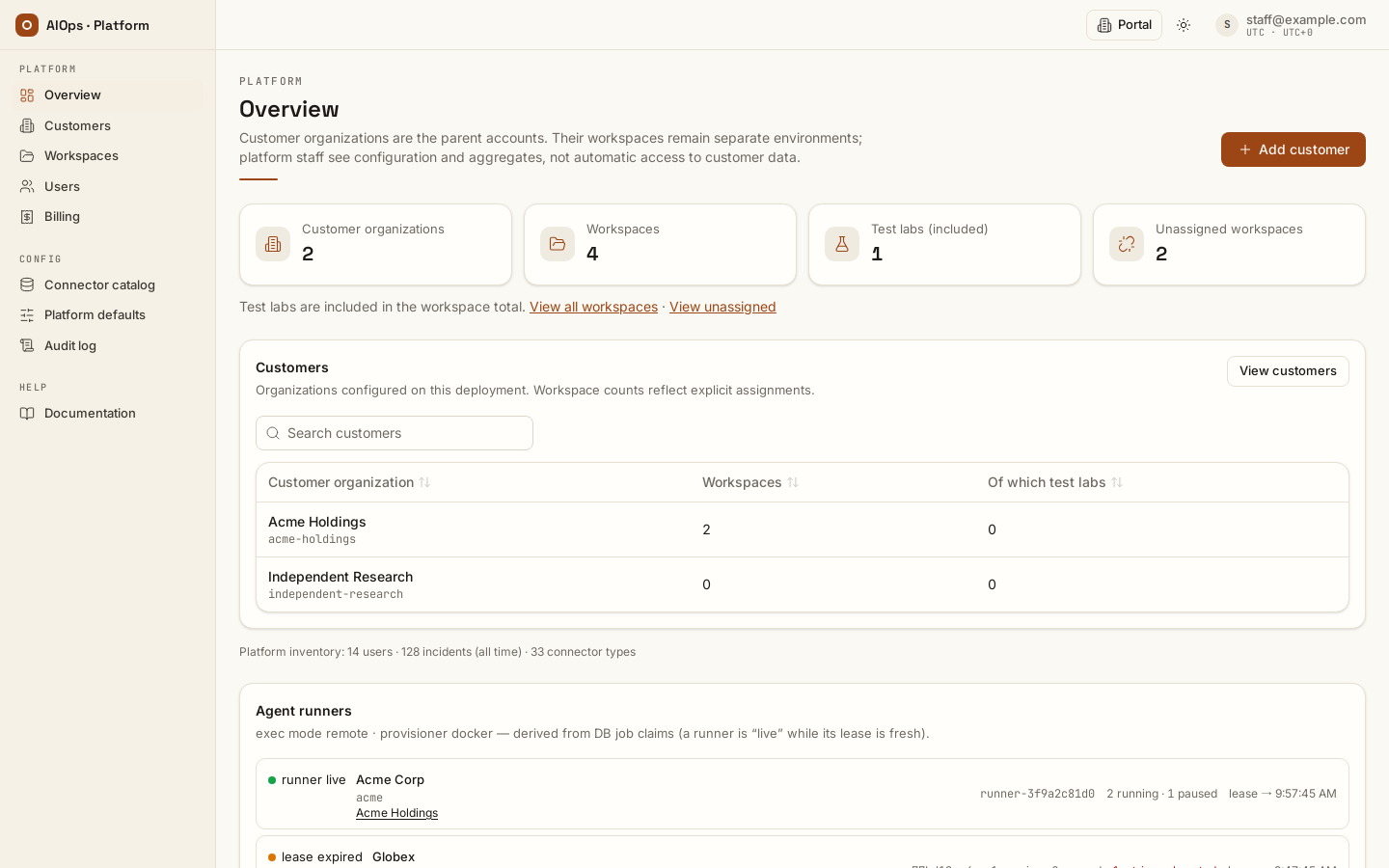
Platform counters
| Card | Meaning |
|---|---|
| Customer organizations | Actual organization records, including organizations with no workspaces. |
| Workspaces | All Tenant rows, active and disabled, including Test Labs. |
| Test labs (included) | The subset of workspaces with a stored lab-parent marker; not additional customers. |
| Unassigned workspaces | Workspaces whose direct customer link is empty, including any unassigned labs. |
Under the cards, View all workspaces and View unassigned open the workspace inventory. The Customers table lists each organization with its assigned workspaces and how many of them are test labs. Below it, one Platform inventory line counts:
- users — every account row: local, SSO-provisioned, platform staff and disabled accounts alike;
- incidents (all time) — incident rows across all tenants, a volume signal only, never titles or content; it goes down when a workspace's retention sweep removes resolved incidents;
- connector types — entries in the global datasource-type catalog, including types that are currently disabled.
Customers and the workspace table
Open Customers for organization rows and their assigned workspaces. Open Workspaces for the complete workspace inventory. The workspace total includes labs; a customer's workspace count includes only rows explicitly assigned to that organization.
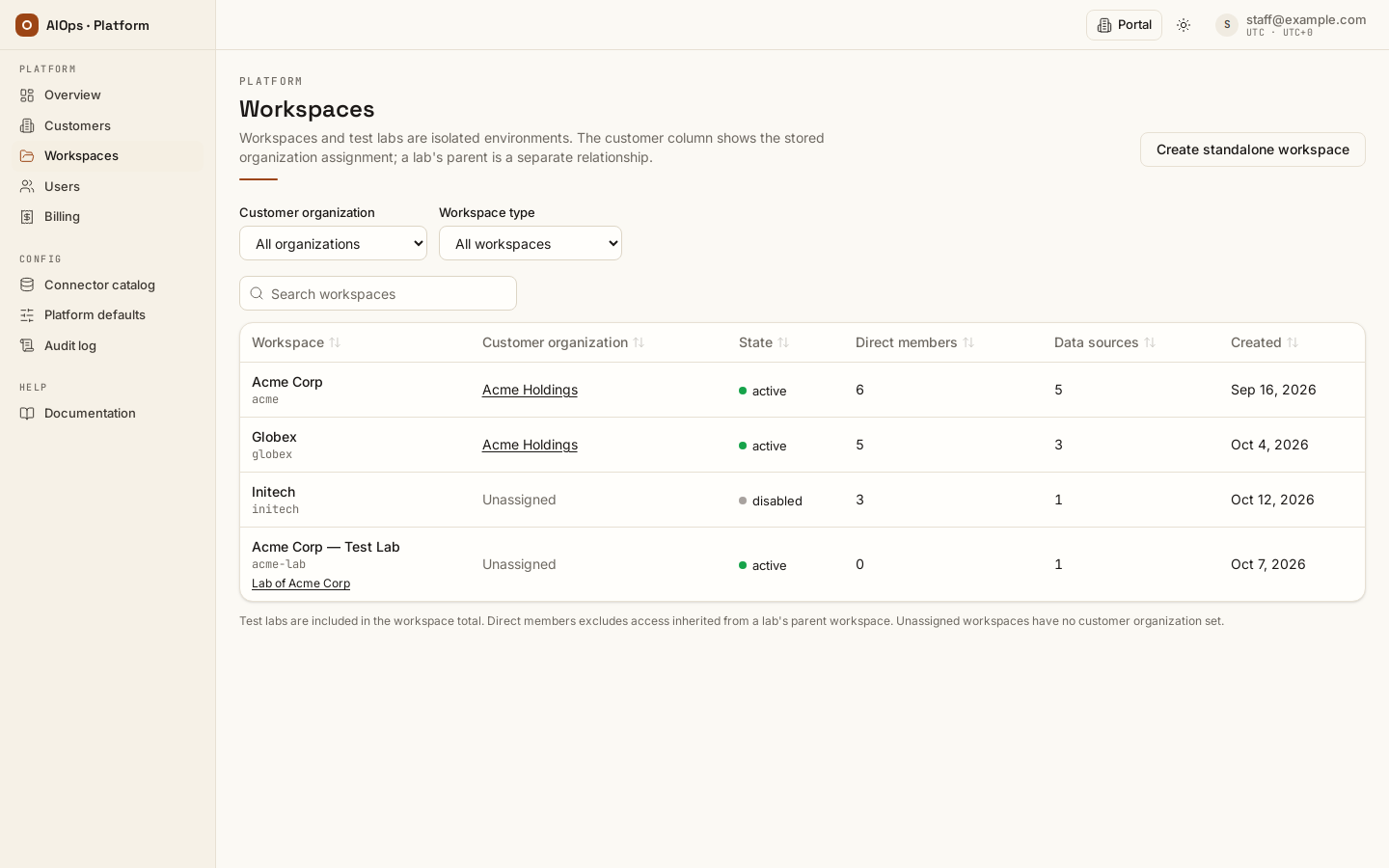
| Column | Meaning |
|---|---|
| Workspace | Display name over the slug. The slug appears in webhook URLs and the Keycloak realm name. A Test Lab adds a Lab of link to its parent workspace — a separate relationship that does not substitute the parent's customer assignment. |
| Customer organization | The workspace's direct organization, or Unassigned. |
| State | active or disabled. A disabled tenant fails closed everywhere (see Suspend a workspace). |
| Direct members | Count of membership rows, including live support grants; a grant whose expiry has passed is not counted. Access a lab inherits from its parent workspace is not counted. |
| Data sources | Count of connected datasources. The count only — never names, endpoints or credentials. |
| Created | Tenant creation date. |
Search or filter the workspace inventory, then open a workspace to inspect its configuration. Disabled workspaces remain part of the inventory. The page does not assign, unassign or create records just because you opened it.
Agent runners
The Agent runners panel sits at the bottom of the same page. It is derived entirely from database job claims, and it refreshes itself every 15 seconds. Its header states the deployment's exec mode and, when set, the provisioner — both are deployment-wide, not per tenant. Every tenant gets a row, including disabled ones. Each row shows:
- A state badge:
runner live(a claim exists and its lease is still fresh),lease expired(a claim exists but its lease has run out), orno claims(nothing running). - The claiming runner ids, when there are any. A control-plane-embedded claim is named
embedded-…; a database-mode runner process claims asrunner-<slug>-…; a runner working through the control plane's internal API claims asrunner-<slug>-tok…, one identity per token. Anembeddeddeployment therefore also showsrunner livewhile a job is executing. N running · M paused— active investigations and scans, and those stopped at the approval gate.- The freshest lease expiry time across that tenant's claims.
Why paused normally reads 0. On the shipped default, AIOPS_DIAGNOSIS_WRITES=deny, a write an agent proposes mid-diagnosis is refused and the refusal is fed back to it: the run keeps investigating with read-only tools and puts the action into its final remediation plan, which is the one thing a human approves. Nothing stops mid-run, so no new run adds to the paused counter. It only climbs on a deployment switched to AIOPS_DIAGNOSIS_WRITES=pause, the legacy mid-run stop. Either way, no write reaches a customer's estate without a named human deciding it. A non-zero paused on a deny deployment is a historic pause: it resumes the moment someone approves or rejects its approval, an approval nobody decides is denied after 24 hours by default (AIOPS_APPROVAL_TTL_S) and its run fails, and a run left paused with no pending approval stays until a person stops it (see Troubleshooting).
The N retries exhausted line. The panel adds that line, in red, when a tenant has failed investigations or scans that had used their last attempt (AIOPS_JOB_MAX_ATTEMPTS, default 3). A job uses another attempt each time it is picked up again after its runner died or the control plane restarted; when none is left it is failed with an error ending in retries exhausted. The count has no time window, so a job that ran out of attempts long ago still counts.
Create a customer organization
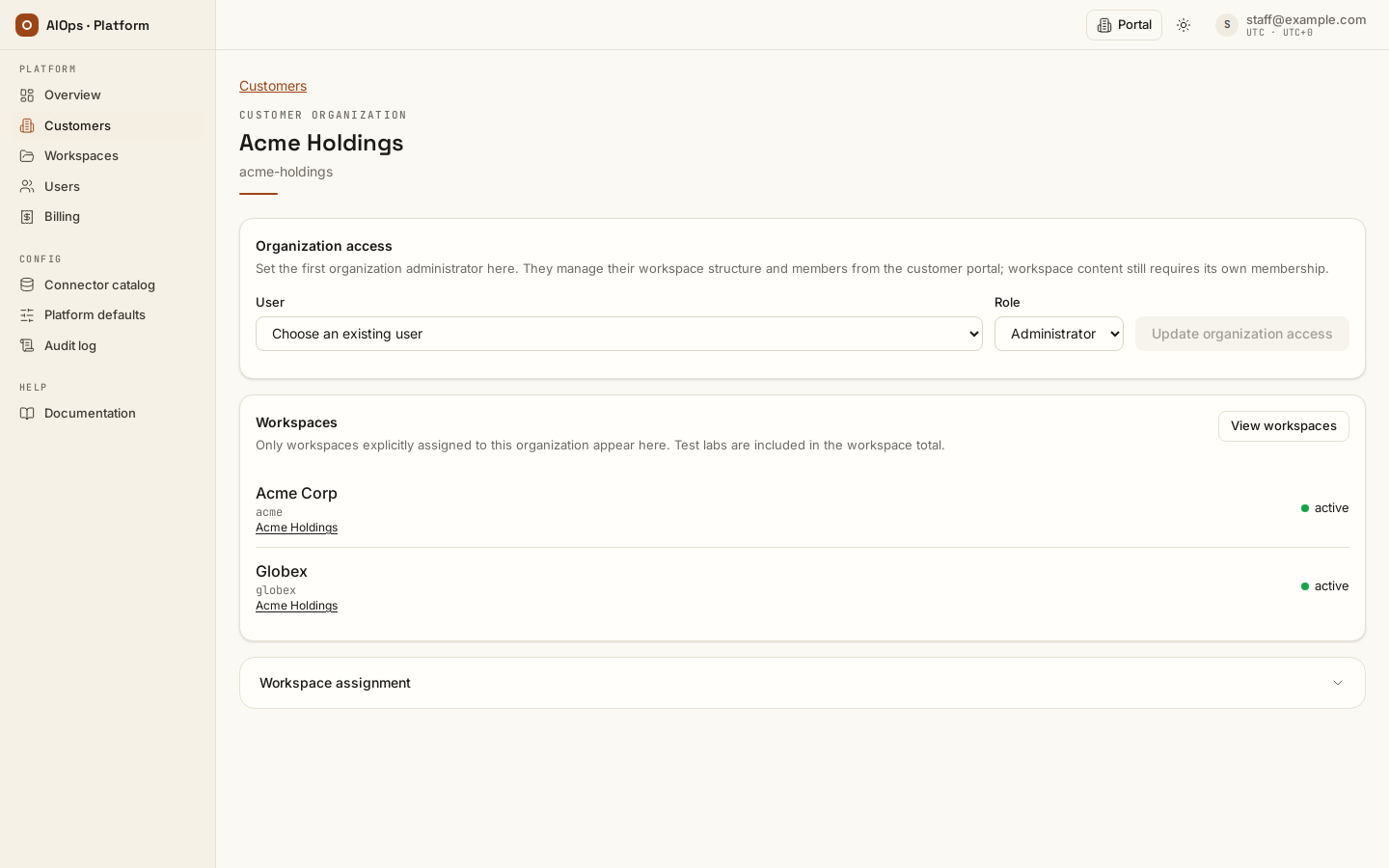
Open Customers (in the product: /ops/customers), select Add customer, and fill Customer name and Slug in Create customer organization. Select Create customer to save the organization. This creates only the organization record; it does not create a workspace, owner membership, cloud resource or billing agreement.
Open that customer's detail to see its explicitly assigned workspaces. Bootstrap its first administrator explicitly: in Organization access, select the intended existing User, choose Role → Administrator, and select Update organization access. Creating the organization does not create this membership. An organization administrator manages its workspace structure and membership; an organization role alone does not grant access to existing operational content. A superadmin account cannot hold an organization role (the update answers 422): an organization administrator can seat itself in any of the organization's workspaces, so staff reach workspaces only through support access. Known limit of this bootstrap: a local account created under Users keeps the password staff chose until the person changes it or a reset link (POST /users/{user_id}/reset-link) replaces it, so prefer an account the customer activated themselves (an SSO identity, or an invite the customer's own owner sent) and send the reset link right after seating a staff-created one. The seat is recorded in the platform log and in the audit chain of every workspace of the organization (group.member_set, via: platform_staff).
API (superadmin; a personal access token needs the admin scope): POST /api/aiops/admin/groups with {"name": "Example Org", "slug": "example-org"} creates the organization and returns its id; PUT /api/aiops/admin/groups/{group_id}/members/{user_id} with {"role": "admin"} (Administrator; "member" for Member) sets Organization access.
Customer self-service workspaces
After the first organization administrator is assigned, hand over Workspaces in the customer portal (in the product: /portal/organization). The customer decides how to divide applications, teams and environments; staff do not need to create every workspace.
- The customer administrator opens Workspaces at
/portal/organization. If more than one organization is available, select the intended Account. - Under New workspace, enter Name and Slug, then select Create workspace.
- The new workspace is directly assigned to that organization, and the creator receives its
ownermembership. - Select Open workspace and connect data to open the setup checklist.
- Use each workspace's Members controls — Email, Role, Add / set — to assign existing accounts. Rename changes the display name, and Scope tags describes the workspace's intended resource slice.
An organization administrator can manage its workspaces even before owning an existing workspace. Creating one is an explicit customer action; visiting the organization page creates nothing.
Create and assign a workspace (staff-assisted)
This is the optional staff-assisted path. The normal hand-off is organization administration followed by customer self-service above. For the complete account and hand-off sequence, see Set up your first customer.
Before you start: the owner account
The owner email is required, and its account must already exist. Create it under Users with New user, or have the person sign in through the configured SSO issuer. Workspace creation links that existing account; it sends no invitation email.
Everyone after the owner joins by invitation from the portal: Members & roles → Invite member. An email with no account gets a passwordless pending account and a one-time link to set a password — emailed when an SMTP relay is configured, copied and sent by hand otherwise. The member row shows a pending badge until the link is used; Reissue link mints a fresh one (the old link dies) and Revoke invite burns it while keeping the membership.
Procedure: create and assign the workspace
- Open Workspaces (in the product:
/ops/workspaces). Requires: superadmin. - Select Create standalone workspace.
- Enter Workspace name and Slug. The workspace slug is its stable identity in webhook URLs and other integration paths; it is separate from the organization's slug.
- Enter Owner email (required) for the intended existing account. If the account does not exist, creation is refused.
- Select Create workspace.
- Confirm that the workspace detail shows its owner and that its customer is Unassigned.
- To associate it with a customer, open the customer detail, expand Workspace assignment, select the exact workspace and confirm Assign workspace. Check the resulting customer label on the workspace. API:
PUT /api/aiops/admin/groups/{group_id}/tenants/{tenant_id}with{}assigns it (or moves it from another organization);DELETEon the same path unassigns it.
The workspace receives the seven pillar agents, builtin roles and skill pack. Creation and owner membership are audited. The owner email cannot be left out: platform staff get no data access, so a workspace with no member would be unreachable. An ordinary operator support grant does not include member management either.
Assignment is an explicit administrative action
Assign workspace can move an already assigned workspace to a different customer organization. Unassign clears its direct organization link. Both preserve the workspace ID, direct memberships, datasources and history. They change which organization's administrators may manage its configuration and members; they do not automatically grant workspace-content access.
A Test Lab's parent link remains separate. Assigning the parent does not automatically move an existing lab, and assigning a lab does not change its parent. Review the direct Customer organization and Lab of information independently. No assignment is inferred from names or performed on page load.
What the workspace detail page shows
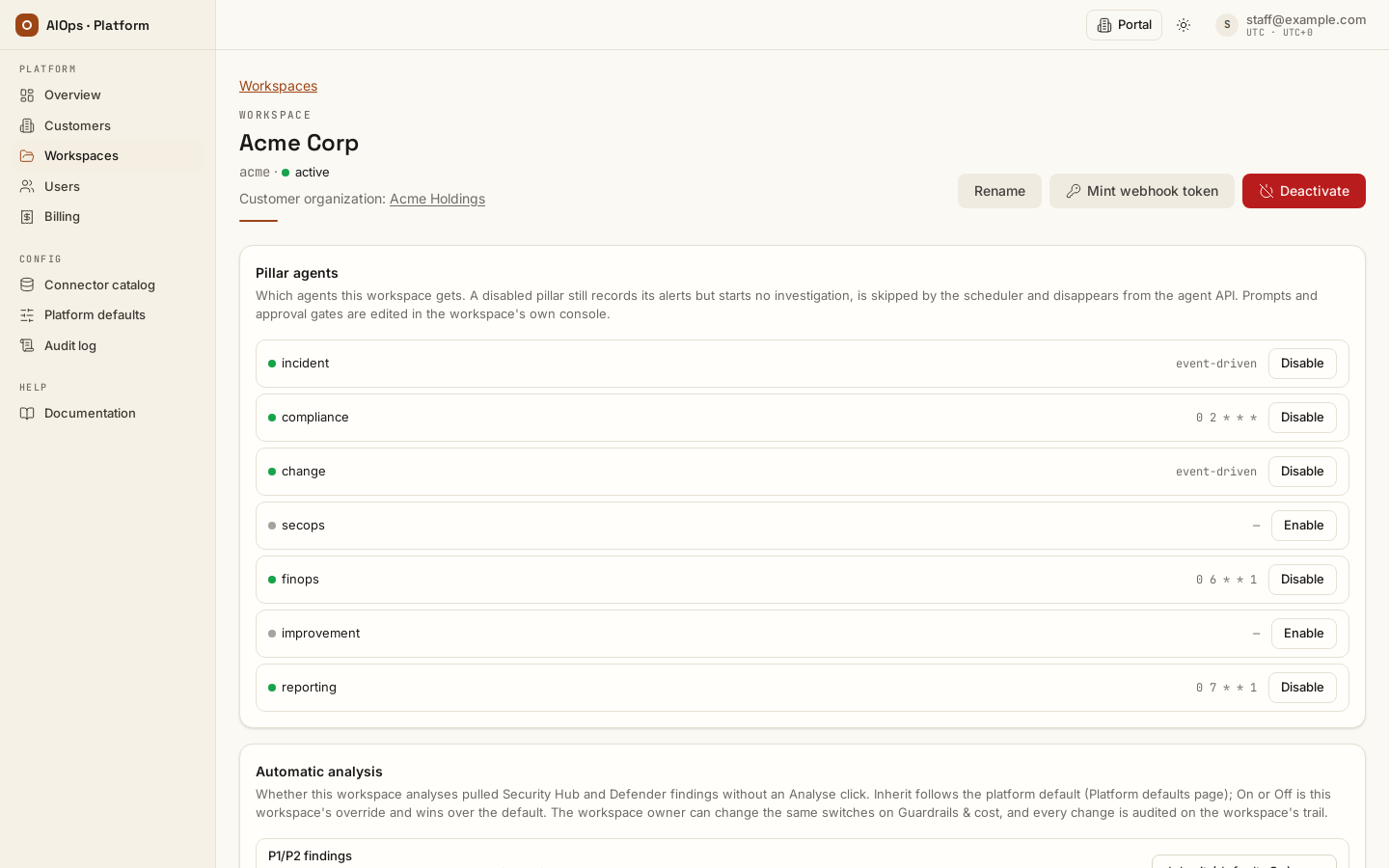
Open /ops/workspaces/<tenant-id>. The header carries the workspace name, slug and state, its direct customer organization or Unassigned, and a separate Lab of link for a lab. Webhook-token and other operational actions remain workspace-scoped. The settings cards follow the header. A newly minted one-time secret appears above them with its own Dismiss button.
| Card | What it holds |
|---|---|
| Pillar agents | The seven agents with their enabled state and either a cron expression, event-driven (enabled, no cron) or — (disabled, no cron). The row action is Enable or Disable — which agents a tenant gets is a provisioning decision, so it is yours. Personas, prompts, model overrides, schedules and approval gates belong to the tenant and are edited on their own Agents page. Each toggle is audited on the customer's trail (pillar.update, via: platform_console), so they can see who changed their roster. |
| Automatic analysis | The workspace's two switches for pulled Security Hub and Defender findings: P1/P2 findings (analyse a newly pulled finding at P1 or P2 without an Analyse click) and Backlog catch-up (also analyse already-held P1/P2 findings, oldest first, 3 per workspace per minute, one run each). Each row shows the value in force and the platform default, and a select: Inherit follows the default you set on Platform defaults; On or Off is this workspace's override, which wins over the default. A change saves at once (PATCH /api/aiops/admin/tenants/{id} with settings, which takes only these two keys, each true, false or null) and is audited on the customer's trail (guardrails.updated, via: platform_console). The owner sees and can change the same switches on Guardrails & cost. |
| Staff data access | The break-glass control, plus a plain statement of the boundary: tenant data needs a membership, superadmin is not enough. While a grant is live the card shows a SUPPORT ACTIVE badge, the expiry timestamp and Revoke my support access. |
| SSO realm (Keycloak) | Either the tenant's configured identity provider (enabled/disabled badge, issuer, claimed email domains) or the one-click provisioning form. There is no remove control here: only the tenant can remove their own identity provider. |
| Runner tokens | Tenant-scoped credentials for a remote runner, with a name field and Mint token in the card header, and a table of existing tokens. A tenant with none shows "No runner tokens". |
| Members | Three columns — Member (display name over email), Role (role badge plus a support badge for break-glass rows) and Expires (a timestamp for grants that expire, — for permanent members). The card's description line repeats the tenant's SSO issuer and claimed domains, or "No tenant SSO configured." Read-only: membership is managed by the customer. |
The Members card lists direct workspace membership rows and support-grant expiry. A lab can also inherit membership from its parent, so review the Lab of workspace when checking lab access. Staff cannot edit membership from this card.
Included features
Estate x-ray, Lakehouse, Test Lab and custom model endpoints are available by default. Configure the needed sources, models and lab environment through their normal pages. Do not use historical grant or agreement records as an access switch.
Previously configured model endpoints and enabled collection specifications can run once their other prerequisites hold, even if an old feature grant was revoked. Use their operational settings or the workspace's agent pause controls to stop work. The availability change does not seed collection specs, enable auto-remediation or provision cloud resources.
A Test Lab uses its isolated workspace so injected faults do not enter production statistics. It retains inherited membership and model configuration, with its own lab budget and isolation rules. Provisioning a lab estate remains a separate reviewed operation against a disposable cluster.
Provision a Keycloak realm
One click creates a dedicated realm so the customer can federate their own identity provider (Entra ID, Google, SAML) themselves. Their directory credentials never reach this platform.
Before you start
The card shows "Not configured" unless AIOPS_KEYCLOAK_ADMIN_URL is set on the deployment; the API answers 503 in that state. The platform also needs AIOPS_KEYCLOAK_ADMIN_USER / AIOPS_KEYCLOAK_ADMIN_PASSWORD for the master-realm admin login, and AIOPS_APP_PUBLIC_URL set to the URL the customer's browser uses for this platform — that value becomes the client's redirect URI, and a wrong one produces a realm that provisions cleanly but cannot complete a login.
Procedure: provision the realm
- Open the tenant's detail page. Requires: superadmin.
- In SSO realm (Keycloak), enter the customer's login domains in Email domains (comma-separated), for example
example.com, example.net. At least one is required. - Enter the customer's IT contact in Realm-admin email. It must contain an
@; the console blocks the confirm dialog otherwise. - Select Provision realm, then confirm with Provision realm in the dialog.
You should see a one-time card titled "Keycloak realm provisioned", carrying the realm-admin login, the temporary password and the issuer, with an Open realm console link and a Dismiss button. Copy the credentials before leaving the page; they are not retrievable. The client secret goes straight into the tenant secret store, write-only, and is never read back from Keycloak.
What gets created
- A realm named
aiops-<slug>, with e-mail login allowed and self-registration off. - A confidential
aiops-portalclient with agroupsclaim mapper and a redirect URI of<AIOPS_APP_PUBLIC_URL>/oidc/callback. - Four SSO groups —
aiops-operators,aiops-approvers,aiops-viewers,aiops-executives— mapping to theoperator,approver,viewerandexecutiveroles. There is deliberately no owners group: SSO can never mintmembers.manage, and that rule is enforced again at role edit and at login. - A realm-admin user whose username is literally
realm-admin(the address you typed becomes that account's email) and whose administrative rights are therealm-adminclient role of that realm'srealm-managementclient — never the master realm — with a password change forced at first login. - The tenant's identity-provider row, wired and enabled, with member auto-provisioning at first login and a default role of
viewerfor anyone who lands in none of the four groups.
The issuer the platform records comes from AIOPS_KEYCLOAK_PUBLIC_URL when set, falling back to the admin URL. Set it whenever the browser reaches Keycloak on a different hostname than the control plane does — the issuer string must be the one the browser sees.
If the database write after provisioning fails — including a domain claimed by another tenant during the Keycloak round-trip — the realm is torn down again and the stored secret deleted, so a retry is clean. An existing identity provider, provisioned or hand-configured, is never silently overwritten: the tenant must remove theirs first.
Staff support access (break-glass)
Grant yourself support access
- Open the tenant's detail page. Requires: superadmin, and
AIOPS_STAFF_SELF_SUPPORTenabled on the deployment (it is on by default). - In Staff data access, select Grant myself support access (24h, audited).
- Read the consequence text and confirm with Grant support access.
- Open
/portaland switch to the tenant. You now hold theoperatorpermission set. - When finished, return to the workspace detail page and select Revoke my support access, then Revoke access.
You should see a SUPPORT ACTIVE badge with an expiry timestamp on the Staff data access card, your own row appear in Members with a support badge, and the tenant's own portal show the same badge on their Members & roles page. Two audit rows are written: support.granted and, on step 5, support.revoked.
What the grant is, and is not
The grant is an ordinary membership row marked as support, with an expiry (AIOPS_SUPPORT_ACCESS_TTL_S, default 86400 seconds). It is visible to the customer, and anyone with members.manage in that tenant can revoke it without asking you. If the deployment disables staff self-support, the card says so and the only route in is the tenant owner adding you as a member; the API answers 403 in that state.
Support access gives operator, not owner: it excludes members.manage, pillars.manage and approvals.decide. A support session cannot approve or release a change, change roles, edit approval gates, mint the webhook token or suspend the tenant. The customer's own view of this feature — what the badge means and how to end it — is in the portal guide, Access and audit → Support access.
Never break-glass into a tenant where you hold a real role
A grant is refused when you already hold a real membership: the API answers already a member — support grant not needed, your role is untouched, and the dialog stays open showing that answer; no SUPPORT ACTIVE badge appears.
The runner plane
Embedded and remote
Embedded (AIOPS_EXEC_MODE=embedded, the default) runs agent jobs inside the control-plane process. It is the simplest to operate and needs no extra credentials.
Remote (AIOPS_EXEC_MODE=remote) makes the control plane an enqueuer only. Each tenant gets its own runner process (python -m app.aiops.runner with AIOPS_RUNNER_TENANT=<slug>) that claims work for that tenant alone. Interactive paths — chat turns, benchmark runs and agent-API turns — stay control-plane-side in both modes. Choose remote when:
- Control-plane deployments must not interrupt long-running investigations or x-ray scans.
- One tenant's workload must not compete with another's for CPU, memory or process state.
- A tenant's estate is reachable only from a specific network, so the runner has to live there.
- You want to upgrade the agent runtime and the control plane independently.
With a provisioner configured (AIOPS_RUNNER_PROVISIONER=docker or kubernetes), the control plane reconciles one runner per non-disabled tenant every AIOPS_PROVISION_INTERVAL_S seconds (default 30) and wakes a missing runner immediately when a job is launched, rather than waiting for the next pass. The Kubernetes driver needs the [k8s] extra installed, or the setting fails loudly at startup.
What a control-plane restart does to running work
This is the question that decides whether you run embedded or remote, so it is worth stating exactly.
In embedded mode a restart takes every in-flight job with it. On boot the control plane then recovers them:
| Work in flight | What happens on the next boot |
|---|---|
| Investigation triggered by an alert, a schedule or a manual launch | Attempt counter incremented and the run resumes from its last committed step — the engine commits the full transcript at every step boundary, so nothing is replayed twice. |
The same, with attempts already spent (AIOPS_JOB_MAX_ATTEMPTS, default 3) |
Marked failed with "interrupted by restart (retries exhausted)", and its incident escalated to a human. |
| Estate x-ray scan, mission mode (the default) | Attempt counter incremented and the scan resumes, rehydrating its ledger. |
| Estate x-ray scan with mission mode off, or attempts spent | Marked failed with "interrupted by restart". |
| Chat turn, benchmark run, agent-API turn | Not resumable. These are interactive and simply do not come back. |
| A post-close verification run | Recorded with the verdict uncertain and the summary "verify interrupted by restart". |
| An investigation already stopped at the approval gate | Untouched. It resumes when a human decides it, whenever that is. |
In remote mode the control plane resumes nothing, by design: it is not executing jobs, and runner processes take over their own expired claims. It still cleans up the rows nobody can resume — chat, benchmark and agent-API turns — but a control-plane deploy does not disturb running investigations or scans at all. That is the operator guidance in one line — if deploys must not interrupt customer investigations, run AIOPS_EXEC_MODE=remote with the runner plane.
If a runner itself dies mid-job, its lease expires, the console row shows lease expired, and the next claim resumes the job from its last committed step rather than restarting it, incrementing the attempt counter. Jobs fail only when attempts are spent or the trigger is not resumable.
Runner persistence modes
Two modes exist. The default, AIOPS_RUNNER_DB_MODE=db, gives the runner a direct database connection — process isolation and upgrade decoupling, but the credential itself is not tenant-scoped, and the runner is told which tenant it serves with AIOPS_RUNNER_TENANT.
AIOPS_RUNNER_DB_MODE=api is the hardened form: the runner holds no database credential at all and works entirely through the control plane's internal agent API with its rt_ token, which is also what identifies its tenant — AIOPS_RUNNER_TENANT is not used. It can start with AIOPS_CP_URL and AIOPS_RUNNER_TOKEN alone, and refuses to start without both. Read-only connection probes need no model. Model-requiring jobs fail closed unless a usable model resolves from local configuration or the job's workspace routing. A workspace gateway is sent only when its owner explicitly shares it for agents; its key is resolved separately through a scoped virtual secret reference. AIOPS_MODEL=mock explicitly enables the scripted demo model and warns in the log. Platform-provisioned runners inherit whatever the control plane has set. API mode serves investigations and estate x-ray scans — a scan's ledger, transcript and usage flow over GET /internal/agent/v1/scans/{id} and its checkpoint, and the control plane renders the report, the artifact and the audit row. The claim endpoint hands a scan to an api-mode runner only when the runner asks for the kind explicitly, which is the version handshake: upgrade the runner image before relying on it. Workspace chat runs on private agents once a token created with Answers workspace chat has recorded a heartbeat; revocation or an offline agent does not silently move it back to hosted execution. Only a member with members.manage (the owner) can tick that option, on the portal's agent-token card, and a runner token minted from the ops console never serves chat: a private agent minted by staff or by an operator runs investigations and scans while chat stays on the control plane. Tokens that had connected before the option existed keep serving chat; the owner takes chat away from one by revoking it and minting a replacement without the option, since the flag cannot be cleared on an existing token. Hosted chat and legacy phased x-ray (AIOPS_XRAY_MISSION=false) remain separate paths. Verify the gateway and price card actually used by the selected runtime.
Requests on that internal API are rate-limited per token (AIOPS_INTERNAL_RL_PER_MIN, default 600 requests per minute, sized for one runner). A token driving more than one runner process can trip it and see 429s.
Mint a runner token
- Open the tenant's detail page. Requires: superadmin plus a seat in the tenant with
datasources.manage— a real membership or a live support-access grant (see "Staff support access" above). A runner token resolves the tenant's datasource credentials, so it sits behind the same membership boundary as tenant data; without a seat the mint answers 403. - In Runner tokens, optionally type a name in the New runner-token name field. The greyed
runner-<slug>text is a placeholder, not a value — leaving the field empty makes the server name the tokenrunner-<slug>for you. The nameprovisioneris reserved for the platform's own runners and is refused. - Select Mint token.
- Copy the value from the one-time card and set it as
AIOPS_RUNNER_TOKENon that tenant's runner, together withAIOPS_CP_URLpointing at the control plane. A token alone does nothing. - Select Dismiss.
You should see a new row in the token table with the name you chose, an active badge, a hash prefix and Last seen reading never until the runner first calls the control plane. The mint is audited as runner_token.mint.
Revoke a runner token
Select Revoke on the token's row and confirm with Revoke token. Requires: superadmin. You should see the row's badge change to revoked and its Revoke button disappear. The runner loses access at its next request; revocation is immediate, audited (runner_token.revoke) and cannot be undone. Mint a new token to restore the runner.
Reading the token table
The table shows the token name, a hash prefix (the first eight hex characters of the SHA-256 — never the secret), active/revoked state, last-seen time and creation date. Only the hash is stored, which is why a lost token can only be replaced, never recovered. Raw tokens are prefixed rt_ so they are greppable in a configuration leak.
Last seen only advances when the token is actually used against the control plane's internal agent API — that is, when the runner is forwarding live stream events (AIOPS_CP_URL set) or running database-free (AIOPS_RUNNER_DB_MODE=api), and it is throttled to about one write per minute. A plain database-mode runner never calls that API, so its token can read never while the runner is working perfectly.
Tokens named provisioner are not yours to manage. When a provisioner creates a database-free runner it mints its own token called provisioner, revokes every previous one of that name, and repeats that on every container or pod create. Expect a growing list of revoked provisioner rows; revoking the live one by hand only forces the runner to be re-created.
Rotate a tenant's webhook token
- Open the tenant's detail page. Requires:
pillars.managein that tenant — this endpoint routes through tenant authorization, not the superadmin fence. Superadmin alone returns 404, and a support grant (operator) returns 403. - Select Mint webhook token in the header.
- Copy the value from the one-time card and update every alert source in the same maintenance window. Minting immediately breaks every configured alert source — the previous token stops working with no overlap, and ingest answers 401 until each source is updated.
- Select Dismiss.
You should see a bordered card titled "New webhook token" above the tenant settings. If the mint is refused, a red line in the same place reads Webhook token not minted: <reason>: tenant not found (404: you are not a member, or the workspace is deactivated) or requires permission 'pillars.manage' on this tenant (403: a support grant).
Have the tenant owner rotate it from Alert intake & tokens — the tenant-facing procedure is in the portal guide, Integrations → Create the webhook token. The admin MCP mint_webhook_token tool requires an admin-scope PAT, a superadmin account and membership with pillars.manage in that tenant. It calls the same tenant endpoint; a support grant does not supply this permission.
Suspend a workspace
Select Deactivate in the page header and confirm. Requires: superadmin. It sends PATCH /api/aiops/admin/tenants/{tenant_id} with {"disabled": true}; Activate sends the same call with false.
This is staff-only on purpose: a tenant whose owner suspends it has locked out the only role that could lift the suspension. Earlier versions of this guide described PATCH /api/aiops/{tenant_id} with {"disabled": true} as a tenant-owner action — that body key was silently ignored, so the call reported success and suspended nothing.
What a disabled tenant does — this is the fail-closed behavior worth quoting to a security reviewer:
- Permission resolution returns no access for every member, so all tenant reads become 404 on both the session-cookie and the SSO-bearer paths.
- Webhook ingest returns 401 for every source, with an identical response for a bad slug, a disabled tenant and a bad token, so probing reveals nothing.
- SSO auto-provisioning refuses to create a login into it and the sign-in fails with "sso tenant unavailable".
- Runner tokens for that tenant stop authenticating against the internal agent API — the same 401 as an unknown or revoked token.
- The runner provisioner destroys the tenant's runner on its next reconcile pass.
- Its Test Lab closes with it: the lab's webhook token, runner tokens, managed runner and new agent runs stop exactly as above, and reopen when the parent is activated again. The lab's own row is not changed.
The tenant row, its data and its audit trail are untouched.
Suspension is reversible. Nothing is deleted and the switch is superadmin-owned, so it does not depend on a permission the suspension itself has revoked — select Activate and the customer is back with every row intact. Investigations already running are not killed; the tenant simply stops accepting new work. Scheduled work (pillar crons, verifies, detection polls, synthetic checks, change and scanner harvests, the automatic rollback sweep, lakehouse collections) skips the workspace, and its Test Lab with it, until the workspace is activated again; a failed change keeps its place in the rollback window while the workspace is suspended, so its rollback decision is taken at activation rather than lost. This is the platform's substitute for a delete, which does not exist.
End of contract: export and deletion
Procurement and legal ask this in every enterprise deal, so here is the unhedged answer.
There is no delete-tenant endpoint. A superadmin can suspend and reactivate a tenant in the console. Deleting customer data is a separate database/filesystem operation requiring its own controlled procedure; suspension preserves it.
What the customer can export themselves, before you suspend anything, with a personal access token holding the relevant read permissions:
| Data | How |
|---|---|
| Incidents, alerts, investigations | GET /api/aiops/{tenant_id}/incidents, /alerts, /investigations — paginate with limit and offset. |
| Root cause analysis reports | POST /api/aiops/{tenant_id}/incidents/{incident_id}/rca-export, which writes the report into Artifacts. |
| Artifacts | GET /api/aiops/{tenant_id}/artifacts and /artifacts/{artifact_id}. |
| Audit trail | GET /api/aiops/{tenant_id}/audit — needs report.view. |
| Knowledge, skills, datasource configuration | Their respective list endpoints under /api/aiops/{tenant_id}/. |
Point the customer at the portal guide, Integrations → REST API, and let them pull their own data with their own token — that is a cleaner audit story than a staff export.
What the product can erase on request: the lakehouse only. DELETE /api/aiops/{tenant_id}/lake drops the tenant's whole lakehouse store, and POST /api/aiops/{tenant_id}/lake/erase deletes rows matching a string of at least three characters — including the pseudonym the scrubber wrote in place of it, so erasing a personal e-mail address removes the rows that protected it. Both need members.manage, both are audited (the match string itself is never stored, only a hash of it), and both operate within the enabled workspace and its role permissions. Incidents, investigations and artifacts have no erase path either; closed records — resolved incidents, finished scans, terminal changes, cleared findings, with their runs and artifacts — age out on the workspace's retention window (Guardrails & cost → Data retention in the portal, default one year; the platform default is Platform defaults → Data retention default). The audit trail never does: it is append-only by design.
What remains after suspension: every tenant row in the platform database, including its secret-store entries and its audit trail, plus the tenant's lakehouse directory on the data volume if it was never dropped. The retention sweep keeps removing the tenant's closed records on its window (open records, configuration and the audit trail stay); plan the removal of the rest with whatever data-retention procedure your organization runs against its own database — and tell the customer that is how it works, in writing, before they ask.
What staff cannot see
- Tenant content. No incident titles, no report text, no knowledge bodies, no chat, no telemetry. Aggregate counts only.
- Datasource detail. A count per tenant, never names, endpoints or credentials. Connections are managed by the customer; the tenant-facing chapter is Datasources.
- Per-tenant spend detail. The console's Billing page shows what each tenant cost in a month, by spend class — the same run records the tenant reads on its own Usage & billing page (
/portal/billing) — but not which incidents or people spent it: that detail stays in the tenant's portal. The spend limits (per investigation, per day, per month) are the tenant's own guardrails, not a console control. The Agent runners panel is the platform view of activity, not of billing. - Approvals. No staff surface can decide an agent's proposed write action. That decision belongs to the customer's approvers, next to the full tool trace, on their own incident page.
- Membership editing. The Members card is read-only; staff cannot add, remove or re-role a customer's people from here.
Every one of these is a design decision, not a missing feature. A support ticket that needs tenant data needs an audited, expiring, customer-visible grant — which is exactly the record a customer's own auditor will ask you for.
Use cases
Platform owner onboarding a new customer
Prepares the customer administrator account under Users, adds the organization from Customers, explicitly assigns its first organization administrator, and hands over /portal/organization. The customer then creates and manages its own workspaces. Staff-assisted workspace creation remains optional. All features are already included. The customer connects its own sources and verifies access before running an investigation.
On-call engineer helping with a stuck investigation
The customer reports an agent that has not finished. The engineer checks the Agent runners row for that tenant first — no claims with work queued means no runner is claiming, which is a platform problem, not an agent problem. If the tenant's own data is needed, they select Grant myself support access (24h, audited), work the incident in /portal with operator rights, then select Revoke my support access. The customer saw the SUPPORT badge appear and disappear, and the audit log holds both events.
Compliance officer answering "who can see our data?"
Review direct Members rows, the parent workspace for inherited lab membership, and support-grant expiries. Organization access alone is not workspace-content access; staff without workspace membership receive 404.
Executive reviewing platform footprint
Reads the organization count separately from the workspace inventory, with labs as a subset, and the Agent runners panel for current claims. These are configuration and activity measures, not subscription or payment records.
Troubleshooting
| Symptom | Cause | Fix |
|---|---|---|
slug must be lowercase letters, digits and hyphens (max 41 chars) (400) |
Slug contains uppercase, dots, underscores or is too long. | Use a URL-safe slug; it goes into webhook URLs and realm names. |
slug '<x>' already exists (409) |
Slug taken, possibly by a disabled tenant. | Pick another slug. Slugs are never reused automatically. |
no user with email '<address>' (404) |
The owner account does not exist yet. | Create it under Users with New user, or have them sign in through SSO once, then retry. |
account pending activation in another workspace or this account was activated from another organization's invite link and cannot be added here (409) on Create workspace or Update organization access |
A workspace owner invited this address, so that owner holds its pending link or chose its password; seating it would make that owner this workspace's owner or this organization's administrator. An organization administrator from the inviting workspace's own organization is allowed. | Confirm with the customer who controls the address. If that invite was not theirs, delete the account (DELETE /users/{user_id}; its memberships go with it) and create it again under Users, or have them sign in through SSO. |
| A workspace needs a clearer display name | Its operational name is confusing. | Use Rename on its workspace detail. Renaming does not change its slug, customer assignment or lab parent. |
| Mint webhook token shows Webhook token not minted: tenant not found or …: requires permission 'pillars.manage' on this tenant | 404 (not a member, or the workspace is deactivated) or 403 (a support grant lacks pillars.manage). |
Ask the tenant owner to mint it from Alert intake & tokens. The admin MCP tool retains the same tenant permission requirement. |
| SSO realm (Keycloak) card says "Not configured" | AIOPS_KEYCLOAK_ADMIN_URL is unset on the deployment. |
Configure Keycloak admin access, or have the tenant configure SSO manually on their Members & roles page. |
email domains + a realm-admin email are required |
Client-side guard: no domains entered, or the realm-admin field has no @. |
Fill both fields before confirming. |
at least one email domain required / invalid email domain '<d>' (400) |
Empty list, or a domain that is not a syntactically valid hostname. | Enter bare domains (example.com), comma-separated, no @ or scheme. |
email domain '<d>' is already claimed by another identity provider (409) |
Email domains are globally unique so one tenant cannot capture another's logins. | Use a domain or subdomain unique to this tenant. The error never names the other tenant. |
email domain '<d>' is reserved for platform staff (400) |
The domain is on AIOPS_RESERVED_EMAIL_DOMAINS or matches the bootstrap admin's domain. |
Choose a customer-owned domain. |
this tenant already has an identity provider configured (409) |
An identity provider exists, provisioned or manual. | The tenant removes theirs first — Remove on their SSO card — then retry. |
keycloak realm 'aiops-<slug>' already exists (409) |
A realm from an earlier attempt was left behind. | Delete it in the Keycloak console, then retry. |
keycloak step '<step>' failed: … (502) |
The platform could not complete a Keycloak admin call. | Check the admin URL, admin credentials and network reachability; the failing step is named in the message. |
| SSO users land on a login loop after provisioning | AIOPS_APP_PUBLIC_URL does not match the URL the browser uses, so the redirect URI is wrong. |
Fix the setting, then correct the client's redirect URI in the realm console. |
| Grant myself support access button missing | Staff self-support is disabled on this deployment. | The tenant owner adds you as a member instead. |
| A tenant or lab is suspended | A platform administrator disabled the workspace | A superadmin can use Activate or the admin API. Tenant owners cannot undo a staff suspension through Lab setup. |
0 paused on every tenant, forever |
Expected on the shipped default AIOPS_DIAGNOSIS_WRITES=deny: writes are refused mid-diagnosis and returned in the remediation plan instead of stopping the run. |
Nothing to fix. Set AIOPS_DIAGNOSIS_WRITES=pause only if you want the legacy mid-run stop. |
A stubborn non-zero paused on a deny deployment |
A paused run with no pending approval left. It is not an undecided approval: those are denied after 24 hours by default (AIOPS_APPROVAL_TTL_S), and their run fails. |
Have the tenant open the incident and choose Stop this run, or Mark resolved if the work is done. Either one fails the paused run. |
A red N retries exhausted line on a tenant |
That many investigations or scans failed after using their last attempt; a job uses another attempt each time it is picked up again after its runner died or the control plane restarted. The count has no time window. | Read the failed runs' errors. Old ones need nothing; if new ones keep appearing, check the tenant's runner (its lease state on this panel) and the runner logs. |
Runner row shows lease expired |
The runner process stopped while holding a claim. | Restart the runner. The job resumes from its last committed step; nothing needs replaying by hand. |
Runner row shows no claims while jobs are queued |
No runner is running for that tenant, or exec mode is remote with no provisioner and no manual runner. |
Start the tenant's runner, or configure a provisioner. This is also what the customer sees as "my investigation has been queued for ever". |
Runner token Last seen stays never on a working runner |
A database-mode runner without AIOPS_CP_URL never calls the internal agent API. |
Expected. Set AIOPS_CP_URL if you also want live browser streaming from that runner. |
| Runner logs show 429 from the control plane | More than one process is using the same runner token, or the poll interval is far below the default. | Mint a token per runner process, or raise AIOPS_INTERNAL_RL_PER_MIN. |
| An x-ray scan never starts on a remote runner | The runner image predates scan support (it never asks for the scan kind), or the platform runs the legacy phased x-ray mode. |
Upgrade the runner image; if AIOPS_XRAY_MISSION=false, run that tenant's runner in db mode or execute scans on an embedded control plane. |
| A chat answer or benchmark never returned after a restart | Interactive runs are not resumable and do not come back. | Ask the customer to re-run it. Only alert, schedule and manual investigations resume. |
Limits and gotchas
- There is no delete-tenant endpoint. Suspension is reversible; data removal is a separate controlled operation. See End of contract: export and deletion.
- Suspension and reactivation are platform-admin operations. A tenant owner cannot reactivate a staff-disabled lab by creating it again.
- Every one-time secret really is one-time. Webhook tokens, runner tokens, Keycloak realm-admin passwords and client secrets are shown once. Only hashes or write-only secret references are stored. Mint again if you lose one.
- Minting a webhook token invalidates the previous one immediately. Alert ingest starts returning 401 until every source is updated. Do it in a maintenance window.
- Support grants expire on their own (24 hours by default) and the customer can revoke them earlier. Do not build a workflow that assumes a long-lived staff session.
- An expired grant loses access, and leaves the listings, at once. Authorization re-checks the expiry on every request, and the member count, the Members card and the tenant's own Members table leave out a grant whose expiry has passed. The stored row itself is deleted lazily, the next time that member's access is evaluated.
- Support access creates an expiring operator row, and revoking deletes that row only. A grant is refused while you hold a real membership on that tenant, so a real role is never changed.
- A missing one-time credential is not success. Confirm the token response before configuring a sender or runner; inspect a failed request without logging credential values.
- Runner health is inferred from database leases, not from container or cluster introspection. It reads identically for embedded, Compose and Kubernetes runners, and it is the same view the control plane acts on — but a runner that is up and idle looks the same as no runner at all until it claims work.
N retries exhaustedhas no time window. It counts every failed investigation or scan that had used its last attempt, however old, so it does not clear by itself. Read the failed runs' errors before acting on it.- In embedded mode a control-plane restart interrupts every in-flight job. Resumable investigations and mission-mode scans come back on the next boot; chat, benchmark and agent-API turns do not. Run
AIOPS_EXEC_MODE=remoteif deploys must not touch customer work. - API-mode runners run estate x-ray scans, but only from an image that asks for them. The claim endpoint hands a scan to an api-mode runner only on an explicit
kindsrequest — an older runner image never sends one and the scan waits. Legacy phased mode (AIOPS_XRAY_MISSION=false) is still database-mode or embedded only. - Counts on this console are windows onto configuration, not accounting figures. For per-tenant operational metrics, the tenant's own report page is the authority.
- Setting names need the
AIOPS_prefix on the actual process environment. The Compose stack and Helm chart translate the short names for you; a hand-rolled container does not.