Platform tours
Recorded platform task walkthroughs, each with its source, what it establishes and its transcript.
Walkthrough · Updated 2026-10-17 · Describes release 0.1.164
How to use these recordings
These are dated recordings of the supplied task flows. The source is stated for each film. Synthetic signals, trial resources, retained history and evidence reviews demonstrate only their shown scope; they do not establish accuracy, certification, current access or the health of your production estate. Confirm the current workspace, role, connections and recorded results when following a task. A saved report or approval is not proof that a fix landed.
Each section reproduces the caption text of its named recording. The recordings retain their stated source and evidence limits.
Platform and customer-administration flow
Set up your first customer covers the numbered organization/admin/workspace handoff. Customers and workspaces covers membership, support grants, runners and suspension; Platform configuration covers models, pricing, relay, audit and deployment references. Those chapters state prerequisites, expected results, limits and troubleshooting. Installation, upgrade, rollback and restore films here review dated evidence and are not a fresh execution. The supplied deployment/Day-2 runbooks govern infrastructure operations.
B02: Organizations, workspaces, and runners
Purpose: Organizations, workspaces and runners. Recorded: 7 October 2026. Source: Rehearsal installation.
Who: Platform superadmin; customer organization administrator for self-service. Prerequisites: An existing intended customer administrator account.
- Read the Organizations, workspaces and runners procedure and select the intended workspace or platform chain.
- Create/inspect the organization, explicitly assign administration and verify workspace/runtime readiness.
- Compare the result and timestamps with the evidence shown; use the chapter’s troubleshooting when a check fails.
Expected result and limits: the task’s recorded rows and scope are readable. This film establishes the shown result only; follow the linked procedure for current execution, permissions, recovery checks and related API/MCP operations.
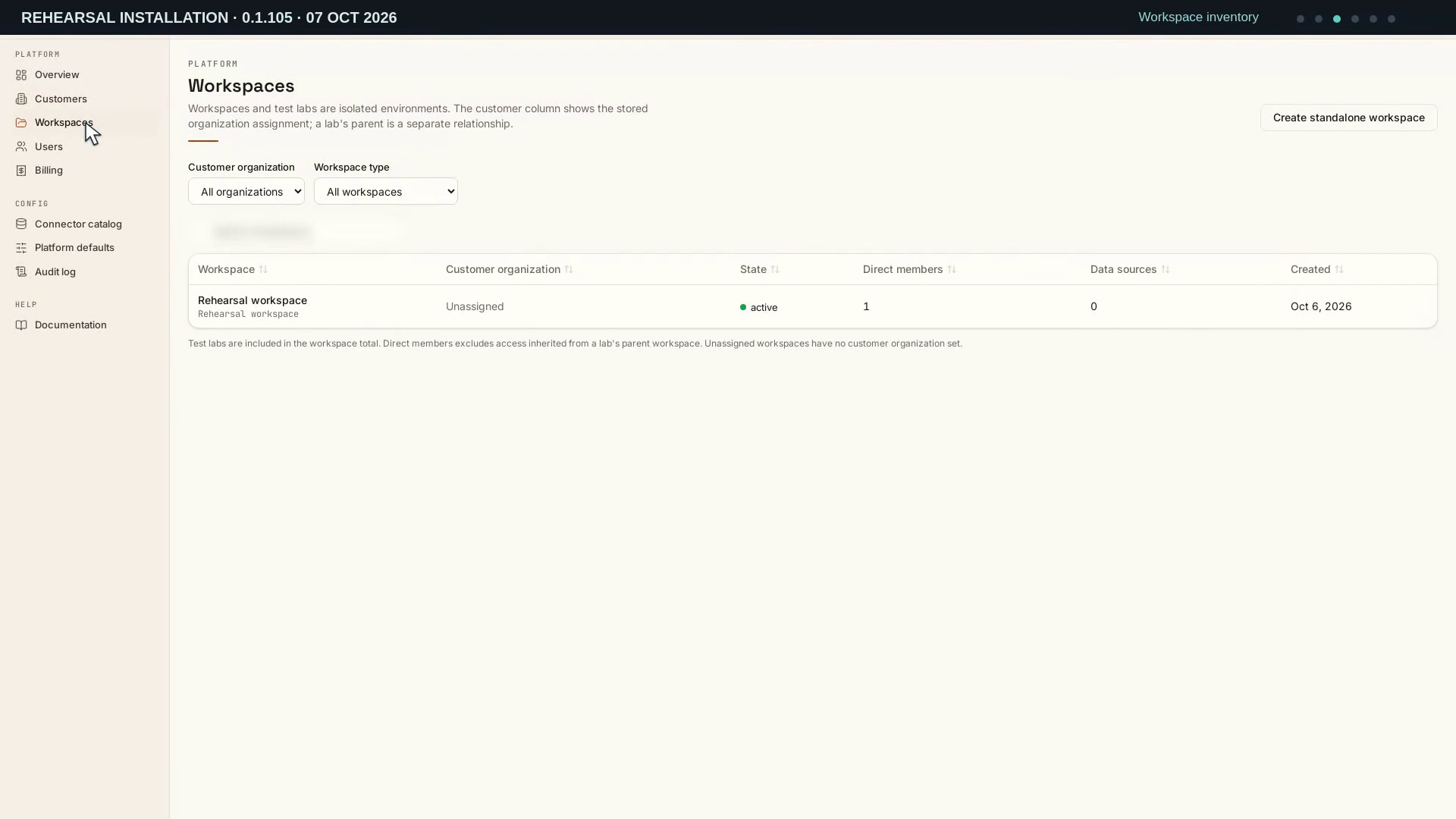
Video: Organizations, workspaces, and runners — Watch (3 min) · Captions
Recorded 7 Oct 2026 on 0.1.105 — the page has changed since; see Customers and workspaces.
Read the transcript · Caption file.
Transcript
Recorded 7 October 2026. Source: Rehearsal installation.
In this video, we'll tour organizations, workspaces, and runners. You'll learn how to read the setup and spot what needs attention. Start with the platform overview and its organization counters. This rehearsal has one workspace and no customer organizations yet. An organization groups workspaces without merging their operational records. The inventory below also counts users, incidents, and connector types. Open Customers, then choose Add customer to inspect the form. The name and slug identify a new customer organization. Creating that record would not create a workspace or grant access. Choose Cancel to return to the unchanged customer list. Next, open Workspaces and find the existing active workspace. The organization and workspace type filters answer different questions. This workspace has no customer organization assigned. Direct members counts explicit memberships, rather than inherited access. Open the workspace row to inspect its configuration. The detail page keeps the workspace identity and organization together. Rename changes its display name while keeping the same identity. Deactivate would stop workspace use, so it stays untouched. These administrative controls do not establish a working cloud connection. Scroll down to the Pillar agents card. All seven entries here are enabled and marked event-driven. That means their configuration is available when the right trigger arrives. It does not mean an investigation has just run. Scroll back up before returning to the overview. Open Overview and find the Agent runners panel. This installation uses remote execution with Kubernetes provisioning. The panel derives activity from job claims and their leases. There are no claims and no running or paused jobs here. That is an idle snapshot, not proof that a runner is missing. Return to the overview heading to finish the tour.
B03: Members, roles and support access
Purpose: Membership and support access. Recorded: 7 October 2026. Source: Rehearsal installation.
Who: Platform superadmin; tenant membership permissions for content. Prerequisites: A customer request and a time-bounded support reason.
- Read the Membership and support access procedure and select the intended workspace or platform chain.
- Review memberships and roles, then inspect the support grant, expiry and revocation.
- Compare the result and timestamps with the evidence shown; use the chapter’s troubleshooting when a check fails.
Expected result and limits: the task’s recorded rows and scope are readable. This film establishes the shown result only; follow the linked procedure for current execution, permissions, recovery checks and related API/MCP operations.
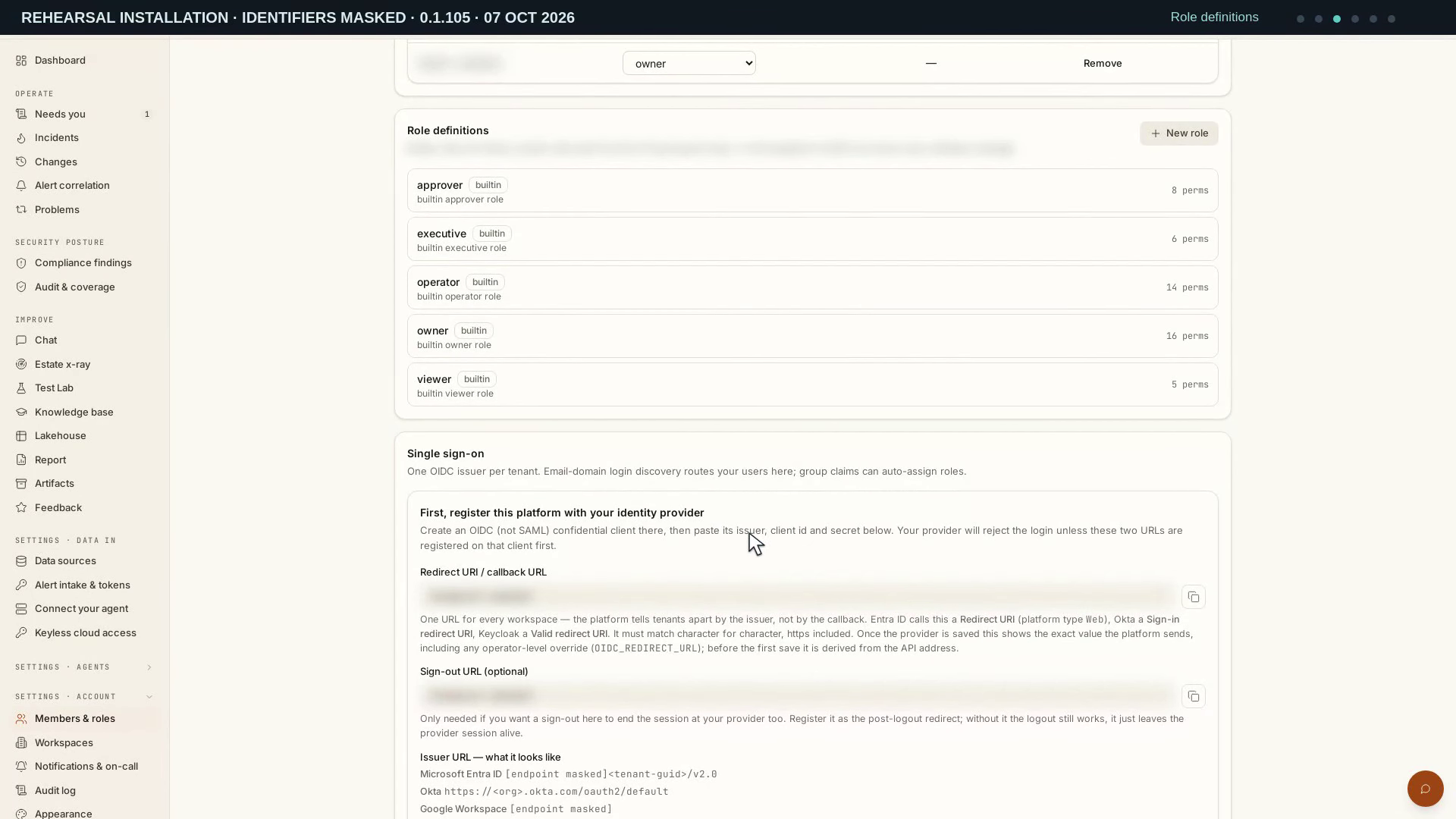
Video: Members, roles and support access — Watch (3 min) · Captions
Recorded 7 Oct 2026 on 0.1.105 — the page has changed since; see Customers and workspaces.
Read the transcript · Caption file.
Transcript
Recorded 7 October 2026. Source: Rehearsal installation.
Let's review who can access a workspace and how roles are defined. We'll inspect the controls without changing access. Start on Members and roles, then look at the membership table. Each row links a member to a role and any access expiry. The member identity is masked in this rehearsal. Read the role before deciding which controls that person should use. Membership belongs to this workspace, rather than every customer account. Choose Invite member to inspect the form. The recipient and role fields define who would receive access. Check the role carefully before sending a real invitation. Here, leave the fields unchanged and choose Cancel. Opening this form does not add a member or send a message. Scroll down to Role definitions. The built-in roles cover different operational responsibilities. Owners, operators and approvers have different jobs. Viewers and executives use the records in different ways. Compare the listed permissions with the work a person needs to do. A role name alone is not a reason to grant broader access. Choose New role to see the custom-role form. Its description explains the intended responsibility. The permission choices define which operations that role would allow. Review those choices together, rather than relying on a name. Cancel the form to leave the existing roles unchanged. Continue down to Single sign-on. The provider needs the callback address shown here. The issuer, client identity and secret belong to your identity provider. Their values stay masked while we read the field labels. Group mapping and the default role affect access after sign-in. This walkthrough does not save a provider or test discovery. Open Documentation, then People, access and audit. Expand Support access to read the temporary-access rules. A support grant is visible, expires, and can be revoked. Staff still need membership or a support grant to read customer data. Scroll through the guidance, then return to its heading. This explains the rules without exercising a support grant.
B06: Tokens and integration setup
Purpose: Tokens and integration. Recorded: 7 October 2026. Source: Rehearsal installation.
Who: Platform superadmin; tenant token actions require their named permission. Prerequisites: A workspace owner, scoped token use and a configured alert sender.
- Read the Tokens and integration procedure and select the intended workspace or platform chain.
- Inspect the integration setup and rotation consequences; verify a received signal separately.
- Compare the result and timestamps with the evidence shown; use the chapter’s troubleshooting when a check fails.
Expected result and limits: the task’s recorded rows and scope are readable. This film establishes the shown result only; follow the linked procedure for current execution, permissions, recovery checks and related API/MCP operations.
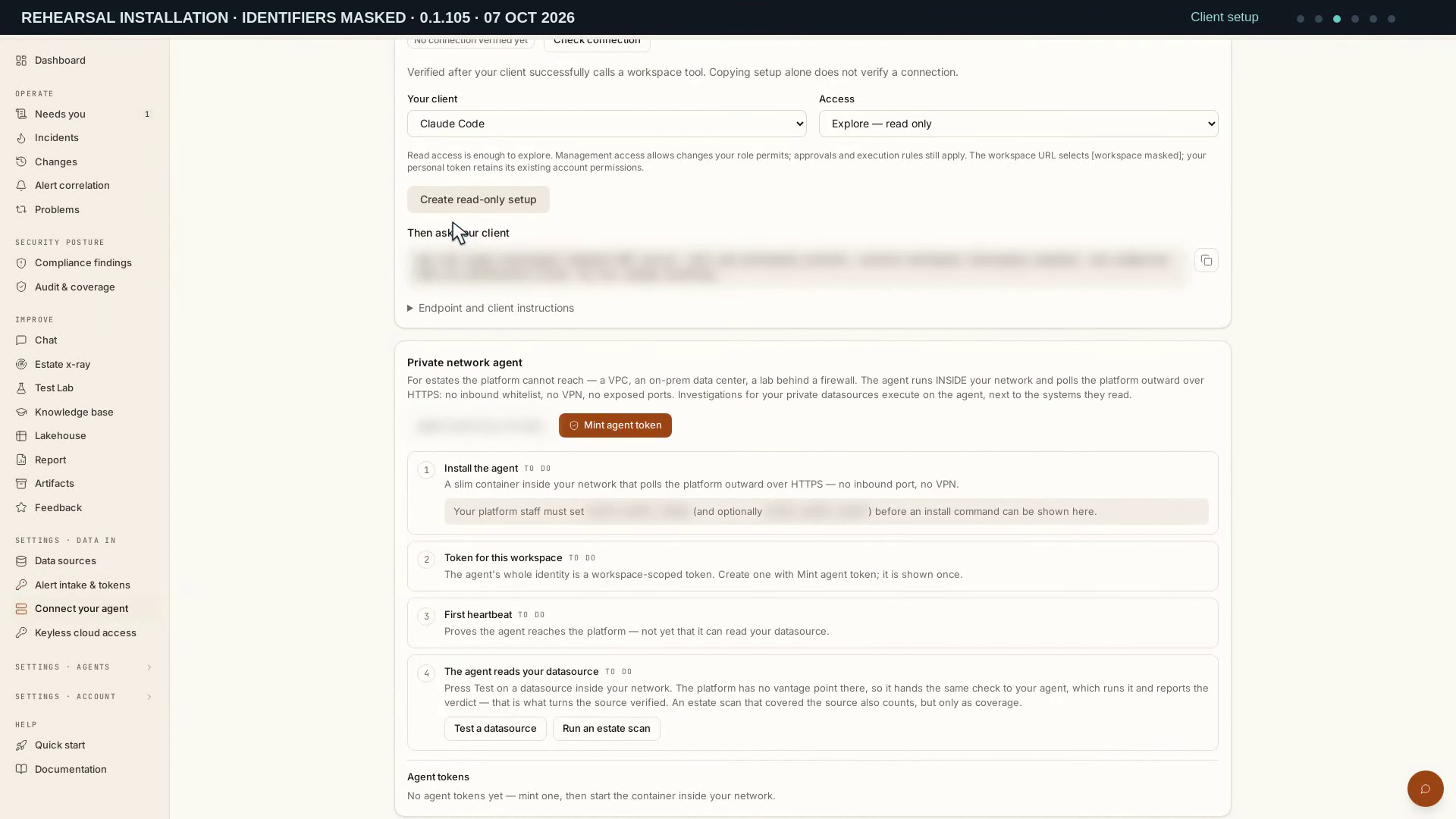
Video: Tokens and integration setup — Watch (3 min) · Captions
Recorded 7 Oct 2026 on 0.1.105 — the page has changed since; see Customers and workspaces.
Read the transcript · Caption file.
Transcript
Recorded 7 October 2026. Source: Rehearsal installation.
Let's explore the token and integration controls for this workspace. We'll follow the pages without creating credentials or starting work. Start on Alert intake and tokens. Personal access tokens serve the REST API, MCP and the agent API. This rehearsal currently has no personal API tokens in the list. A token's scope and its owner's role both limit what a request may do. Keep credentials private even when sharing setup instructions. Choose New API token to inspect the available scopes. Read, write and admin scopes have different limits. Read scope still permits some application work, including insights chat. Admin scope does not turn its owner into a platform administrator. Read the descriptions, then Cancel without creating a token. Scroll to MCP, then choose Open client setup. This page offers client and access choices for the selected workspace. The status says no connection has been verified yet. A successful external tool call supplies that evidence. Copying configuration alone would not prove the connection. We inspect the choices without creating credentials or calling a tool. Return to Alert intake and tokens from the sidebar. Scroll to Agent API, then the sandbox endpoint section. One agent completion starts an investigation, so we send no request. The sandbox limits the agent to its knowledge and skills. It still creates work, even though it does not reach estate data. Endpoint and model values remain masked in the examples. Continue to Webhook ingest and read the category headings. Alerts become signals that can open or join incidents. Change events belong to the change ledger. Use the matching format and endpoint for a real integration. Here, we leave token minting and test-alert controls untouched. Scroll back toward the top before opening the reference guide. Open Documentation, then the integrations reference. Expand REST API to read the endpoint map. The guide connects endpoints with MCP, webhooks and command-line use. Scroll through the reference and locate the command-line section. These are instructions for later setup, not a completed connection. No client request, scan or model completion was submitted in this tour.
B07: Workspace structure and agent settings
Purpose: Workspace structure and agent settings. Recorded: 9 October 2026. Source: Rehearsal installation · read-only settings tour · 0.1.108.
Who: Platform superadmin; workspace owner/operator for tenant actions. Prerequisites: An explicit organization assignment and accessible workspace configuration.
- Read the Workspace structure and agent settings procedure and select the intended workspace or platform chain.
- Review workspace structure, agents and runtime readiness without treating ownership as content access.
- Compare the result and timestamps with the evidence shown; use the chapter’s troubleshooting when a check fails.
Expected result and limits: a GET-only settings tour recorded on the 0.1.108 rehearsal on 9 October. Reviewing workspace, organization, layer-guide and agent controls does not save settings or verify an estate connection. The L2 guide distinguishes deterministic dedupe, correlation and the storm collar from the bounded agent turn used for enabled storm splitting, recorded in the audit log. This recording starts no storm or investigation and performs no business, model or provider action. Follow the current procedure and required permissions when making an operational change.
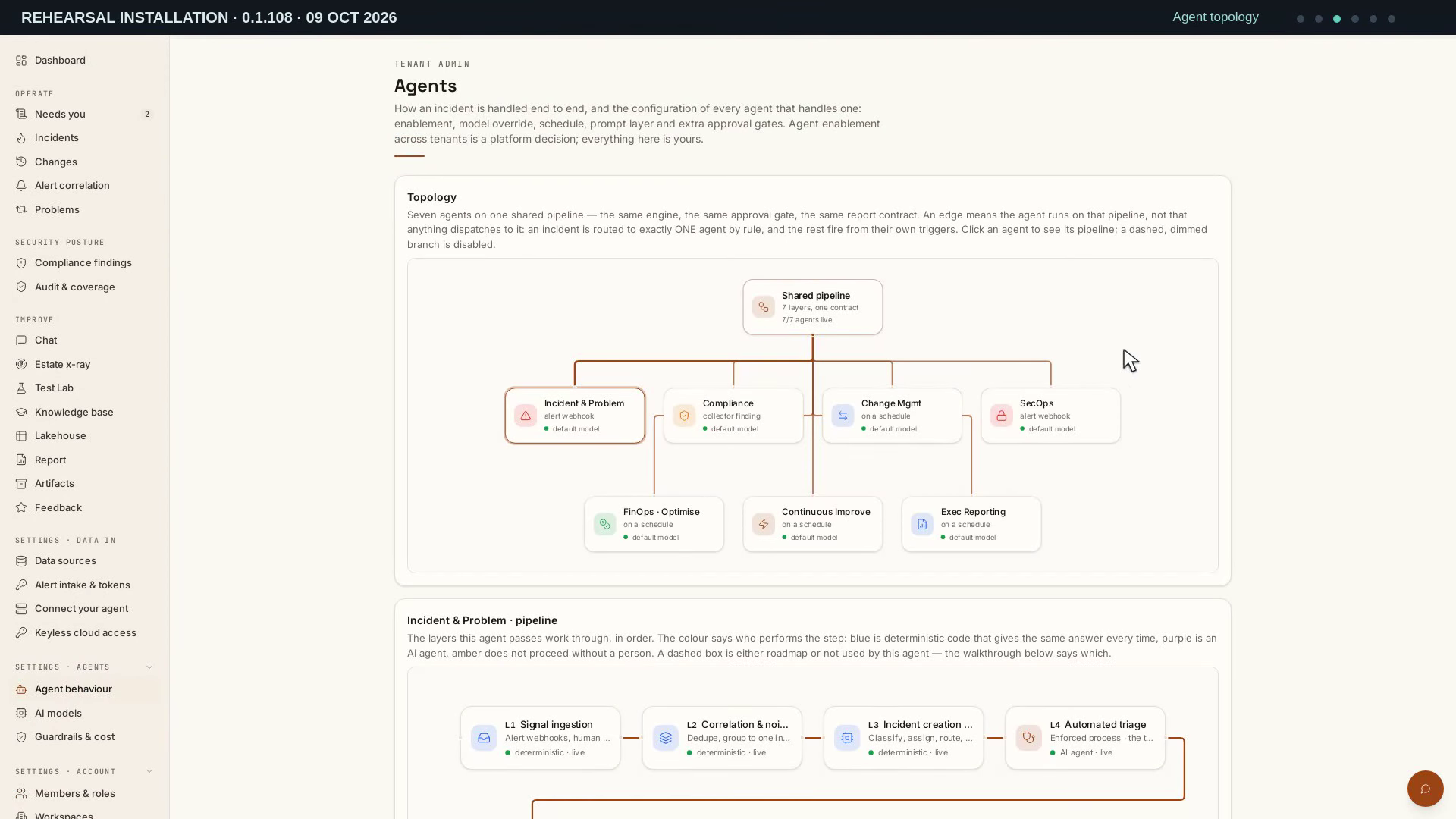
Video: Workspace structure and agent settings — Watch (3 min) · Captions
Recorded 9 Oct 2026 on 0.1.108 — the page has changed since; see Customers and workspaces.
Read the transcript · Caption file.
Transcript
Recorded 9 October 2026. Source: Rehearsal installation · read-only settings tour · 0.1.108.
In this video, we'll review workspace structure and agent settings. You'll learn what each setting controls before making a change. The Workspaces page shows this installation as a single workspace. Use multiple workspaces would begin a change to that structure. Applications or environments can have separate operational records. We can review the current arrangement without activating that control. Open Members and roles to inspect the Organization card. Its name field controls the workspace display name. Renaming keeps the same slug and existing operational records. This is different from creating a customer organization in the ops console. Leave Rename untouched while reviewing the explanation. Open Agent behaviour and select Incident and Problem in the topology. The selected pipeline shows how work passes through its layers. Read L2 in the layer guide. Dedupe, correlation, and the storm collar do not involve a model. When enabled, storm splitting uses one bounded agent turn. Only that split is an agent decision, recorded in the audit log. We start no storm or investigation during this review. Scroll through the layer guide to Agent settings. The Incident and Problem card groups its model, schedule, and enabled state. A model override can replace the usual tier selection. An empty schedule appears as event-driven here. Point to those controls without changing their values. Scroll a little lower to the prompt and extra approval gates. The prompt adds instructions to the built-in persona. Extra gates match tool names and add further restrictions. Default diagnosis refuses matching calls. A configured pause setting instead waits for approval. Scroll back up without saving or starting a test. Open Documentation, then choose the integrations guide. The guide keeps the API and command-line reference in one place. Expand the REST API section to see the endpoint reference. Advanced label, severity, and assignment maps use API or MCP operations. Tag scope filters scanner findings, rather than every tool call. Scroll down to the table, then back to its heading. The settings remain unchanged throughout this tour.
B08: Verify and export the audit trail
Purpose: Audit verify and export. Recorded: 7 October 2026. Source: Rehearsal installation.
Who: Platform superadmin; portal audit requires report.view. Prerequisites: A retained hash chain and the intended period/chain.
- Read the Audit verify and export procedure and select the intended workspace or platform chain.
- Select the chain, verify it, export CSV/NDJSON and continue with Download the next file when needed.
- Compare the result and timestamps with the evidence shown; use the chapter’s troubleshooting when a check fails.
Expected result and limits: the task’s recorded rows and scope are readable. This film establishes the shown result only; follow the linked procedure for current execution, permissions, recovery checks and related API/MCP operations.
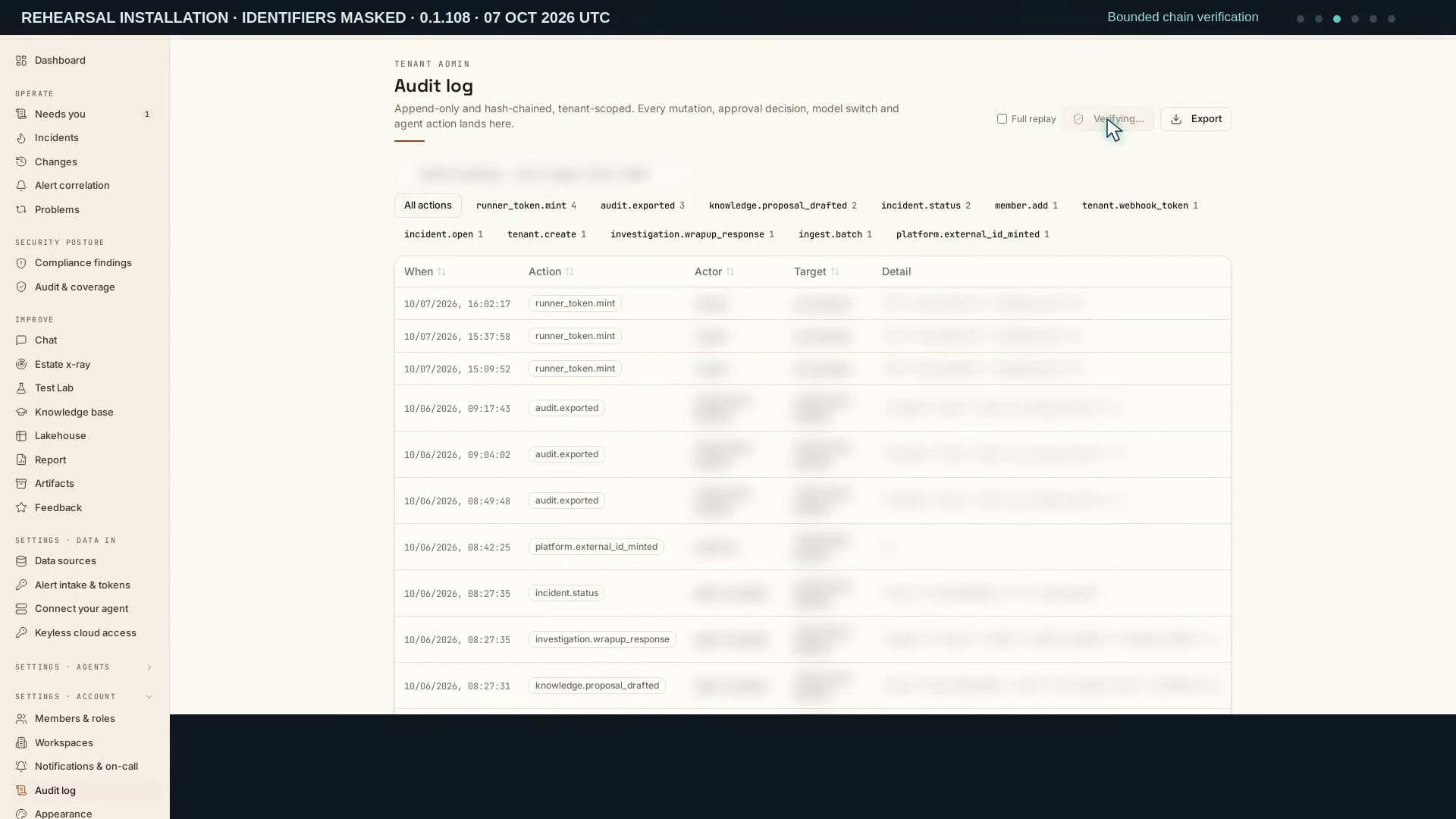
Video: Verify and export the audit trail — Watch (3 min) · Captions
Recorded 7 Oct 2026 on 0.1.108 — the page has changed since; see Platform configuration.
Read the transcript · Caption file.
Transcript
Recorded 7 October 2026. Source: Rehearsal installation.
Let's verify an audit trail and download its evidence. We'll use the real controls on this rehearsal installation. Start on Audit log in the workspace account settings. The table records when an action happened and what was recorded. Actors, targets, and detailed values are masked in this walkthrough. An audit entry establishes that an event was recorded. Its presence alone does not prove a successful operational outcome. Select audit exported to narrow the table to earlier export requests. This filter reads existing records; it does not create a new export. Choose All actions to restore the complete current view. Scroll through the history, then return to the controls. Use the dates and action names to follow the recorded sequence. Leave Full replay off for this bounded check. Click Verify chain and wait for the result. The default request checks a window of at most five hundred sealed rows. Read the result, including any newer rows still awaiting sealing. This checks the recorded chain within its stated scope. It does not establish an operational recovery or an offline-file check. Click Export to review the download options. The end date is inclusive, using this browser's UTC calendar. Choose NDJSON and set Rows per file to five hundred. All actions are selected for this period. The search box does not apply to this export. Exporting also creates its own audit entry. Click Download and wait for the application confirmation. The confirmation reports how many rows were exported. If more rows remain, the page offers the next file. The download stays private because it contains audit details. Retrieving a file is separate from verifying that file offline. We have not run an offline verifier in this walkthrough. Open Documentation, then People, access and audit. Expand The audit log to read the written reference. Use the guide to review permissions and evidence handling. Keep the recording date and export scope with the saved evidence. Only authorized reviewers should receive the private download. Verification, retrieval, and offline rechecking remain separate steps.
B09: Model defaults, billing, and email configuration
Purpose: Defaults, billing and email. Recorded: 7 October 2026. Source: Rehearsal installation.
Who: Platform superadmin. Prerequisites: A reachable model gateway, verified prices and approved SMTP configuration.
- Read the Defaults, billing and email procedure and select the intended workspace or platform chain.
- Review default tiers, the price map and relay configuration; verify actual model and delivery results separately.
- Compare the result and timestamps with the evidence shown; use the chapter’s troubleshooting when a check fails.
Expected result and limits: the task’s recorded rows and scope are readable. This film establishes the shown result only; follow the linked procedure for current execution, permissions, recovery checks and related API/MCP operations.
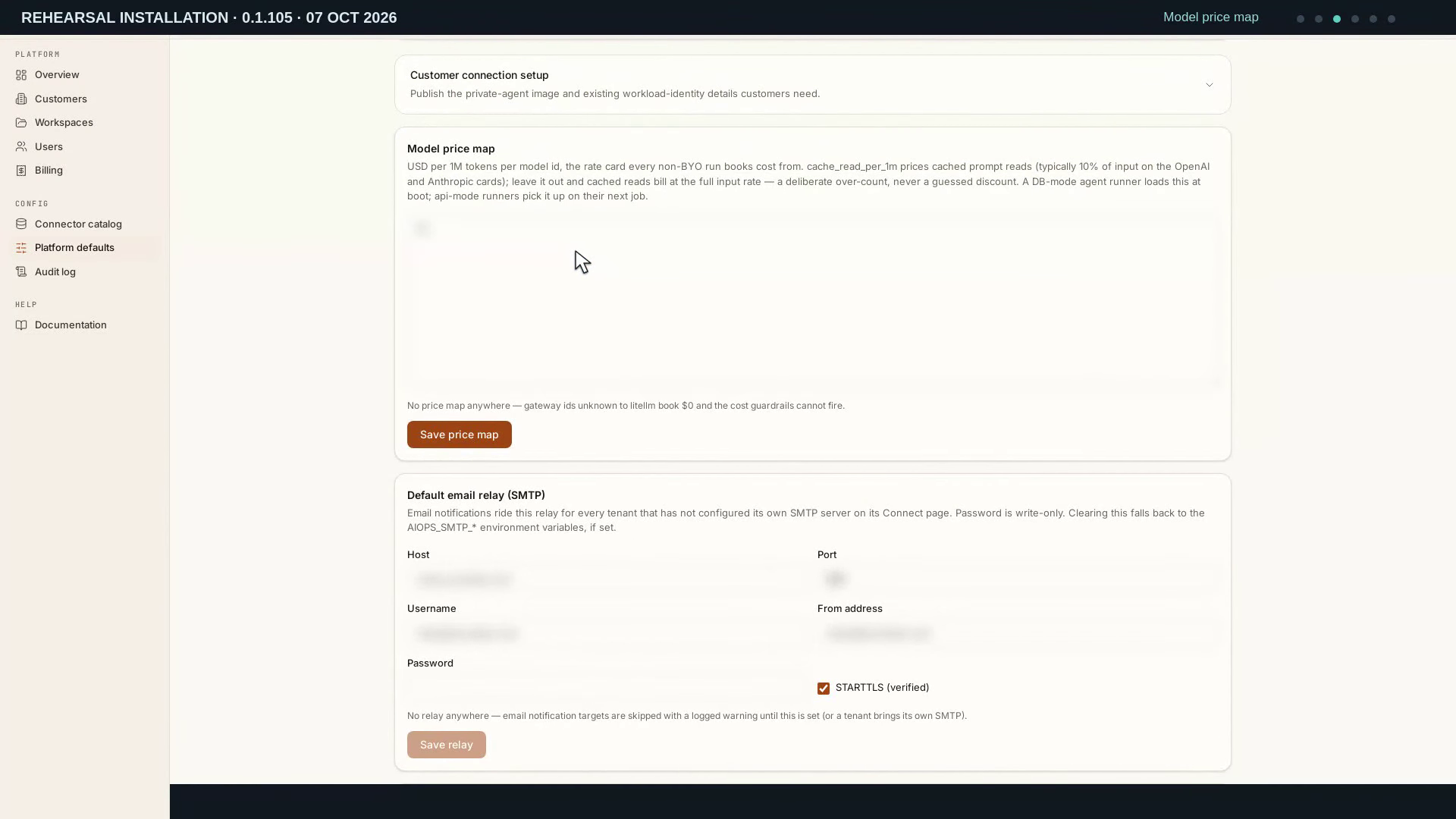
Video: Model defaults, billing, and email configuration — Watch (3 min) · Captions
Recorded 7 Oct 2026 on 0.1.105 — the page has changed since; see Platform configuration.
Read the transcript · Caption file.
Transcript
Recorded 7 October 2026. Source: Rehearsal installation.
In this video, we'll review model defaults, billing, and email setup. You'll learn how to read the current settings and understand recorded spend. Platform defaults maps capability tiers to model choices. Here, no database tier map has been saved. The notice describes the deployment settings used as a fallback. Four tier labels do not necessarily mean four different models. Review the effective state before deciding what to configure. Move to one tier selector and click its current control. This page offers the default choice or a custom model identifier. The gateway catalogue is unavailable on this installation. Dismiss the control without changing the selection. A custom identifier would need to match a supported model. Scroll down to the Model price map. Rates here are expressed per million tokens, including cached input. There is no custom price map configured. Unknown gateway models can record zero cost without a price entry. Known provider models may use library prices instead. Scroll back up before opening Billing. Open Billing and read the month above the totals. Usage is grouped by UTC calendar month. The existing row contains one earlier run and its recorded token count. Read those figures alongside the cost, rather than cost alone. This walkthrough creates no new model requests. Move across the table to compare its cost categories. Operating work, chat, scans, verification, and tests have separate columns. That keeps benchmark spending distinct from routine operations. Download CSV provides a table for later reconciliation. These figures cover model usage, not cluster or networking charges. Return to Platform defaults and scroll to the email relay. The form groups the host, sender, login, and connection security. Its notice says no relay is configured on this installation. The fields stay unchanged, and no message is sent. Scroll slightly upward to review the heading and notice together. Delivery still needs a separate configured relay and a real test.
B01: Review the recorded installation
Purpose: Installation evidence. Recorded: 7 October 2026. Source: Historical installation evidence · 6 October 2026.
Who: Platform superadmin for the console; deployment permissions are separate. Prerequisites: The supplied deployment runbook and dated installation records.
- Read the Installation evidence procedure and select the intended workspace or platform chain.
- Review the retained installation evidence, then follow the runbook for a new deployment.
- Compare the result and timestamps with the evidence shown; use the chapter’s troubleshooting when a check fails.
Expected result and limits: the task’s recorded rows and scope are readable. This film establishes the shown result only; follow the linked procedure for current execution, permissions, recovery checks and related API/MCP operations.
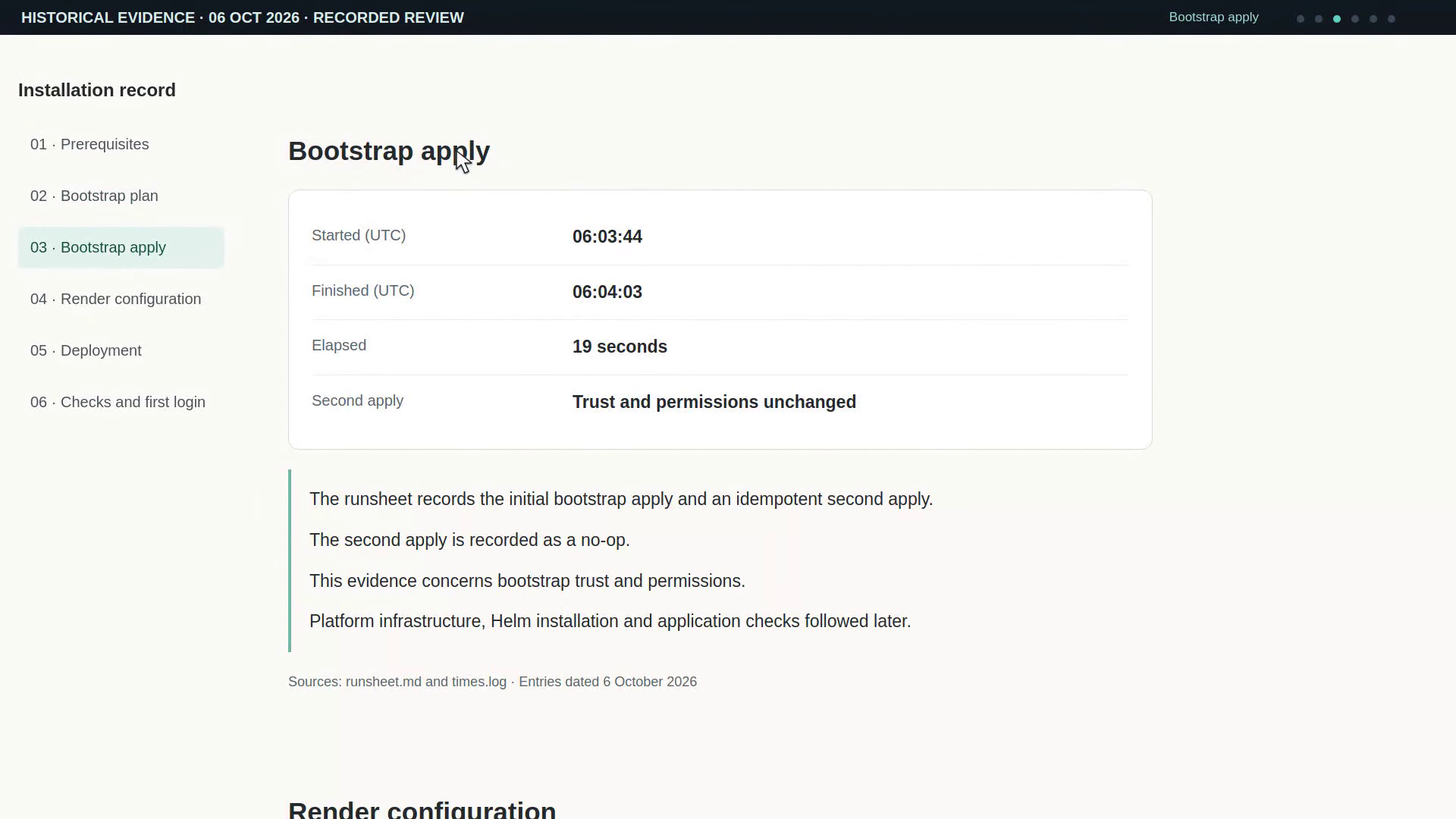
Video: Review the recorded installation — Watch (3 min) · Captions
Recorded 7 Oct 2026 on 0.1.105.
Read the transcript · Caption file.
Transcript
Recorded 7 October 2026. Source: Historical installation evidence · 6 October 2026.
Let's review the recorded installation from October sixth. We'll follow preparation, deployment, and the recorded checks. Start with the recorded prerequisites. This page summarizes the installation evidence from October sixth. The first attempt stopped because a suitable administrator role was missing. The runsheet then records that role as created. Scroll down to see which preparation steps followed. Click Bootstrap plan in the section list. The timing log shows the plan beginning at the first timestamp. It finished fourteen seconds later. Scroll down to read the scope of that measurement. It covers the bootstrap plan alone, before the platform deployment. Open Bootstrap apply next. This step began when the plan ended and took nineteen seconds. The runsheet records a second apply with no trust or permission changes. Scroll to the explanation beneath the timings. That is bootstrap evidence; the infrastructure deployment follows later. Choose Render configuration. Rendering prepares infrastructure settings and application values. The runsheet records rendering and branch preparation as complete. Scroll down to the timing note. The log gives no render duration, so we leave that time unspecified. Click Deployment to follow the later pipeline stages. The recorded plan contained eighty-nine additions and no destroys. Scroll down through approval, apply, and Helm installation. Infrastructure apply took eighteen minutes and twenty-one seconds. The health gate passed at the last timestamp shown. Approval to that gate took about twenty-seven minutes. Open Checks and first login. The smoke run finished in thirty-four seconds with exit code zero. Scroll down to the first-login and read-connection entries. Portal and platform-console access were verified on October sixth. The keyless estate-role setup remained a separate unfinished task. Scroll back up to review the recorded checks together. Use the installation guide alongside these dated results.
B12: Review the recorded upgrade
Purpose: Upgrade evidence. Recorded: 7 October 2026. Source: Rehearsal · recorded release evidence · offline corrections 9 October 2026.
Who: Deployment/release approval permissions; superadmin for console evidence. Prerequisites: The supplied runbook and dated upgrade records.
- Read the Upgrade evidence procedure and select the intended workspace or platform chain.
- Read the retained upgrade record and checks; use the runbook for a future release.
- Compare the result and timestamps with the evidence shown; use the chapter’s troubleshooting when a check fails.
Expected result and limits: In this recording, the handover release is 0.1.108, the build under test on 7 October 2026; the final handover build is named in the release notes. The task’s recorded rows and scope are readable. This film establishes the shown result only; follow the linked procedure for current execution, permissions, recovery checks and related API/MCP operations.
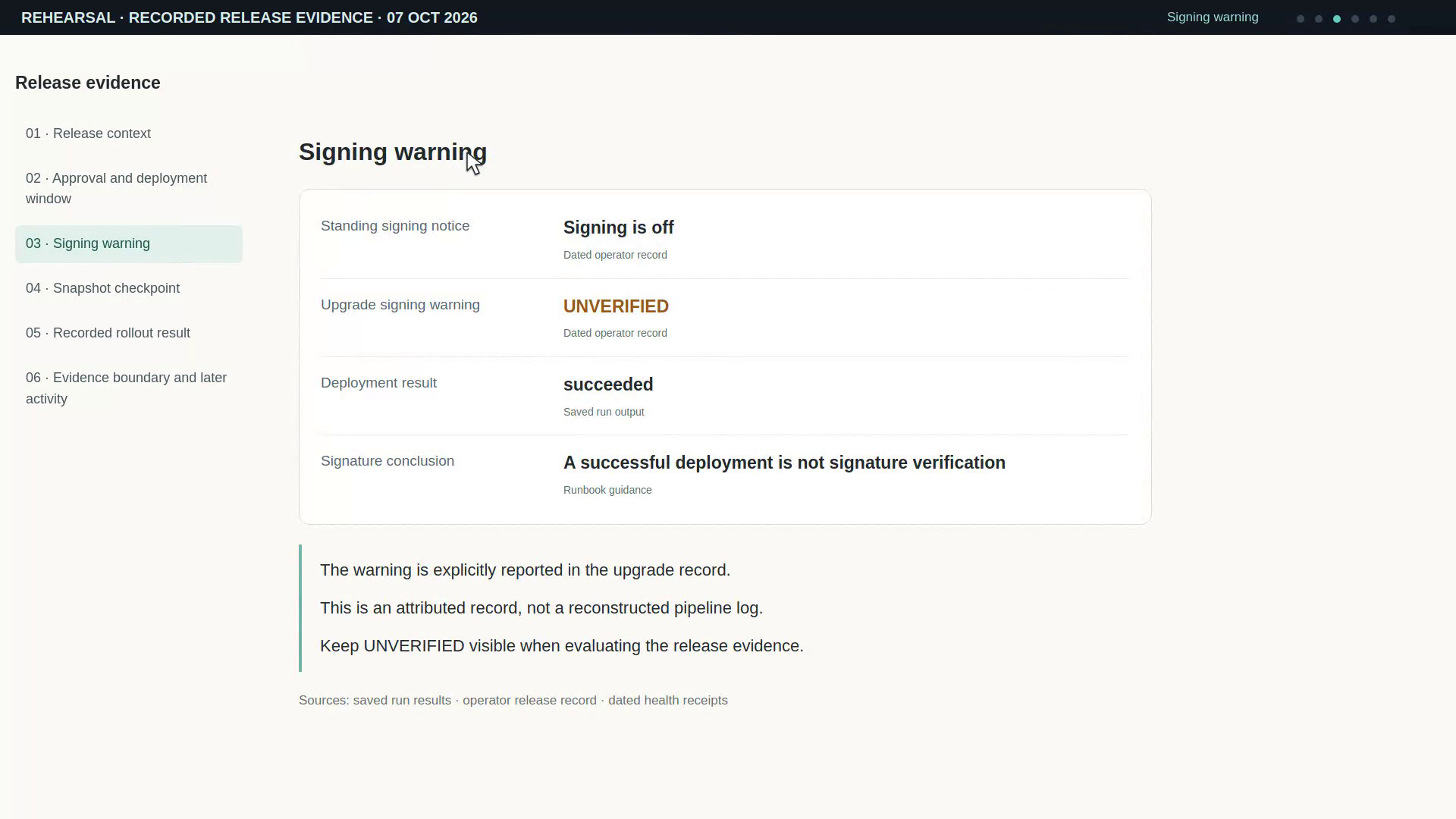
Video: Review the recorded upgrade — Watch (3 min) · Captions
Recorded 7 Oct 2026 on 0.1.108.
Read the transcript · Caption file.
Transcript
Recorded 7 October 2026. Source: Rehearsal · recorded release evidence · offline corrections 9 October 2026.
Let's review the operator-recorded upgrade from October seventh. We'll follow its release settings, safeguards, and recorded result. Open Release context in the section list. Compare the source version with the requested image and chart. Both target fields name release 0.1.108, shown here. This record belongs to the rehearsal installation. The observed serving version and requested target are separate facts. Choose Approval and deployment window. The operator records environment approval before deployment. Read the UTC deployment window beneath that entry. Those timestamps describe the deployment stage. They do not measure the duration of a service interruption. Open Signing warning. The operator's record says image signing was off. Keep the UNVERIFIED warning beside the deployment result. Completion does not turn an unverified image into a signed release. Read this limitation as part of the release evidence. Choose Snapshot checkpoint. The operator records a snapshot named after the requested target. Read the target tag as a naming convention. That name alone does not establish the source database contents. The runbook places this checkpoint before deployment. This evidence does not prove snapshot readiness or a successful restore. Click Recorded rollout result. The saved output names this run and marks it succeeded. Beside it, saved health data names the upgraded version. The operator separately records revision two and a passed health gate. The saved health data is not a transcript of that gate. Read the finish time in the saved result. Open Evidence boundary and later activity. Keep the target, signing warning, snapshot, and result together. Read the observation time before treating a recorded result as current. A later rollback and return to 0.1.108 have separate records. Smoke testing and full release acceptance are not demonstrated here. Scroll back up to review the recorded upgrade outcome.
B13: Review the recorded return to the previous version
Purpose: Previous-version evidence. Recorded: 7 October 2026. Source: Rehearsal · recorded release evidence · offline corrections 9 October 2026.
Who: Deployment/release approval permissions; superadmin for console evidence. Prerequisites: The supplied runbook and dated rollback records.
- Read the Previous-version evidence procedure and select the intended workspace or platform chain.
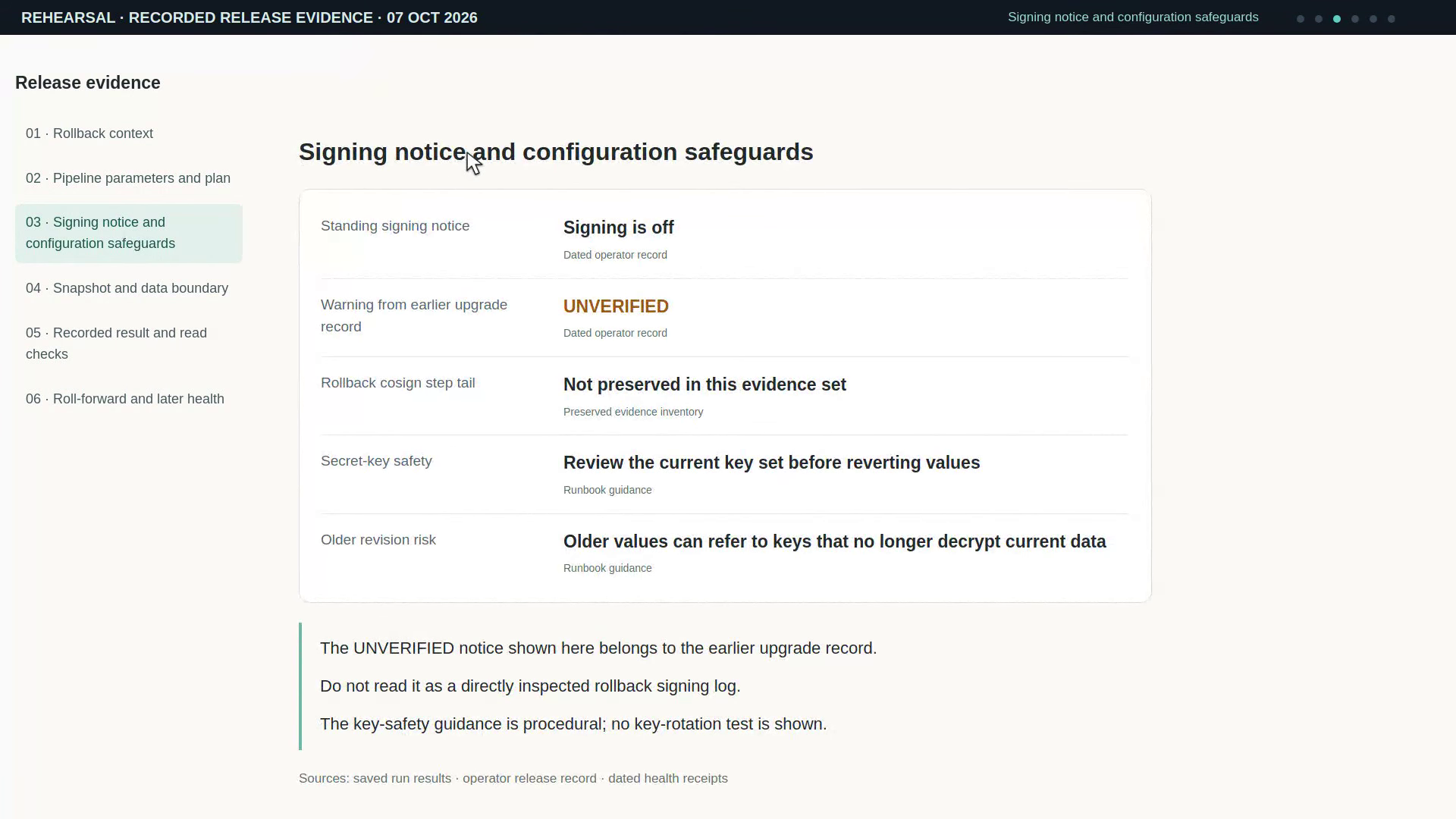
- Review the recorded return to the prior version and its checks; preserve secret-key rotation boundaries.
- Compare the result and timestamps with the evidence shown; use the chapter’s troubleshooting when a check fails.
Expected result and limits: In this recording, the handover release is 0.1.108, the build under test on 7 October 2026; the final handover build is named in the release notes. The task’s recorded rows and scope are readable. This film establishes the shown result only; follow the linked procedure for current execution, permissions, recovery checks and related API/MCP operations.
Video: Review the recorded return to the previous version — Watch (3 min) · Captions
Recorded 7 Oct 2026 on 0.1.108.
Read the transcript · Caption file.
Transcript
Recorded 7 October 2026. Source: Rehearsal · recorded release evidence · offline corrections 9 October 2026.
Let's review the recorded return to the previous application version. We'll separate image redeployment from restoring database content. Open Rollback context. This was an approved return to the previous application release. It followed the completed upgrade on the same rehearsal installation. Compare the source and target before following the result. This was an operator-led drill. Click Pipeline parameters and plan. Both the previous image and chart versions were selected. The operator reran the customer deployment pipeline. This was not a Helm rollback command. The infrastructure plan reported no changes across nine units. Scroll between the target fields and that plan result. Open Signing notice and configuration safeguards. This is the standing notice from the earlier upgrade record. That record reports the image as UNVERIFIED. The rollback's own signing log is not preserved. The runbook separates image choice from the current secret-key set. An older Helm revision can contain keys that no longer decrypt data. This review does not demonstrate a key-rotation test. Choose Snapshot and data boundary. The operator records a snapshot named for the rollback target. The same record dates it before the previous image was redeployed. It describes database content from the upgraded application era. Returning an image does not restore database content. A data restore would require its own evidence. Click Recorded result and read checks. The saved output names the rollback run and marks it succeeded. Beside it, saved health data names the previous build. The operator records revision three and successful workspace reads. Upgrade complete refers to redeploying through the pipeline. These records do not establish complete tenant recovery. Open Roll-forward and later health. The later pipeline run also has a saved succeeded result. A health check before it finished still showed the previous build. After it finished, a new response named 0.1.108. Both health responses carry their own observation timestamps. These readings do not establish smoke or complete recovery. Scroll back to compare the three recorded runs.
B14: Review the point-in-time restore
Purpose: Point-in-time restore evidence. Recorded: 8 October 2026. Source: Rehearsal · recorded restore evidence · 8 October 2026 · offline corrections 9 October 2026.
Who: Approved deployment/database permissions; superadmin for console evidence. Prerequisites: The dated restore record and the recovery runbook.
- Read the Point-in-time restore evidence procedure and select the intended workspace or platform chain.
- Review the recorded restore result and audit checks; use the written procedure for a future drill.
- Compare the result and timestamps with the evidence shown; use the chapter’s troubleshooting when a check fails.
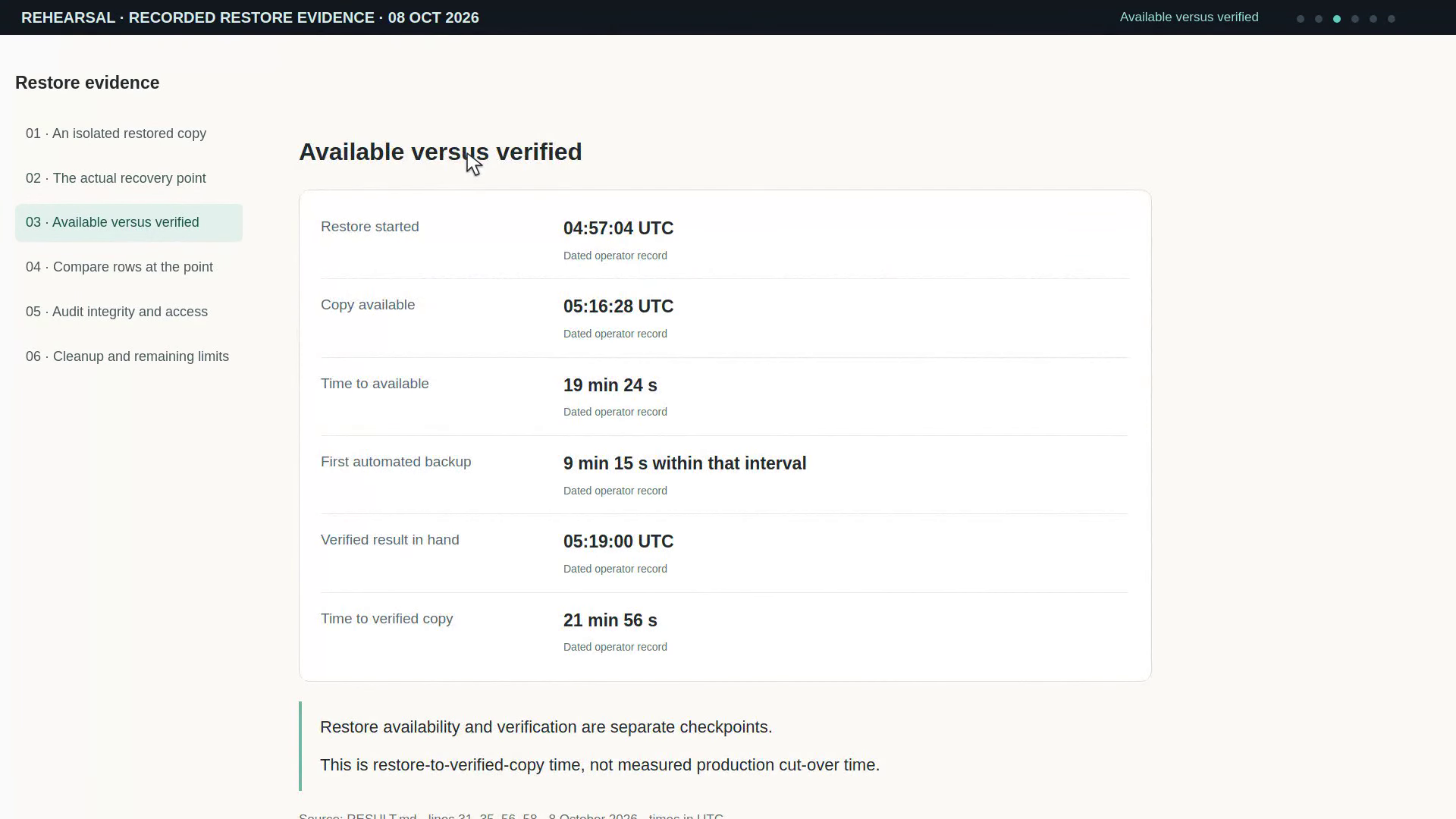
Expected result and limits: This is a restored-copy verification, not production cut-over or demonstrated runner recovery. The recorded RPO sample is 8 min 14 s, inside the current 5–10 min planning range; the measured available/verified checkpoints remain separate. The task’s recorded rows and scope are readable. This film establishes the shown result only; follow the linked procedure for current execution, permissions, recovery checks and related API/MCP operations.
Video: Review the point-in-time restore — Watch (3 min) · Captions
Recorded 8 Oct 2026 on 0.1.108.
Read the transcript · Caption file.
Transcript
Recorded 8 October 2026. Source: Rehearsal · recorded restore evidence · 8 October 2026 · offline corrections 9 October 2026.
Let’s review the recorded point-in-time restore. We’ll separate measured recovery results from untested steps. Start with the two database roles in this record. The operator restored a separate copy while the platform kept using its source. The source was Multi-AZ; the drill copy was single-AZ. This was a copy-verification exercise, not a production cut-over. The checks used the application image named in this record. Read the chosen restore point and the time it was observed. The gap was eight minutes and fourteen seconds. That is inside the five to ten minute planning range. Later samples improved. They do not replace the measurement used for this restore. Keep the planning range beside the result. Follow the restore start through the two checkpoints. The copy became available after nineteen minutes and twenty-four seconds. Its first automated backup accounted for nine minutes and fifteen seconds. The verified copy took twenty-one minutes and fifty-six seconds. An available database and a verified copy are different checkpoints. Compare the five table counts at the chosen restore point. Every recorded source count matches its restored-copy count. The zero change-record count is also part of the comparison. These are the rows selected for this drill. Matching counts do not establish that a production cut-over has succeeded. Scroll back to compare the two columns. Both audit chains replayed without a broken link. The copy holds three hundred and nineteen platform audit rows. Its workspace chain has twenty-four rows. The source sealed another batch after the restore point. That explains the later head difference. The check used the copy’s own login. Stored-credential decryption was not documented by this drill. The operator deleted the copy after preserving the result. Its automated backups and managed secret were also removed. The source stayed untouched. This drill did not test cut-over, pre-upgrade snapshots, or the data volume. Runner crash recovery is a separate exercise and is not demonstrated here. Keep those limits with the measured recovery results.
B15: Platform incident response: procedural review
Purpose: Review the platform incident-response procedure and the evidence needed for containment, ownership, handoff and closure. Recorded: 8 October 2026. Source: Rehearsal · procedural review · read-only observations 8 October 2026, 08:30 UTC.
Who: Platform responders with authorized read access. Operational containment belongs to the workspace owner (Pause all agents) or an operator with incidents.act (Stop this run); infrastructure checks require separately approved platform/cloud access. Prerequisites: The supplied Platform incident response runbook and sanitized, time-stamped evidence for the affected component.
- Read chapter 10 and preserve onset, scope, observed build and the latest deployment receipt. The published runbook is a source document; publication does not establish a new application deployment.
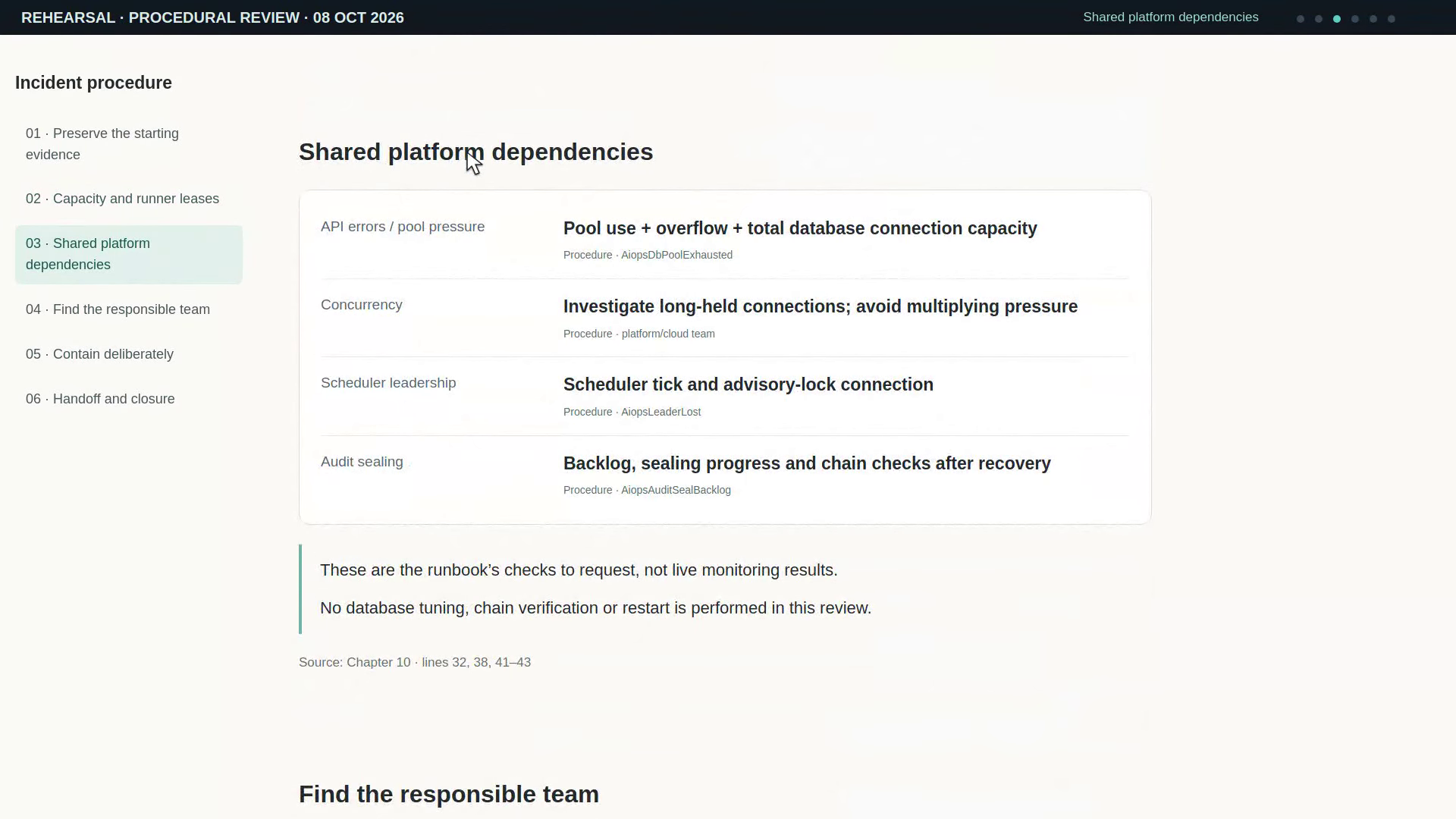
- Review the runner claims and leases, shared dependencies, responsible team and proposed containment scope. A runner claim is not pod readiness. This walkthrough does not press Pause all agents, Stop this run or Cancel.
- Follow the runbook's handoff and closure checks. Confirm the affected paths, intake, queued work and audit sealing before reporting recovery; use Platform configuration and Customers and workspaces for the related console and API/MCP operations.
Expected result and limits: a reviewed procedure and an evidence-backed handoff. The recording uses read-only observations from 8 October 2026, 08:30 UTC. It demonstrates no platform failure, repair or recovery drill and establishes no recovery timing. A successful health response does not prove every path is healthy, and a published runbook is not an application rollout. Use the supplied procedure and agreed support contacts for an actual incident.
Video: Platform incident response: procedural review — Watch (3 min) · Captions
Recorded 8 Oct 2026 on 0.1.108 — the page has changed since; see Platform configuration.
Read the transcript · Caption file.
Transcript
Recorded 8 October 2026. Source: Rehearsal · procedural review · read-only observations 8 October 2026, 08:30 UTC.
Let’s review the platform incident-response procedure. This is a procedural walkthrough, not a failure or recovery drill. Start by preserving the onset, scope and most recent deployment. The saved rehearsal health response names the observed build. Its timestamp belongs to this observation. A successful health check does not prove every path is healthy. The chapter is a published runbook, not a newly deployed application page. The runner panel reports job claims and leases. It does not prove pod readiness. For a Pending runner, ask the platform team to check capacity. For a silent runner, check its heartbeat and deployment state. The runbook gives a three-minute lease and at most three attempts. Those are recovery rules, not a measured repair in this recording. Check pool use against the whole database connection limit. More pools can make exhaustion worse. Also inspect scheduler leadership and audit sealing. The monitoring rules name the evidence to request. This review contains no new monitoring or database measurement. Read the recorded licence state separately from transport errors. DNS and TLS belong with the cloud or DNS team. Gateway errors need the gateway owner and the configured model. A budget block needs the workspace owner’s decision. For a failed release, preserve the image, chart and key pairing. Use the approved rollback procedure with the current keys. Pause all agents and Stop this run are operational actions. The owner chooses the scope; this walkthrough presses neither. Pause keeps intake open, while blocked starts need human handling. Stopping a run requests cancellation at a checkpoint. Confirm its terminal result instead of assuming the click finished it. Discovery has its own Cancel action. Do not delete durable database rows to clear a queue. Send a sanitized record of time, scope, build and actions taken. Use the agreed contacts and response arrangement. A Ready pod alone does not close an incident. Check affected paths, intake errors, queued work and audit sealing. Record the cause, corrective action and prevention owner. This procedure has not demonstrated a repair or measured recovery.