Approve and run a fix
Every incident action and its permission, reviewing and applying a prepared fix, the approval gate in both write postures, and the Needs you queue.
How-to · Updated 2026-10-28 · Describes release 0.1.164
Every action on the incident page and the permission it needs, how a proposed write is decided on the shipped deny-during-diagnosis posture and on the pause posture, and the Needs you queue that collects what waits for a person. The page the actions sit on is Read an incident and its analysis; who may release which tier is owned by Approval policy and change tiers.
Actions
Escalate — pull a human in
Requires incidents.view. Deliberately the lowest bar on the page: anyone who can see the incident can call for a person.
- Open the incident.
- Click Escalate.
- Optionally type a team or user in Assign to (team/user, optional), for example
sre-oncall. - Click Escalate incident.
You should see the status badge change to Needs attention (escalated in the API) and a success notice reading Escalated to <name>. The assignee is recorded, an audit row names you, and no further agent work runs on the incident.
This is also the only way to set an assignee on the page — there is no separate Assign control. Leaving the field blank does not clear an assignee already on the incident; it leaves it as it was. An incident can also open with an owner: the workspace setting assignment_map ({"<service glob>": "<assignee>"}, set through the API) names one when the incident is created — the first pattern that matches its alert's service label (its namespace when the alert has no service) — and Incident creation & routing says owner ….
How recent tool failures help the next investigation
The agent can use short-lived observations from recent tool calls in the same workspace. An HTTP 401/403 observation lasts up to 15 minutes; throttling, server and transport failures last up to two minutes. Notes identify the datasource, configuration revision and exact request fingerprint, with a limited operation/target description. They do not copy error prose or request bodies into a shared memory store.
A later success for the same request clears the advice. Changing the connection revision or successfully retesting that revision also invalidates older advice. The agent may choose another permitted read or ask for an access check; the note cannot disable a tool, grant permissions or bypass approval. Arbitrary CLI/MCP error text and benchmark/sandbox runs do not create these observations. Older traces without the typed metadata are not interpreted retroactively.
This supplements the current run's retry protection and the reviewed skill proposals learned from resolved incidents. It is not a permanent conclusion that a datasource lacks a permission, nor a guarantee that a temporary failure will never be retried.
Review and apply a fix
Connect access once using separate credentials or one shared credential, and explicitly allow its use for approved plans. For a supported structured plan, the incident prepares the change directly in its Prepared change section, without requiring you to create an action route.
- Read the change title, Target, Impact (agent's assessment), the connection and revision on each step, Rollback and Verify recovery in that section.
- Expand Exact changes and execution method to inspect all prepared API requests, CLI arguments or repository edits. Approval covers only these steps, targets and connection versions.
- Choose Approve & run, or Approve & create PR for repository changes. An operator may release a non-emergency standard change made standard by a matched runbook, at a one-approver tier. For other changes operators use Request approval; an approver (or executive) releases and runs it. P1, critical and L3 rules do not change.
Before approval, Pre-state before each step says, per step, whether the platform will read and store the target's current state (with a checksum) before the write, and which read takes it — the provider's own API through the write connection, so AWS Config being off changes nothing. With Refuse a change when its before-state cannot be captured on (Guardrails → Change safety), a step with no such read makes the section say Manual route only: the reason, and the commands to run yourself with your own access; nothing can be requested, approved or released on the platform. If the read fails while the change runs, the write is not sent, the change is marked rejected and its timeline says Write refused — no before-state captured; the next review of that step says Manual route only with the failed read as its reason, until the write connection is tested again (fix the read permission first).
When nothing in the plan can run — no matched route and no step runbook named by the analysis, a step with no typed operation, or a control the agent has no typed fix for (manual by design) — the section still reviews it and says Not applicable — no runnable fix, with the reason and every enabled write connection: ready for approved plans, not allowed for approved plans (tick Allow use for approved plans on the connection), re-test the connection, no confirmed account / subscription / cluster scope, this connector type has no bounded executor, or Not offered to the … agent when its pillar allowlist or connector type leaves the pillar out. With no write connection at all it says so and offers Connect write access. Run the manual steps with your own access, then Mark resolved.
Missing write or repository access can be connected from the incident. If more than one connection has a valid matching scope, choose the confirmed environment; there is no API-versus-CLI choice to guess. Unsupported operations, unknown target identity or missing repository ownership stay blocked with a reason. Cloud access does not grant repository access.
A plan is held to where its incident came from. Before any write connection is matched, each step's target is compared with the clouds and accounts its alerts name — an alert's own cloud label, else the source that delivered it (CloudWatch and Security Hub are AWS, Azure Monitor and Defender are Azure: the rule of the list's Cloud filter, where one such alert places the incident), with its account or subscription label, or for GCP its project_id label. An alert that names no cloud — a ticket or a raised concern that joined the incident, another monitor on the same service — does not move it. A step on another cloud is refused with the reason, for example Step 1 (azure.vm.start) targets Azure subscription …, but this incident came from AWS account 123456789012, even when a write connection covers that target: re-analyse the incident. A workspace that does fix across clouds turns on aiops_cross_cloud_plans (see REST API → The endpoints most people want); such a step then stays reviewable with a warning. A step on another account or subscription of the same cloud stays ready with a warning above the release button. A warning is part of the reviewed action: the approval binds it, and the audit rows of the request and the approval carry it, on the Audit page and the incident timeline. A revert draft (Draft revert) is compared with its incident like any other plan, also once the change agent has re-drafted it. Nothing is compared when no alert of the incident names a cloud — such as generic webhooks without a cloud label — nor for a platform check (it covers every cloud), a Kubernetes or repository step, or a change request that came from no incident or scanner finding.
A plan is also held to the incident's own resources. When another service's alerts joined the incident (a merge, a fold or the grouping wait) and the plan has a step on a resource only such an alert names, that step is left out of the change while the plan's other steps still act on the incident's own resource and the dependency map shows that service depending on the incident's (it is in the incident's blast radius): the change request records it (meta.steps_left_out in the API, listed under Impact in its document), and the review shows it as a warning the approval binds, for example Step 2 (aws.ec2.start) on arn:aws:ec2:…:instance/i-0… is left out of this change: only an alert merged into this incident names that resource, and its service depends on this incident's, so it is impacted here, not this incident's own. Such a change is never released automatically or by an operator alone: an approver releases it. Fix that resource on its own once this change is validated. A plan with no step left on the incident's own resource, or with a step on a merged-in resource the dependency map does not show depending on the incident's (it may be the cause), is refused whole, as before: re-analyse the incident. A remediation route whose own fixed call writes to a resource only a merged-in alert names is refused the same way, released by a person or automatically: The fix targets a resource of an alert merged into this incident, not the incident's own.
Every release rechecks the exact plan, connection version, permissions, approval quorum and change window. Changed inputs need a fresh review. Two distinct approvers are still required for L3. A queued request, recorded approval or uncertain execution receipt never means the resource recovered. Do not repeat an execution with an unknown result; reconcile its recorded state first.
- Repository change: creates a PR. Merge, deployment and recovery verification are separate steps.
- Direct operation: executes the displayed operation. Review its result, then use read-only verification to check the original condition and declared recovery checks.
- Computer-assist mode: the operator applies the evidenced plan outside the platform; the UI does not offer platform execution.
- Pre-approved route: a workspace can pre-approve a runbook — a route named
remediate-…with a selector, which an approver certified at its current revision — so that its fix runs without a per-incident click. Ordinary fixes need no route. A pre-approved route that matched and did not run is recorded on the Timeline (Pre-approved route matched — not run); one a rollback demoted waits for a new certification. Set it up in Runbooks and automatic fixes — set it up like the demo. - Historical route plan: existing incidents can retain a matched legacy route. Their review is explicitly labeled and shows the exact route-derived payload. Administrators maintain those records on the explicit legacy compatibility page (in the product:
/portal/datasources/legacy-routes).
Pre-approve this fix for next time
After a single-operation typed fix has run successfully and its validation is cleared, L5 offers Pre-approve this fix for next time to a member with approvals.decide. A member with incidents.act sees Request pre-approval for next time instead. The request is not a new write: it turns the exact validated API/CLI call into a remediate-<service>-<operation> runbook route, scoped to the opening alert's alertname and service, its write connection and its typed operations. It also links the incident's draft runbook proposal (or creates one) and records Fix pre-approved for next time in the audit vocabulary.
An approver certifies the route revision through the existing route-certification rules. An operator's click creates a Certify item in Needs you; it does not add operations to Pre-approved operations until an approver certifies that same revision. The next matching occurrence is a standard change. A route name already used by a different selector, operation or connection is refused rather than overwritten.
The endpoint is POST /api/aiops/{tenant_id}/incidents/{incident_id}/preapprove (incidents.act or approvals.decide); it never executes the route. It answers 409 when no typed operation ran, manual steps sit beside the typed plan, the execution receipt or validation is not successful for this occurrence, the opening alert lacks alertname/service, an operation is not a forward API/CLI operation, or a route name would collide with a different fix.
After a pull request is opened
PR creation stops at "a pull request exists". Nothing downstream of that is automatic, and this is the part people most often assume the product does for them.
- Open the pull-request URL from the success notice, or the
prartifact on the incident's Artifacts card. - Review the diff the way you review any change to that repository. The platform does not review it, cannot approve it, and holds no merge rights beyond whatever the credential you configured has.
- Merge it, and let your own delivery pipeline apply it.
- Come back to the incident and click Mark resolved, with a note saying what you merged.
Opening a pull request does not change live infrastructure or start immediate post-fix validation. After merge and deployment, review the merge status and recovery evidence. Mark resolved records your closing decision and starts a post-close verification; the PR alone does not prove recovery.
Two landmines worth naming before your first GitOps remediation:
- The GitHub token needs Contents: Read and write. A repository-metadata call showing
admin: truereports the user's permissions, not the token's. With a read-only token the push fails with a 403 at the end of an otherwise healthy run. - Inputs can change before confirmation. A changed plan, connection, target or repository base requires another exact review. Refresh the current state before trying again.
When the execution fails
When a released fix fails before any validation verdict, the platform marks its change failed and moves the incident to Needs attention. The summary reads Execution failed — CHG-<id> with Choose the next step, which jumps to the Execution failed — what next? card on L5. Nothing may have been applied: check the change record before undoing anything. The card offers, each behind its permission:
- Give feedback (
feedback.submit) — opens L7, where the report is rated and corrected. - Mark resolved and Mark as noise (
incidents.act) — the same close dialog as the header buttons. - Re-analyse (
incidents.act) — a fresh analysis; once it starts, the card gives way to its plan. - Hand off to a person (any member who can see the incident) — the escalate dialog, with an optional assignee.
There is no retry: a failed request never runs again as it was. The card's backout line says what undoing it takes — Backout: ready on the change page when the change page can run the rollback after your confirmation (with approvals.decide the link reads Review and roll back), operator-run commands the platform never runs, or none recorded. The link opens the executed change. The Remediation attempts box lists the failed execution, beside the attempts and unnumbered, with the resources it targeted; validation and the report keep counting only fixes the platform ran.
Mark resolved
Requires incidents.act. Select Mark resolved in the incident header, next to Export RCA, then choose the outcome — or select Mark as noise beside it, which opens the same dialog with the known-noise box already ticked:
- Mark resolved with the known-noise box unticked reports a human-applied fix. Optionally record what fixed it. A fresh read-only verification may reopen the incident if evidence shows the issue persists; an uncertain check does not prove failure.
- Expected / no action required (known noise) records an expected event without claiming an infrastructure fix. Close as expected mutes verification for this incident, excludes it from successful-fix learning and does not stamp cloud findings as remediated. Configure maintenance or silencing at the alert source to suppress future alerts; this decision does not silence the source. A later alert with the same key never reopens this incident, even inside a reopen window; it opens a new incident that carries a similar: noise chip: it is never closed automatically, and a noise close never counts toward its occurrences or a problem record.
Both outcomes stop older running or paused investigation work. A completion or check started before this close cannot overrule it. A fresh failed verification shows Reopened, its reason, time and evidence link. The API keeps mute_verification for legacy clients; muting alone does not classify noise.
A repeated close returns incident already resolved. It does not create a second closing decision.
Closing an incident before its fix is released
A change request nobody has released yet (planned, waiting for approval or approved but not run) does not outlive its incident. Mark resolved, Close as expected, a bulk close, a risk acceptance on a control and a merge into another incident each mark it rejected, and the incident's remediation step reads Not released — the incident was resolved by a person (or closed as known noise, closed as risk accepted, merged into incident …) with your note after it. Its approval ledger gets a Rejected by entry with the person and time, and the audit trail a change.rejected row. A request already dispatched or finished is history and stays as it is; while an execution is in flight the close is refused. An incident closed on its own because its source cleared leaves the request alone.
Export RCA
Requires incidents.act.
- Open the incident.
- Click Export RCA.
You should see the file rca-<incident id>.md download, a green notice confirming the export was recorded as a durable artifact, and a new export row on the incident's Artifacts card.
The newest RCA on the incident is saved as an append-only export artifact. Exporting twice does not create a second record: the call is idempotent per investigation and returns the existing artifact. A later investigation that writes a new RCA does produce a second artifact when you export again, and the older export is never rewritten. If no investigation has written an RCA yet, the action fails with no RCA to export.
Note for read-only roles: this button is behind incidents.act, so a viewer, approver or executive cannot produce the export themselves. Ask an operator or owner, or read the artifact from the Artifacts page.
Rate an RCA and send a correction
Requires feedback.submit. The controls do not render without it.
- Scroll to the RCA block inside the investigation panel.
- Click a number under Rate this RCA: — 1 to 10.
- To explain what was wrong, click Needs correction.
- Type what should have happened in the What should have happened? box.
- Click Send correction.
You should see Score recorded. after step 2. After step 5 the block keeps a line — Your correction is waiting in Knowledge base → Review queue. An approver must accept it before the agent uses it on the next incident. — with a link to the queue. The same line appears under an estate x-ray's rating box after a correction is sent there.
One feedback row exists per investigation per user: re-scoring overwrites your own vote, it never adds a second. Scores feed the model-tier suggestions and the aggregate view on the Feedback page. That page reads with report.view, which every builtin role holds — a custom role with feedback.submit but no report.view can rate but cannot see the aggregate. A score on its own does not create a skill proposal; the Send correction path sends a down-rating with your text, and that is what drafts one. The draft lands in Knowledge base → Review queue with the badge From your corrections, next to drafts the agent observed itself, imports and incident-close drafts; someone with skills.approve must accept it before any agent reads it. See the Knowledge, x-ray and insights chapter.
Re-analyse a failed or stopped investigation
When the latest analysis failed or was stopped, Re-analyse starts a fresh investigation from the recorded alerts. It needs incidents.act; the button is disabled while an investigation or verification is in flight. Normal investigation costs and approval policies apply. An error is shown on the page if the request fails.
What the incident page will not do
- No delete, no merge button, no manual status picker. Status moves only through the actions above and agent outcomes. A merge suggestion is decided on the Incidents list, with Merge or Dismiss on its banner (
incidents.act); Needs you lists it as Merge. - No edit of an artifact. Append-only, by design.
- No notification delivery guarantee. Configured incident notifications may run on lifecycle events; a status change does not prove the recipient received one. See How you know there is something waiting.
The approval gate
Which posture your deployment runs
On the shipped default the agent's write is refused mid-diagnosis and returned to you as a remediation plan; your platform operator can switch the fleet to pause mid-run instead. Either way no write reaches your estate without a named human (the one exception, off by default, repeats unchanged a fix a named approver certified: Automatic API fixes for proven runbooks).
The two postures differ only in when the human is asked:
| Posture | What happens to a gated call | What you see |
|---|---|---|
| Deny during diagnosis (shipped default) | The call is refused, the refusal is fed back to the agent ("continue with read-only tools, put this in your remediation plan"), and the run keeps going. | A red row in the tool timeline whose output reads denied: write blocked during diagnosis, and the intended change delivered as the remediation plan at the end. |
| Pause during diagnosis | The run stops, the incident moves to awaiting_approval, and an approval card appears. |
The approval cards described below, and the incident under Needs you. |
On a default install you will therefore rarely see the awaiting_approval status or the approval cards at all. That is not a missing feature: it keeps diagnosis fast and keeps exactly one approval surface, the plan you act on at the end. Both postures use the same cards, the same audit rows and the same permissions, so nothing below changes when your operator flips the setting.
Which tools are gated at all is a separate question, answered by the intrinsic write floor plus any extra approval gates your tenant adds. The Agents and guardrails chapter is the authority on both.
What a paused write looks like
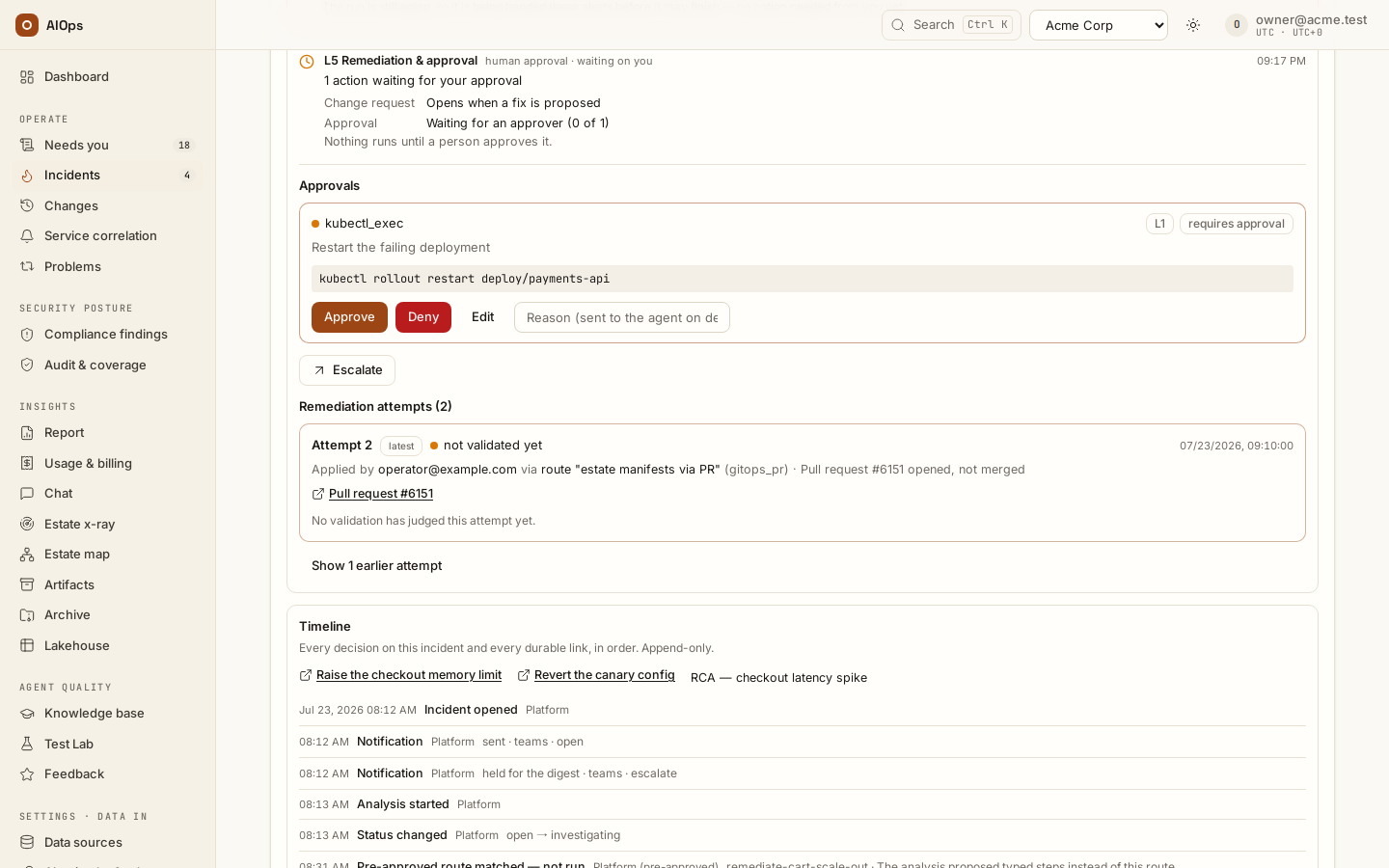
When the platform is configured to pause on proposed writes, the run stops and the incident moves to awaiting_approval. The Approvals block at the top of the investigation panel shows one card per proposal:
- the tool name as a status badge, plus a
requires approvalbadge; - the agent's description of what it intends to do;
- the proposed command, with credential values hidden, in a mono block;
- Approve, Deny, and — only when the tool has a real command surface — Edit;
- a Reason (sent to the agent on deny) input, which is used on Deny only.
Without approvals.decide the buttons are replaced by Waiting for an approver — your role can't decide this. The public command remains visible to members who can read the incident. Commands containing hidden credentials cannot be edited through their public projection; request a fresh analysis if the original action must change.
Deciding
Requires approvals.decide.
- Read the command and the trace rows above it.
- To run it as proposed, click Approve.
- To refuse it, type a reason in Reason (sent to the agent on deny) and click Deny.
- To correct it, click Edit, change the text in the Edited command field, then click Run edited command. Cancel edit returns to the original.
- An L3 request needs two approvers for the command that runs, edit included. When another approver has already released an edit, the card shows it under Edited by an earlier approver, with the agent's command below it, and Run edited command releases that edit. Edit puts a different command forward, and the count starts again on it.
You should see the card redraw as a decided card carrying your decision, the decision timestamp and the command that actually ran, and the investigation panel resume below it.
What each decision does:
| Decision | Effect |
|---|---|
| Approve | The command executes, its result is appended to the trace, the incident moves to remediating, and the run continues. If other approvals on the same run are still pending, the run stays paused until they are all decided. |
| Deny | Nothing runs. Your reason, or no reason given, is fed back to the agent as the tool result, and the run continues with that knowledge. |
| Edit | Your text is split into the command's argument vector and runs. Edit is not offered for tools with no command line (API and MCP calls); if such an edit is submitted anyway it is refused and the original parameters are not executed — the platform will not silently run something other than what you approved. |
Guardrails worth stating to an auditor: the first decision wins (a second decision on the same request is rejected with approval already decided), every decision is an audit row naming the decider, and a request nobody decides is denied by timeout after the approval TTL — 24 hours by default, swept once a minute. When the last pending approval on a run expires, the investigation is marked failed with approval expired and the incident escalates, so the human path never hangs forever.
The Needs you page
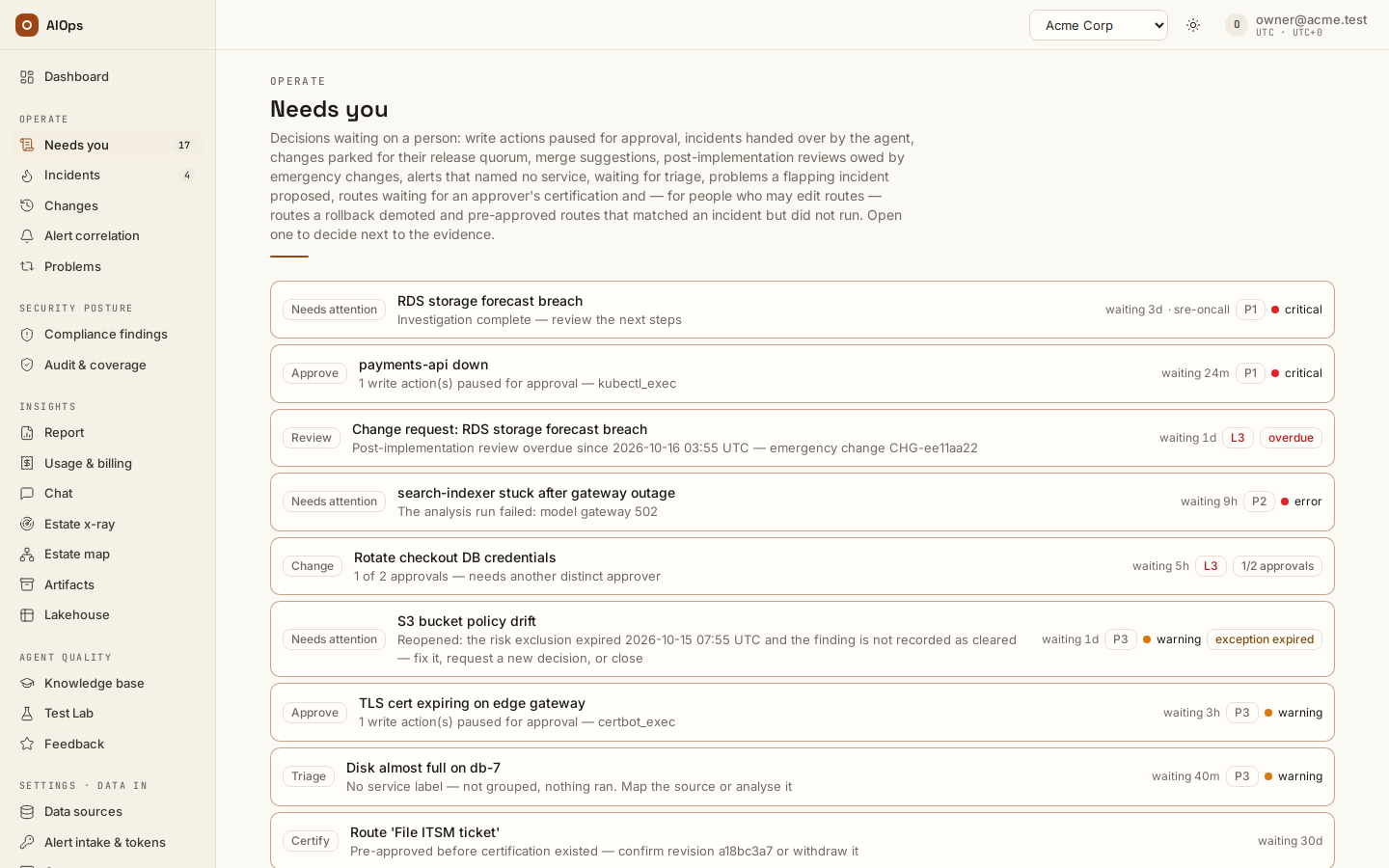
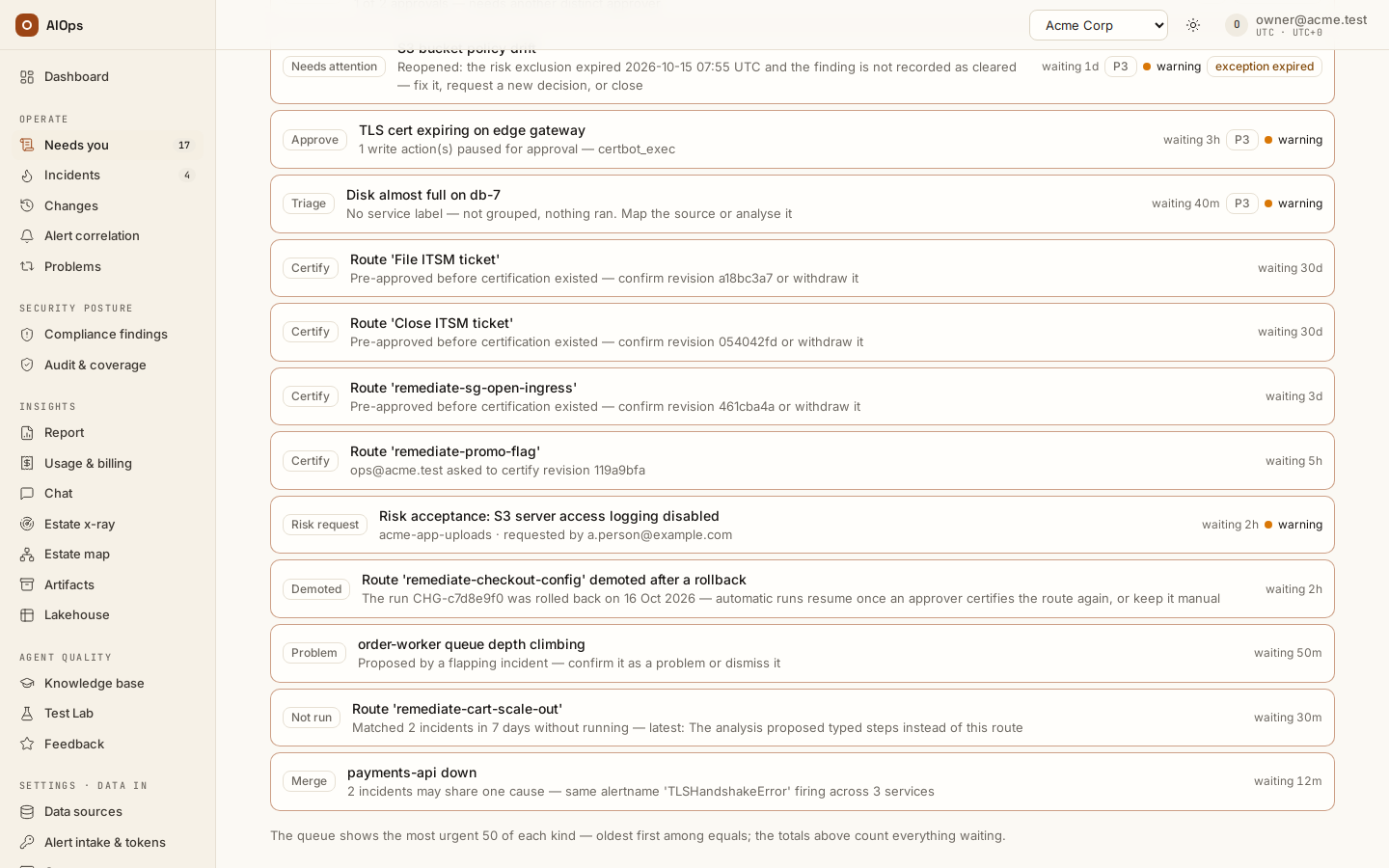
Open Operate → Needs you (/portal/approvals). Reading the queue needs incidents.view; making a decision needs the relevant action permission. It brings together paused incident approvals, incidents that need attention (chip Needs attention), changes awaiting their release quorum, merge suggestions, risk requests, post-implementation reviews owed by emergency changes (chip Review, with an overdue mark past the due date), unmapped signals waiting for triage (chip Triage: an alert that named no service, still unanalysed), problem records a flapping incident proposed (chip Problem: confirm or dismiss them on Problems) and routes a rollback demoted (chip Demoted, opening the route — listed only for people who may edit routes, datasources.manage, who ask an approver to certify it again or keep it manual).
The server filters and counts the queue across the history. An older decision is not dropped because it is outside the newest incident page. Each row explains why it is waiting and links to the full incident or change. Use the kind filters and paging to inspect all matching work.
- Open the item that needs review.
- Read its evidence and the stated consequence.
- Decide on the incident or change page. An approval records a decision; follow the record for execution and recovery.
- Return to Needs you to continue with the remaining work.
The queue refreshes every 15 seconds. Failed sources are explicitly partial or unknown, never silently zero. If the last available queue is retained after a refresh failure, its warning remains visible. A decision may leave an escalation or a separate change review behind, so do not expect every click to remove exactly one item.
How you know something is waiting
The Dashboard leads with the next available item, and the Needs you sidebar entry carries the server queue count. Outbound notifications under Settings · Account → Notifications & on-call cover configured incident open, escalate and resolve events; a chat, email or webhook target can also take golden (a failed daily golden check) and rollback (a failed change the rollback sweep handled). Through the API (PATCH /api/aiops/{tenant_id}/guardrails, members.manage), a chat, email or webhook target saved without an events list gets all five; a pager takes open, escalate and resolve only, so name its events. They do not send a notification when a tool approval is requested. In a burst, each chat or email target gets at most one message per two minutes (the default interval, per control-plane replica) and the rest as one digest; webhook targets get every event. A PagerDuty or Opsgenie target pages on-call: one page per incident, keyed on the incident, so the escalation re-triggers the same page instead of a new one. The page follows the incident: every close resolves it — a bulk close, a merge or a storm split too, which send no chat message — and a reopen triggers it again.
For approval paging, poll the tenant MCP tool list_pending_approvals with incidents.view, or use the REST status-filtered incident listing and its pagination. For every decision waiting on a person, including change approvals and risk requests, poll needs_you instead. These integrations are separate from the browser refresh. See REST API → What REST does not have.
Next steps
- Review execution in Changes — the change record a released fix writes, and the rollback on it.
- Verify recovery — the read-only check a release and a close start.
- Troubleshoot incidents — a missing button, a refused release, an expired approval.