Workspace tours
Recorded workspace task walkthroughs, each with its source, what it establishes and its transcript.
Walkthrough · Updated 2026-10-24 · Describes release 0.1.164
How to use these recordings
These are dated recordings of the supplied task flows. The source is stated for each film. Synthetic signals, trial resources, retained history and evidence reviews demonstrate only their shown scope; they do not establish accuracy, certification, current access or the health of your production estate. Confirm the current workspace, role, connections and recorded results when following a task. A saved report or approval is not proof that a fix landed.
Each section reproduces the caption text of its named recording. The recordings retain their stated source and evidence limits.
Find your checklist group
| Group | Procedure and permissions | Recordings |
|---|---|---|
| A1 Incident agent | Investigate and recover | A02, A03, A05, A05-AWS, A06, A09 |
| A2 Intake, correlation and notifications | Alert intake setup, storm outcome | A02; the intake film does not prove storm splitting |
| A3 Change agent | Changes and recovery | A05, A05-AWS, A06, A08, A09 |
| A4 Compliance agent | Compliance findings and coverage | A12, A13, A14 |
| A5 Knowledge and learning | Knowledge, skills and review | A15, A19 |
| A6 Cost governance and models | Agents and guardrails | A16 |
| A7 Test Lab, replay and certification | Test Lab, lab setup, replay reference | No Test Lab film in this catalog; a saved certificate is evidence for its named bundle only |
| A8 Identity, access and audit | People, access and audit, security boundary | Platform recordings B03/B08 are in the platform guide |
| A9 Console, connections and integration | Start here, connections, MCP operations | A01; worked setup guides and the existing connection walkthroughs remain available |
| A10 Platform and cloud foundation | Private-network agent, AWS, Azure, GCP, Kubernetes, on-premises | Platform installation, upgrade and restore evidence is in the platform guide |
A01: Find your way around the workspace
Purpose: Dashboard, Operate and alerts. Recorded: 9 October 2026. Source: Demo workspace · existing synthetic records; 0.1.110 GET-only tour recorded 9 October.
Who: incidents.view for work; report.view for reports. Prerequisites: An enabled workspace and your assigned role.
- Read the Dashboard, Operate and alerts procedure and select the intended workspace or platform chain.
- Follow the Dashboard next action, open Operate, then inspect the linked record.
- Compare the result and timestamps with the evidence shown; use the chapter’s troubleshooting when a check fails.
Expected result and limits: a full GET-only 0.1.110 tour recorded on 9 October using existing synthetic records. Discovery is included in every enabled workspace; using it still needs the relevant permissions and a readable connection. Navigating the setup and operating pages does not itself verify an estate connection or perform an investigation or repair. Follow the current procedure for operational actions.
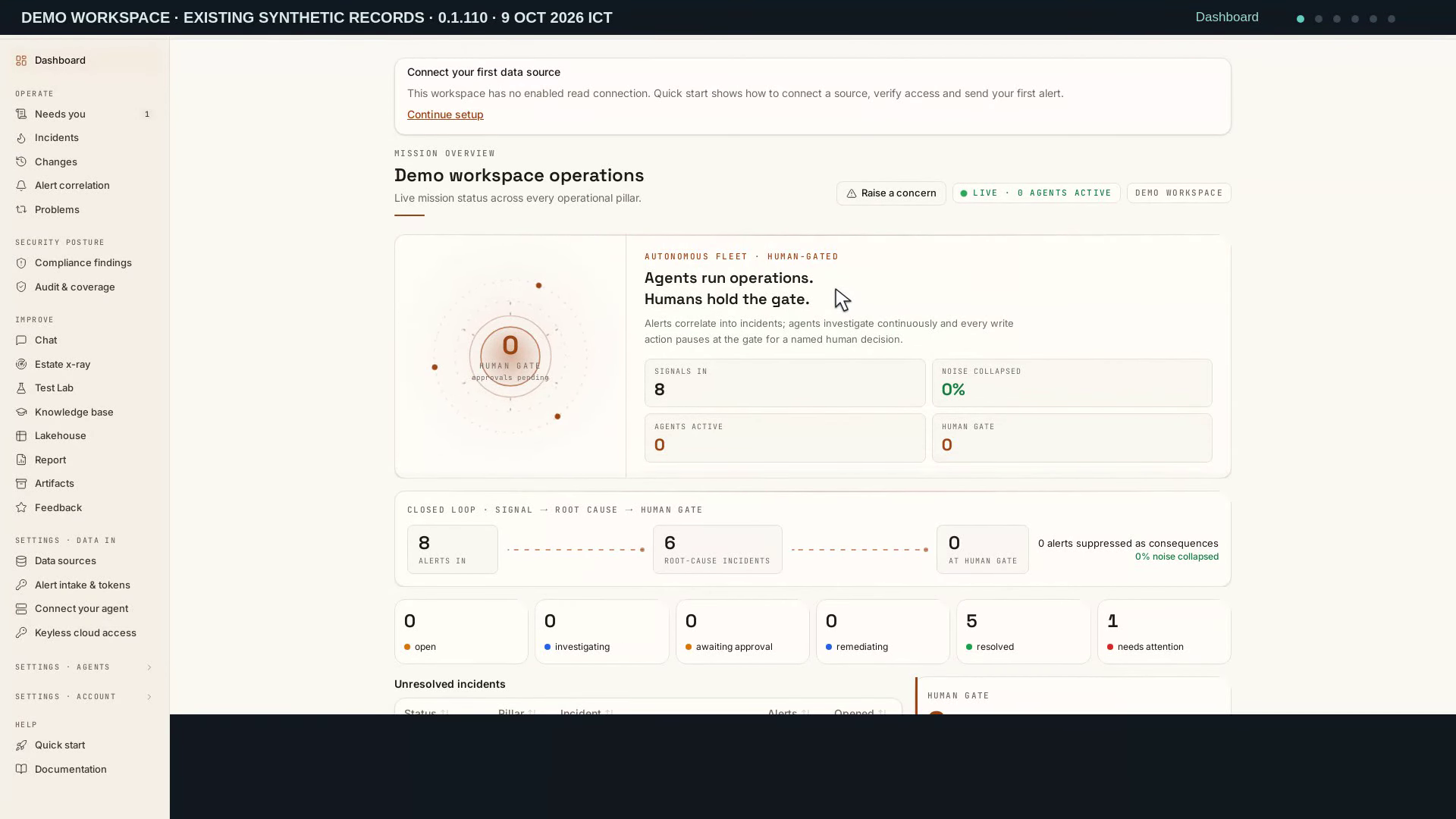
Video: Find your way around the workspace — Watch (3 min) · Captions
Recorded 9 Oct 2026 on 0.1.110 — the page has changed since; see Dashboard, Operate and alerts.
Read the transcript · Caption file.
Transcript
Recorded 9 October 2026. Source: Demo workspace · existing synthetic records; 0.1.110 GET-only tour recorded 9 October.
Let's find our way around the workspace. We'll follow the setup checklist, read the dashboard, and open the guide. We're reading existing synthetic records in the Demo workspace. Start with the overview to see incident status and work needing a person. The banner above it says there is no enabled read connection. Let's follow that setup task before reading the rest of the dashboard. Click Quick start in the sidebar. The current task is to connect a data source. Scroll down to see how the checklist separates each step. First connect a source, then verify it with a successful read. Saving a connection alone does not complete that test. Alert intake is connected here, while sending a test alert remains unfinished. Scroll back up when you want to return to the current task. Now click Dashboard and move down to Unresolved incidents. This row needs attention, so it is a starting point for further review. Beside it, the Human gate has no waiting requests. An incident needing attention is different from an action awaiting approval. Continue to the pillar cards to see enabled agents and recorded activity. Read these together before deciding where to investigate next. Click Report for a summary across the workspace. The top cards show incidents opened and resolved this month. Alongside them, compare investigation cost with feedback coverage. There are no feedback scores here yet. Scroll a little to read the other summary measures, then return to the top. These figures describe this synthetic workspace, not customer outcomes. Next, click Documentation and open Start here: your first investigation. Scroll to Follow along for the written sequence. Begin with a read connection and review the evidence it makes available. Discovery is optional and included in every enabled workspace. It needs suitable permissions and a readable connection. Approved fixes require suitable access and a reviewed action. The guide links each step to more detailed instructions. Move down to Roles and personal preferences. Owners manage the workspace, while operators handle operational work. Approvers review evidence and decisions, and viewers read available records. A custom role can change the exact controls available to you. Scroll back to the dashboard guidance when you need a reminder of the layout. Use Quick start for unfinished setup and the dashboard for daily work.
A15: Knowledge, skills, and review drafts
Purpose: Knowledge, skills and review. Recorded: 7 October 2026. Source: Demo workspace · synthetic data.
Who: knowledge.view; knowledge.manage to edit; skills.approve to promote. Prerequisites: A reviewed procedure and an accessible draft or skill.
- Read the Knowledge, skills and review procedure and select the intended workspace or platform chain.
- Read Knowledge, inspect a review draft’s source, then review its proposed skill before promotion.
- Compare the result and timestamps with the evidence shown; use the chapter’s troubleshooting when a check fails.
Expected result and limits: the task’s recorded rows and scope are readable. This film establishes the shown result only; follow the linked procedure for current execution, permissions, recovery checks and related API/MCP operations.
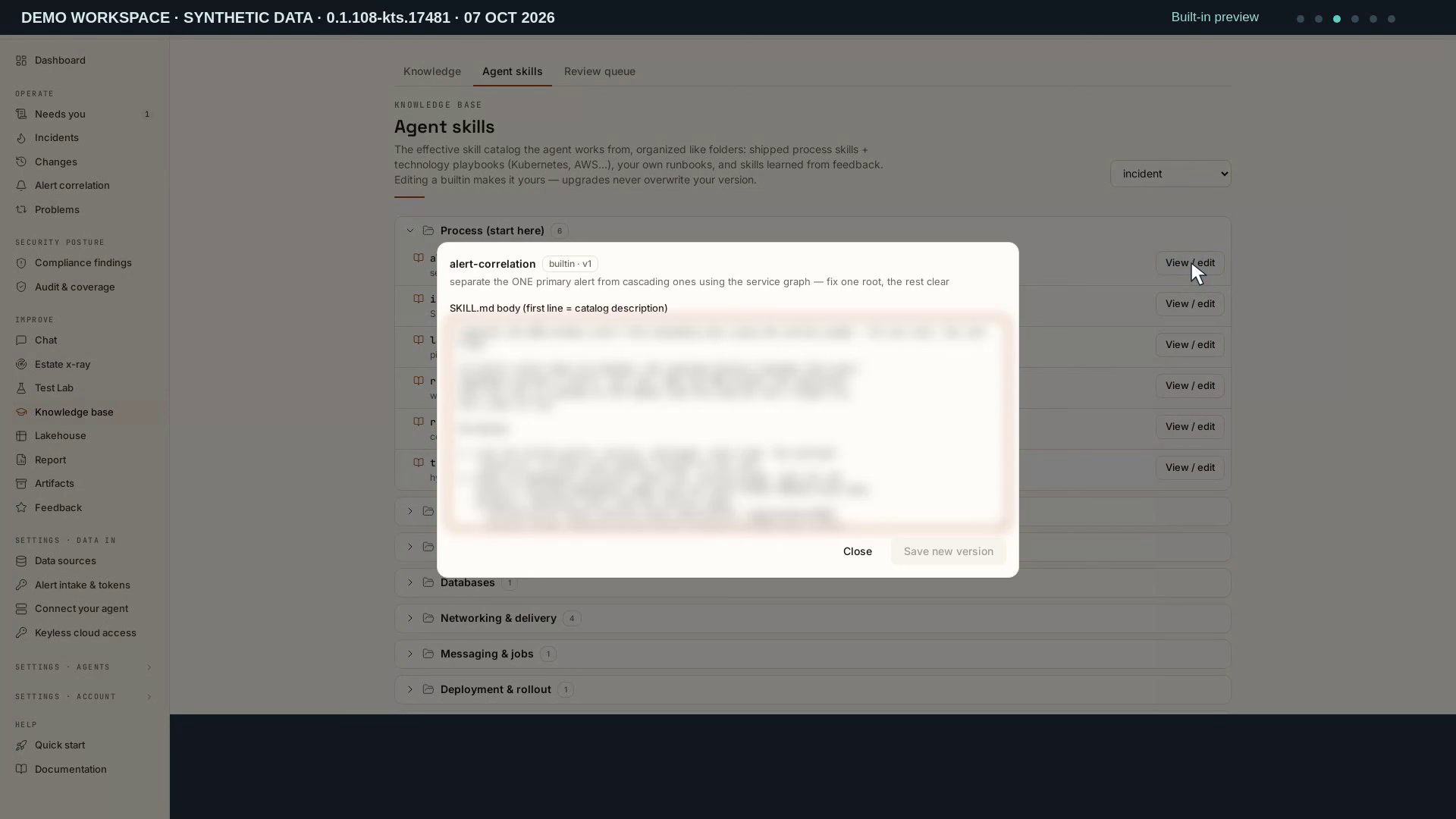
Video: Knowledge, skills, and review drafts — Watch (3 min) · Captions
Recorded 7 Oct 2026 on 0.1.108 — the page has changed since; see Knowledge base.
Read the transcript · Caption file.
Transcript
Recorded 7 October 2026. Source: Demo workspace · synthetic data.
Let's explore the guidance available to workspace agents. We'll open the skill catalogue, inspect a draft, and follow the written guide. Click Knowledge base in the sidebar. Knowledge holds context that agents can read during their work. That can include runbooks, instructions, service relationships, and docs. This Demo workspace currently has no knowledge items. The inactive-versions option helps separate drafts from active content. Built-in playbooks live in the separate Agent skills catalogue. Open Agent skills to see the incident catalogue. The Process group contains guidance for common investigation stages. Open AWS and Cloud, then scroll through the available playbooks. Return to Process after reviewing the catalogue. Descriptions help the agent choose relevant guidance. Availability alone does not prove that a run fetched a skill. Click View and edit beside the alert-correlation skill. The preview shows its purpose and built-in version. Read that purpose before deciding whether to customize the guidance. Editing a built-in skill would create your own version. Close the preview when you have finished. We leave the shipped guidance unchanged. Now open Review queue. Five existing drafts are waiting here. Their badges distinguish human-reported fixes from observations. Compare the cards to understand their origins and versions. Use the first draft for a closer look. A draft stays inactive until an approver accepts it. Open View skill on the first draft. Its evidence label says this was a human-reported fix. That report is different from independent recovery verification. Check the proposed guidance against current evidence and its intended scope. Close the expanded body with Hide skill. We have not approved, rejected, or changed this draft. Open Documentation, then Knowledge, x-ray and insights. The guide collects the workflow behind these knowledge screens. Expand The knowledge base and scroll to the review-queue guidance. Drafts come from corrections, imports, or agent observations. Some drafts are also created when an incident closes. The source badge explains why a proposal appeared. Approval makes guidance available; it does not prove recovery. Continue to Back up and restore knowledge. Source approval does not grant permission in another workspace. Imported guidance remains inactive until the destination reviews it. Use its source and version when deciding what to trust.
A16: Spending limits and agent guardrails
Purpose: Spend and agent policy. Recorded: 12 October 2026. Source: Demo workspace · read-only settings review.
Who: members.manage or pillars.manage, as the policy group states. Prerequisites: A priced model gateway and the workspace’s current limits.
- Read the Spend and agent policy procedure and select the intended workspace or platform chain.
- Read the always-on protections, AI budgets & kill switch, Extra approval gates, Cost cap & PII patterns, the automatic-work switches and the change class policy without saving a change.
- Compare the result and timestamps with the evidence shown; use the chapter’s troubleshooting when a check fails.
Expected result and limits: a read-only 0.1.113 review of the Guardrails page; no switch, limit or operation list is changed. Two narration lines are wrong. An empty cap follows the platform default, but a cap of 0 removes the cap for this workspace. At the cap the run stops before its next model call and makes no wrap-up call. The full rule is in The cost cap, and what happens at 70%. This film establishes the shown result only; follow the linked procedure for current execution, permissions, recovery checks and related API/MCP operations.
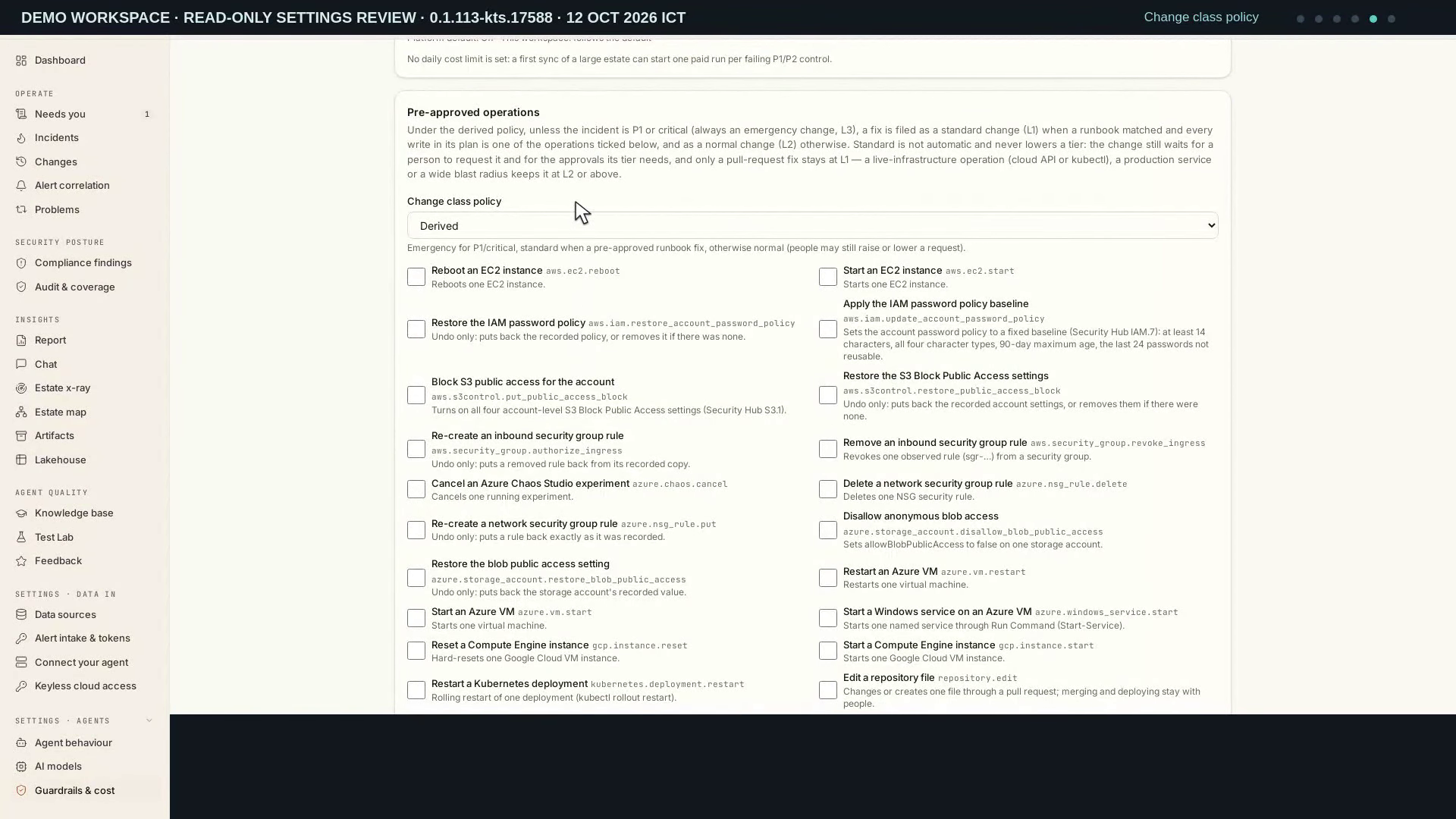
Video: Spending limits, approvals and change policy — Watch (4 min) · Captions
Recorded 12 Oct 2026 on 0.1.113 — the page has changed since; see Agents and guardrails.
Read the transcript · Caption file.
Transcript
Recorded 12 October 2026. Source: Demo workspace · read-only settings review.
Correction: two narration lines are wrong. An empty cap follows the platform default, but a cap of 0 removes the cap for this workspace. At the cap the run stops before its next model call and makes no wrap-up call. The full rule is in The cost cap, and what happens at 70%.
Let us review spending limits, approvals, and change policy. This is a read-only tour of the current Demo workspace. Start with the always-on protections at the top of Guardrails. Investigation tools refuse mutating or unknown estate operations. Changes use a separate validated plan, eligible connection, and exact approval. Broader cloud permissions do not remove these boundaries. Estate scans stay read-only, and captured data is scrubbed. These protections apply before the workspace settings below. Scroll to AI budgets and kill switch. Daily and monthly limits stop new runs across this workspace. The per-incident limit covers all runs for one incident. All three limits currently show zero, which turns these ceilings off. Spending remains visible below the fields. Pause all agents stops new agent work; incoming alerts keep recording. We locate the pause button and leave it untouched. Cancelling an individual running investigation is a separate action. Continue down to Extra approval gates. These add human gates on top of the built-in write floor. This workspace currently uses the write floor only for each pillar. Now continue to Cost cap and PII patterns. The separate investigation cap is currently two dollars. The help text says a blank or zero value inherits the platform default. At seventy percent, routing can step down one model tier. At the cap, the agent wraps up; estate scans have their own budget. Continue to the automatic work controls. Pre-approved route auto-fix is currently off. When enabled, an eligible route may open its GitOps pull request. The request still waits for a person to merge it. P1 and P2 finding analysis follows the enabled platform default here. Backlog catch-up follows the disabled default. These are paid agent runs, so set a daily limit before a large first sync. No switch is changed during this review. Scroll to Pre-approved operations and the Change class policy. The current policy is Derived. P1 or critical incidents are emergency changes at level three. A matched runbook can qualify for standard classification. Every planned write must also be in the selected operation list. Otherwise, the derived class is normal. Standard classification does not make execution automatic or lower its tier. Live infrastructure, production, and blast radius can require a higher tier. The operation list shows the exact actions this policy can recognize. No operation is selected in this Demo workspace. Scroll through the available actions without changing a checkbox. Repository edits create pull requests; merging and deploying stay with people. First, close the settings group and scroll the sidebar. Open Documentation, then choose the Agents and guardrails guide. Expand Guardrails and scroll down to its pricing caveat. Unpriced tokens may show zero spend. Confirm token pricing before relying on a spending cap.
A19: Estate x-ray: re-scan on a schedule
Purpose: Scheduled estate x-ray. Recorded: 7 October 2026. Source: Demo workspace · synthetic data.
Who: datasources.manage; reviewed context needs knowledge.manage. Prerequisites: Readable connections, a scan budget and a valid UTC schedule.
- Read the Scheduled estate x-ray procedure and select the intended workspace or platform chain.
- Review re-scan cadence and saved reports; adopt only the context you trust.
- Compare the result and timestamps with the evidence shown; use the chapter’s troubleshooting when a check fails.
Expected result and limits: the task’s recorded rows and scope are readable. This film establishes the shown result only; follow the linked procedure for current execution, permissions, recovery checks and related API/MCP operations.
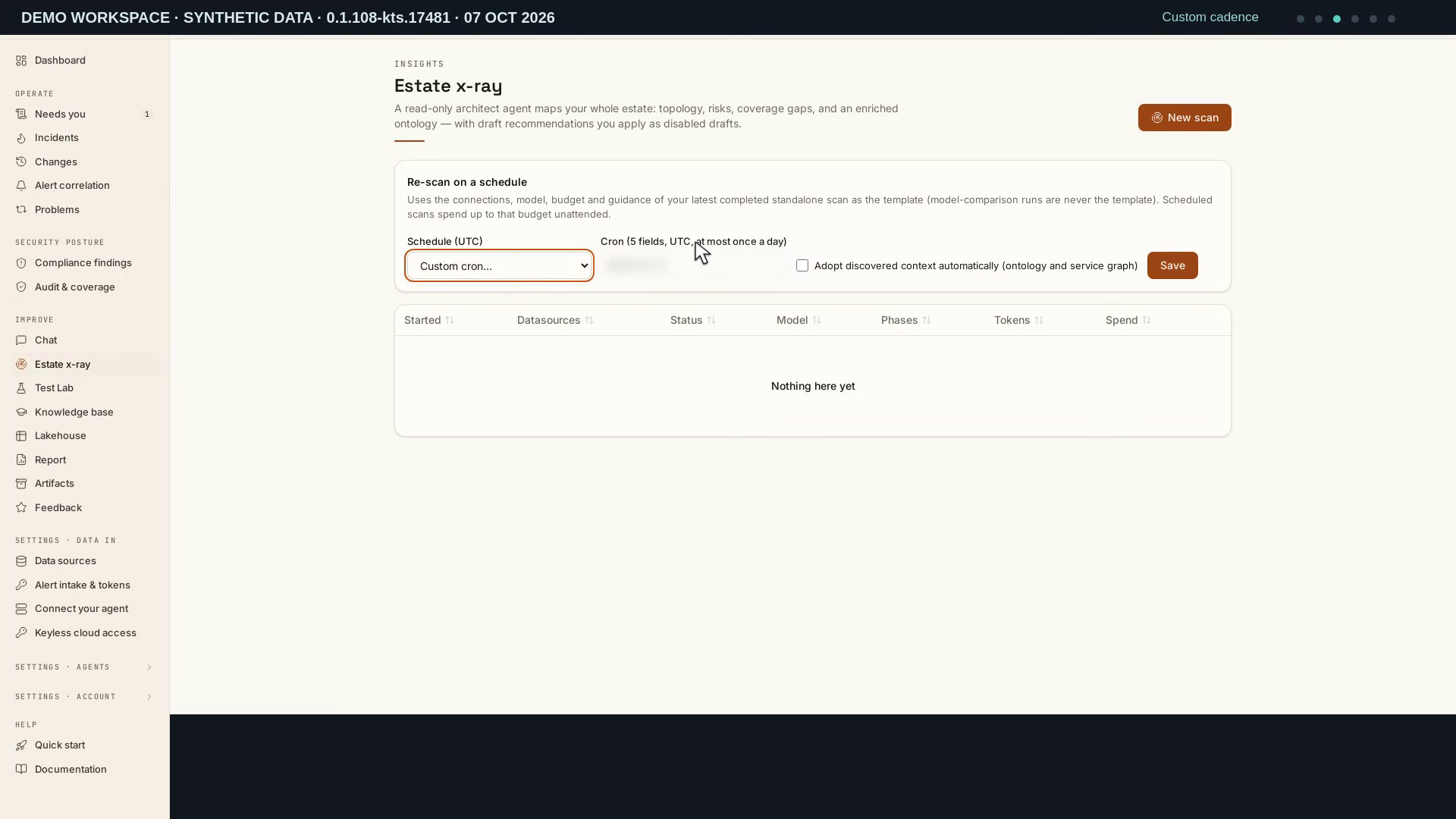
Video: Estate x-ray: re-scan on a schedule — Watch (3 min) · Captions
Recorded 7 Oct 2026 on 0.1.108 — the page has changed since; see Estate harvest and x-ray.
Read the transcript · Caption file.
Transcript
Recorded 7 October 2026. Source: Demo workspace · synthetic data.
Let's explore the estate re-scan schedule. We'll preview its controls, then read the template and snapshot rules. Open Estate x-ray in the sidebar. This preview feature builds a read-only snapshot of connected systems. The Demo workspace has no scans or enabled read connections. There is no completed scan to use as a schedule template yet. We can inspect the controls without starting work. Open Schedule and choose Weekly to preview its time. The field now shows Sunday at two in the morning, in UTC. Choose Monthly to compare the other preset. It uses the first day of the month at that same time. These selections are local previews; nothing has been saved. Owners with member-management permission can change the schedule. Choose Custom cron to inspect the cadence field. Its label specifies five fields, UTC, and at most one run a day. Saving would arm the next slot rather than launch an immediate scan. Return the preview to Off without saving. No schedule is enabled by this tour. Beside the schedule is the optional adoption control. We leave its checkbox off. It can adopt eligible inventory and dependency context from a finished scan. Collectors, instructions, and remediation routes are not adopted this way. Leave it off when every result should receive human review. There is no adopted result in this workspace. Open Documentation, then Knowledge, x-ray and insights. Expand Estate x-ray and scroll to Re-scan on a schedule. The latest completed standalone scan supplies the template. Model-comparison runs are excluded. Connections, model, budget, guidance, and attachments are reused. Connections no longer eligible for reading are dropped. Review that budget before allowing unattended scans to spend it. Continue down to the guide's explanation of snapshot age. Adopted context carries the scan date so agents can judge its age. An as-of date describes a snapshot, not live health. Real scheduled runs also carry a scheduled badge. Neither record exists here yet. Scroll back to the schedule rules when reviewing these choices. Lakehouse data supplies evidence, not operational incidents.
A03: Read and export an investigation
Purpose: Investigation and RCA export. Recorded: 8 October 2026. Source: Demo workspace · synthetic recorded history.
Who: incidents.view; incidents.act for Export RCA. Prerequisites: An investigation that has written an RCA.
- Read the Investigation and RCA export procedure and select the intended workspace or platform chain.
- Read the tool/evidence trail, then use Export RCA and inspect its saved artifact.
- Compare the result and timestamps with the evidence shown; use the chapter’s troubleshooting when a check fails.
Expected result and limits: the task’s recorded rows and scope are readable. This film establishes the shown result only; follow the linked procedure for current execution, permissions, recovery checks and related API/MCP operations.
Video: Read and export an investigation — Watch (3 min) · Captions
Recorded 8 Oct 2026 on 0.1.108 — the page has changed since; see Incidents.
Read the transcript · Caption file.
Transcript
Recorded 8 October 2026. Source: Demo workspace · synthetic recorded history.
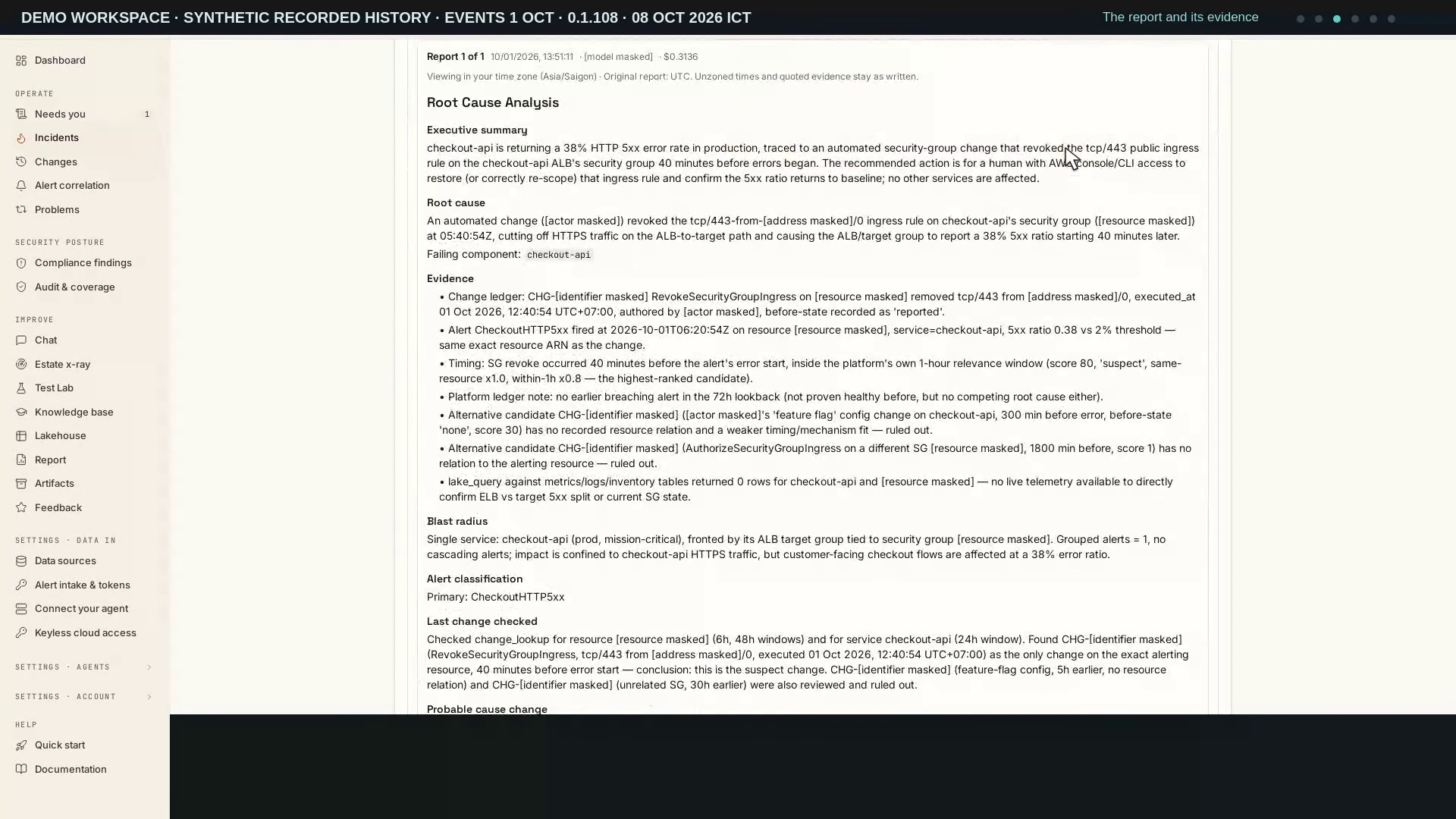
Let's read one recorded investigation and export its saved report. We'll connect the conclusion to the evidence kept in its tool trace. Start with the filtered list of recorded incidents. Open the original checkout case from October first. The incident is marked resolved, but closure needs supporting evidence. We'll keep its original dates and one selected investigation in view. This walkthrough reads saved history in the current interface. Open Triage and locate the completed investigation. This run contains ten recorded tool calls. It finished before the incident was marked resolved. Read its time and status before moving to the report. The pipeline separates saved analysis from later operational outcomes. Keep this run selected as we compare the report and trace. Open RCA and read the conclusion for this run. The report attributes the checkout failure to a removed ingress rule. It places that change forty minutes before the recorded error onset. Read the supporting evidence and the confidence beside that conclusion. Confidence is an assessment of the answer, not measured accuracy. The four later rechecks are Uncertain, so recovery remains unverified. Return to Triage and open the recorded trace. Expand the change lookup call that supports the report. Its result records the ingress rule removal before the alert began. The event time matches the timing cited in the report. The before-state is reported, not a captured restore image. Opening this saved observation does not run the tool again. Return to the incident header and choose Export RCA. This saves or returns an export of the latest recorded report. It does not start another investigation or apply the proposed fix. Keep the result tied to the same report we have just reviewed. The older last-known-good record is a separate artifact. Read the confirmation that the report was recorded and downloaded. Open Documentation and choose Incidents. Scroll to the report guidance for the written workflow. Keep the original case date with the exported report. The report preserves the conclusion and evidence available at that time.
A09: Recovery record review
Purpose: Last-known-good evidence. Recorded: 8 October 2026. Source: Demo workspace · synthetic recorded history.
Who: incidents.view. Prerequisites: A retained incident with a last-known-good record.
- Read the Last-known-good evidence procedure and select the intended workspace or platform chain.
- Read the record’s verification grade, before/after state and whether its fix held.
- Compare the result and timestamps with the evidence shown; use the chapter’s troubleshooting when a check fails.
Expected result and limits: the task’s recorded rows and scope are readable. This film establishes the shown result only; follow the linked procedure for current execution, permissions, recovery checks and related API/MCP operations.
Video: Read a last-known-good record — Watch (3 min) · Captions
Recorded 8 Oct 2026 on 0.1.108 — the page has changed since; see Incidents.
Read the transcript · Caption file.
Transcript
Recorded 8 October 2026. Source: Demo workspace · synthetic recorded history.
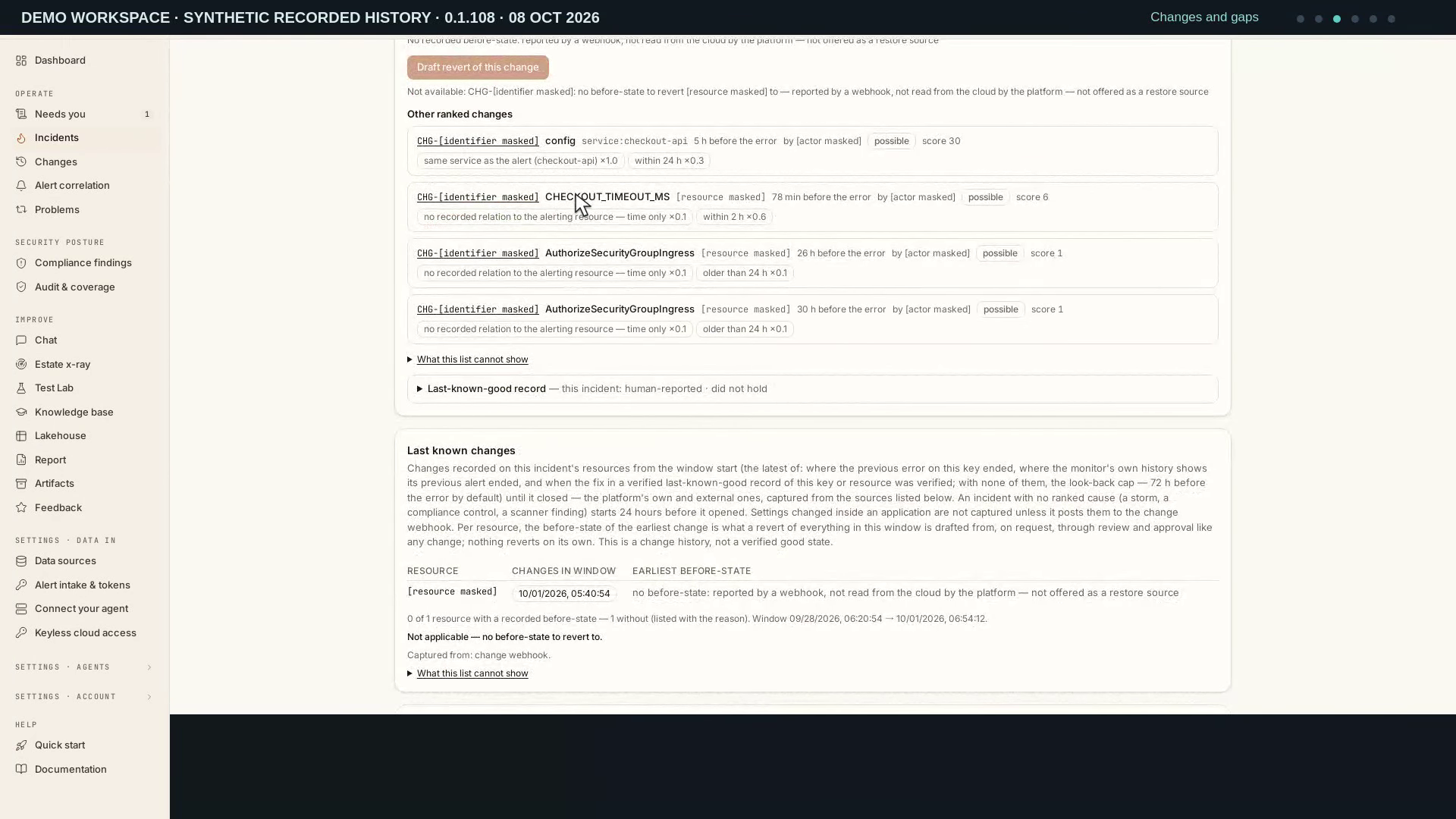
Let's review a saved incident record and its linked later occurrence. We'll compare the recorded checks with the evidence kept in that record. Start with the original checkout incident from October first. Its status is Resolved, and its record is marked Human reported. That grade describes the evidence behind the recorded fix. It does not say the platform verified recovery. We'll follow the checks and the saved record before its later occurrence. Scroll to Probable cause. The error start comes from the time sent by the alert source. The window looks back seventy-two hours. It says no earlier error was found, with health still unproven. No verified good-state anchor is recorded here. Keep that boundary in view as we compare the changes. Scroll to the other ranked changes. Compare the five candidates by their recorded timing and relevance. The analysis selects rank one with confidence zero point seven eight. That score expresses a hypothesis, not measured accuracy. Open What this list cannot show to read the capture limits. The recommendation still needs evidence. One resource lacks before-state; a usable restore is not established. Open Validation and compare the stored recheck rows. All four recorded results are Uncertain. Each says the correlated alert had not cleared at its source. Each row keeps a time and summary for that observation. The incident has no recorded condition-cleared time. These checks do not establish verified recovery. Open the saved record from this incident's own link. Read the original Human reported grade beside the saved evidence. Its current status is Did not hold. These fields describe different points in the record's history. Scroll through its recorded checks, then return to the status. The record does not contain a verified healthy state. Choose The same alert to open the linked later incident. This is a separate occurrence from later that morning. It needs attention and has its own completed investigation. Its link returns to the original incident. The saved relationship does not confirm the same root cause. Compare both dates before reading the later result.
A08: Read captured changes
Purpose: Captured cloud changes and change requests. Recorded: 12 October 2026. Source: Trial workspace · retained change evidence.
Who: incidents.view. Prerequisites: Readable cloud audit-log connection and retained captured events.
- Read the Captured cloud changes procedure and select the intended workspace or platform chain.
- Open Changes and read the watched sources; under Requests open a saved request, read its class and tier, and inspect Reclassify without saving; then return to the captured events and open a recorded denial.
- Compare the result and timestamps with the evidence shown; use the chapter’s troubleshooting when a check fails.
Expected result and limits: a read-only 0.1.113 review of retained change evidence; no request is reclassified and no cloud event is sent. The recording’s External filter is today’s Observed filter, and the captured denial is an external audit event, not an execution receipt or a freeze-window violation. This film establishes the shown result only; follow the linked procedure for current execution, permissions, recovery checks and related API/MCP operations.
Video: Read changes and review requests — Watch (2 min) · Captions
Recorded 12 Oct 2026 on 0.1.113 — the page has changed since; see Changes captured from your cloud audit log.
Read the transcript · Caption file.
Transcript
Recorded 12 October 2026. Source: Trial workspace · retained change evidence.
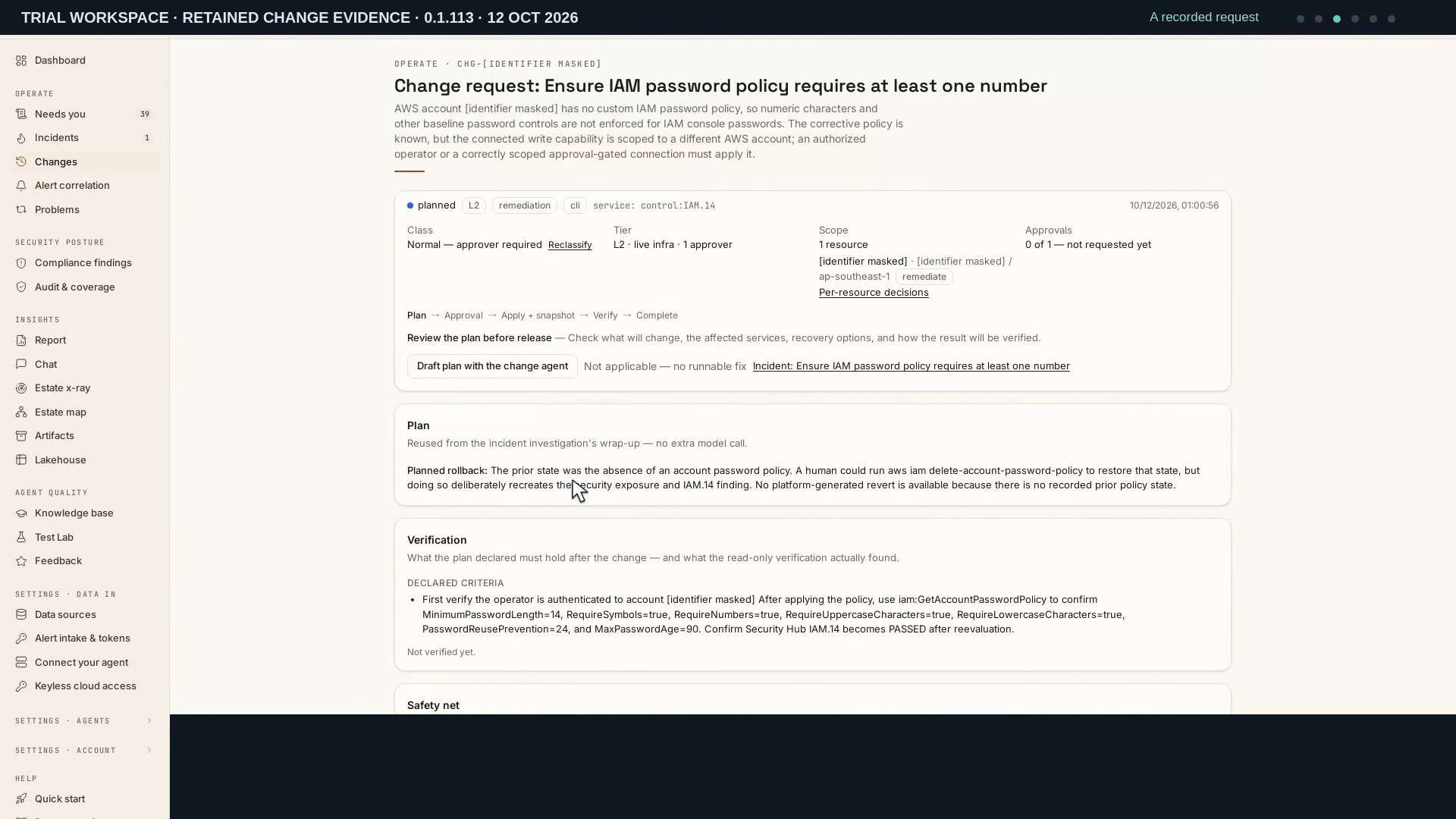
Let us review change requests and the evidence behind captured changes. Let us start with the sources this workspace watches. Cloud audit logs and repositories supply the change evidence. The statistics are limited by their window and row cap. A captured event does not mean the platform approved or executed it. Scroll to Requests, immediately after All. This view brings change requests together. Search accepts a change identifier, title, or service. Here we search for an existing password-policy request. The Proposed toggle remains a separate way to inspect proposals. Open the saved request and read its date. This request was drafted on October twelfth. Its class is Normal, and its tier requires one approver. It remains planned, with no runnable fix. The proposal is not an executed change. Open Reclassify to inspect the class control. The choices are standard, normal and emergency. A reason is required and recorded in the audit trail. Saving a reclassification retains the derived class and clears existing votes. We cancel this review without changing the request. Return to Changes and select External. These records came from external sources. Now select Unauthorized to inspect a recorded denial. Dates and provider evidence distinguish a denied attempt from an applied change. No new cloud event is sent by this walkthrough. Open the retained certificate request from September twenty-ninth. The provider denied this attempt with Access Denied. Attempted, not applied is the key distinction. This is an external audit event, not a new execution receipt. It does not demonstrate a freeze-window violation.
A12: Read scanner findings
Purpose: Scanner findings and posture history. Recorded: 12 October 2026. Source: Trial workspace · retained scanner evidence.
Who: incidents.view; the Scanner sync card needs report.view or pillars.manage. Prerequisites: A connected scanner feed and retained findings.
- Read the Scanner findings procedure and select the intended workspace or platform chain.
- Read the score cards, the coverage statement and Posture trend, then Scanner sync; open a rule’s incident and one retained resource finding, then Coverage under Audit & coverage.
- Compare the result and timestamps with the evidence shown; use the chapter’s troubleshooting when a check fails.
Expected result and limits: a read-only 0.1.113 review of retained scanner evidence and saved posture snapshots; Sync now and Pull from scanners automatically are left unchanged, and no fix is applied. The later Managed-risk score and the revised account treatment are not demonstrated; see Security posture. This film establishes the shown result only; follow the linked procedure for current execution, permissions, recovery checks and related API/MCP operations.
Video: Read scanner findings and posture history — Watch (3 min) · Captions
Recorded 12 Oct 2026 on 0.1.113 — the page has changed since; see Security posture.
Read the transcript · Caption file.
Transcript
Recorded 12 October 2026. Source: Trial workspace · retained scanner evidence.
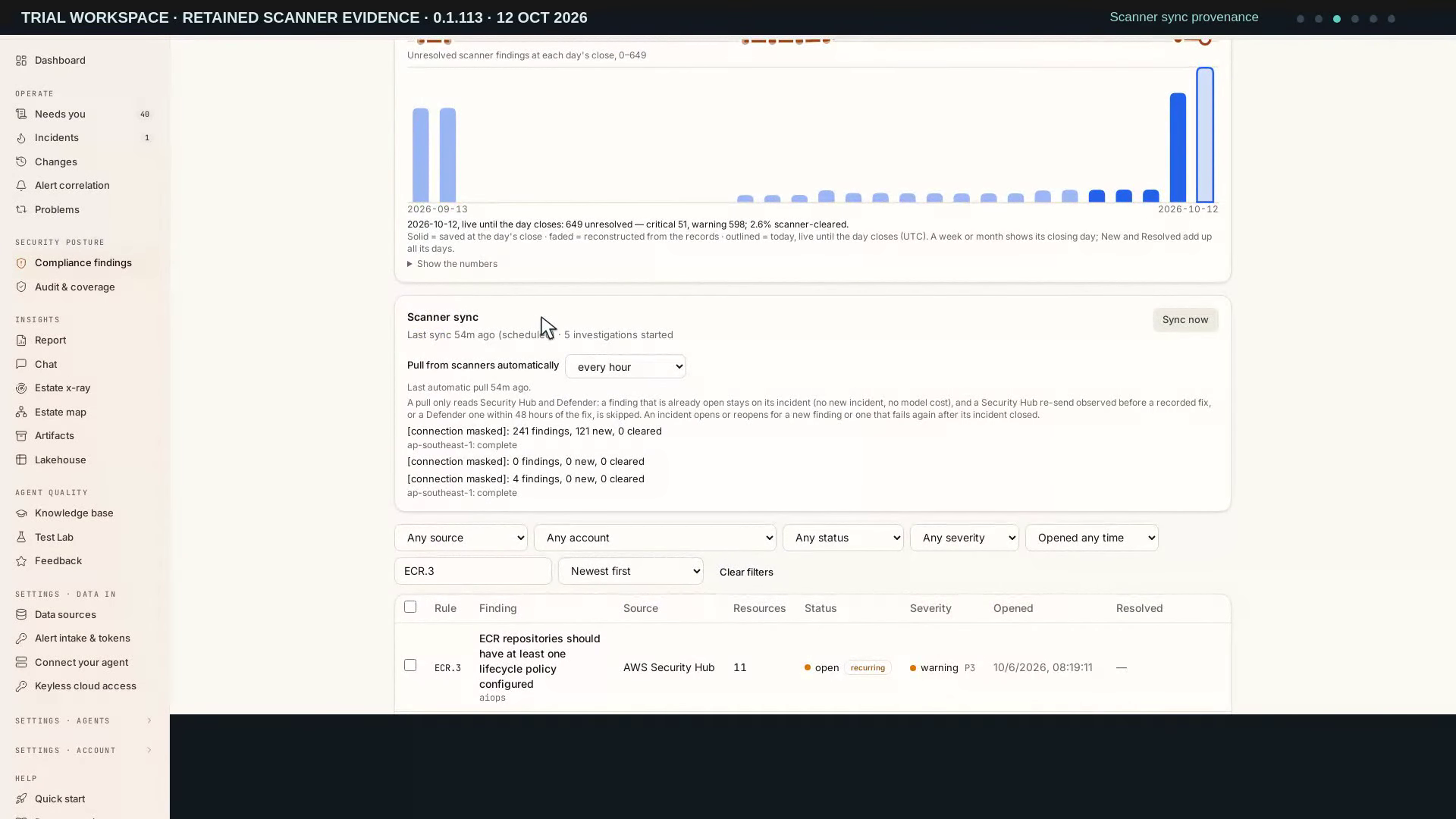
Let us review scanner findings and the posture history behind them. The score cards describe scanner findings in this workspace. The scanner-cleared score is weighted by severity and fix tier. Excluded findings remain unresolved. Read the coverage statement before interpreting the totals. Saved daily snapshots begin on October eighth. The trend distinguishes saved, reconstructed and live history. Solid periods were saved at the closing day. Faded history is reconstructed from retained records. Today is outlined and remains live until the UTC day closes. Week and Month show their closing day; return to Day for daily detail. Scroll to Scanner sync and read the last pull. This workspace is set to pull every hour. A pull timestamp is different from a finding observation time. The source notes describe the latest recorded result. We leave Sync now and the automatic-pull setting unchanged. The filtered list shows the existing E C R three rule. Open its current incident to inspect the resources. There is no prepared fix for this finding type. One incident groups the rule; each resource keeps its own evidence. The Account selector narrows what you read. Open the retained resource finding. Read its observation time and current state. This policy-rule finding has a human remediation stance and tier L two. Those fields describe how a fix should be handled. They do not establish that a fix was applied or the scanner cleared it. Open Audit and coverage, then Coverage. This preview lists recognized finding families by resource type. It separates executable fixes from cases opened for review. Counts are indicative while control mapping is completed. A resource check is not a compliance certificate.
A18: Insights chat and saved artifacts
Purpose: Source-bound chat and artifacts. Recorded: 8 October 2026. Source: Demo workspace · saved chat 8 October · synthetic incident 1 October; chapter-name cue corrected offline 9 October.
Who: chat.ask; source permissions still apply. Prerequisites: Accessible incident/scan records and a usable local or private-agent model.
- Read the Source-bound chat and artifacts procedure and select the intended workspace or platform chain.
- Open the source’s conversation and follow supporting saved artifacts; keep the source attached to follow-ups.
- Compare the result and timestamps with the evidence shown; use the chapter’s troubleshooting when a check fails.
Expected result and limits: the task’s recorded rows and scope are readable. This film establishes the shown result only; follow the linked procedure for current execution, permissions, recovery checks and related API/MCP operations.
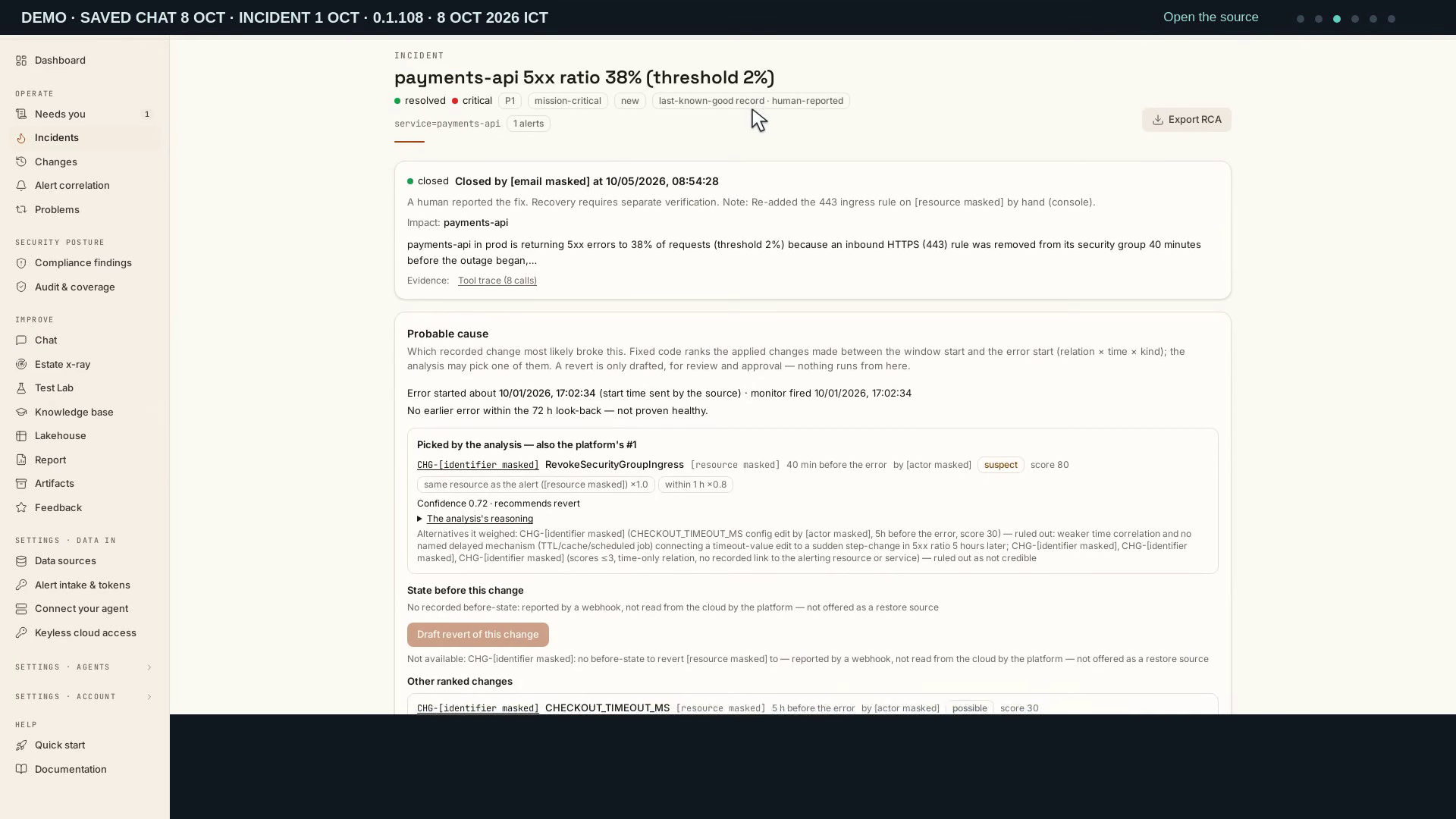
Video: Insights chat and saved artifacts — Watch (2 min) · Captions
Recorded 8 Oct 2026 on 0.1.108 — the page has changed since; see Insights chat.
Read the transcript · Caption file.
Transcript
Recorded 8 October 2026. Source: Demo workspace · saved chat 8 October · synthetic incident 1 October; chapter-name cue corrected offline 9 October.
Let's review an insights answer and inspect its saved evidence. We will keep the answer tied to its source. Open the conversation saved earlier today. It concerns the recorded payments incident from October first. The question asks for status, evidence limits, and a link to the incident. We are reading the saved answer without submitting another question. Reading a past incident does not confirm that its service is healthy. Read the answer together with the recorded tool checks. A completed reply is an explanation based on the evidence it could reach. Notice any limitation before treating its conclusion as an operational fact. No remediation is requested by this question. Follow the incident link and compare the source record. The incident dates remain separate from today's saved conversation. A resolved status and a verified recovery are different facts. The saved record shows what was reported at that time. Open this incident's own human-reported fix record. This artifact preserves the recorded outcome and its evidence grade. Human-reported means the platform retained an operator's statement. It does not turn that statement into an independent verification. Download the original content from this artifact. The download preserves the saved record, with its original timestamps. It does not create a new investigation or apply a change. Keep the source and evidence limits alongside any shared report. Choose Knowledge, x-ray and insights. The written guide explains chat and durable artifacts. Use the linked source when a short answer needs more context. The recorded evidence remains the place to check the claim.
A02: From alert to incident
Purpose: Webhook intake. Recorded: 9 October 2026. Source: Demo workspace · synthetic history from 8 October; read-only 0.1.110 review on 9 October.
Who: incidents.view for the read-only alert/incident and dependency view. Prerequisites: Accessible synthetic intake history from 8 October 2026.
- Read the Webhook intake procedure and select the intended workspace or platform chain.
- Open Service dependencies to read its current graph/legend, then follow the recorded alert to its incident and investigation receipt.
- Compare the result and timestamps with the evidence shown; use the chapter’s troubleshooting when a check fails.
Expected result and limits: a read-only 0.1.110 review recorded on 9 October of synthetic intake history from 8 October. The recording shows the Service dependencies panel and linked incident evidence; it creates no new alert, investigation or dependency. It does not demonstrate a storm split or establish current estate health. Follow the current intake procedure and dependency guidance for actions and permissions.
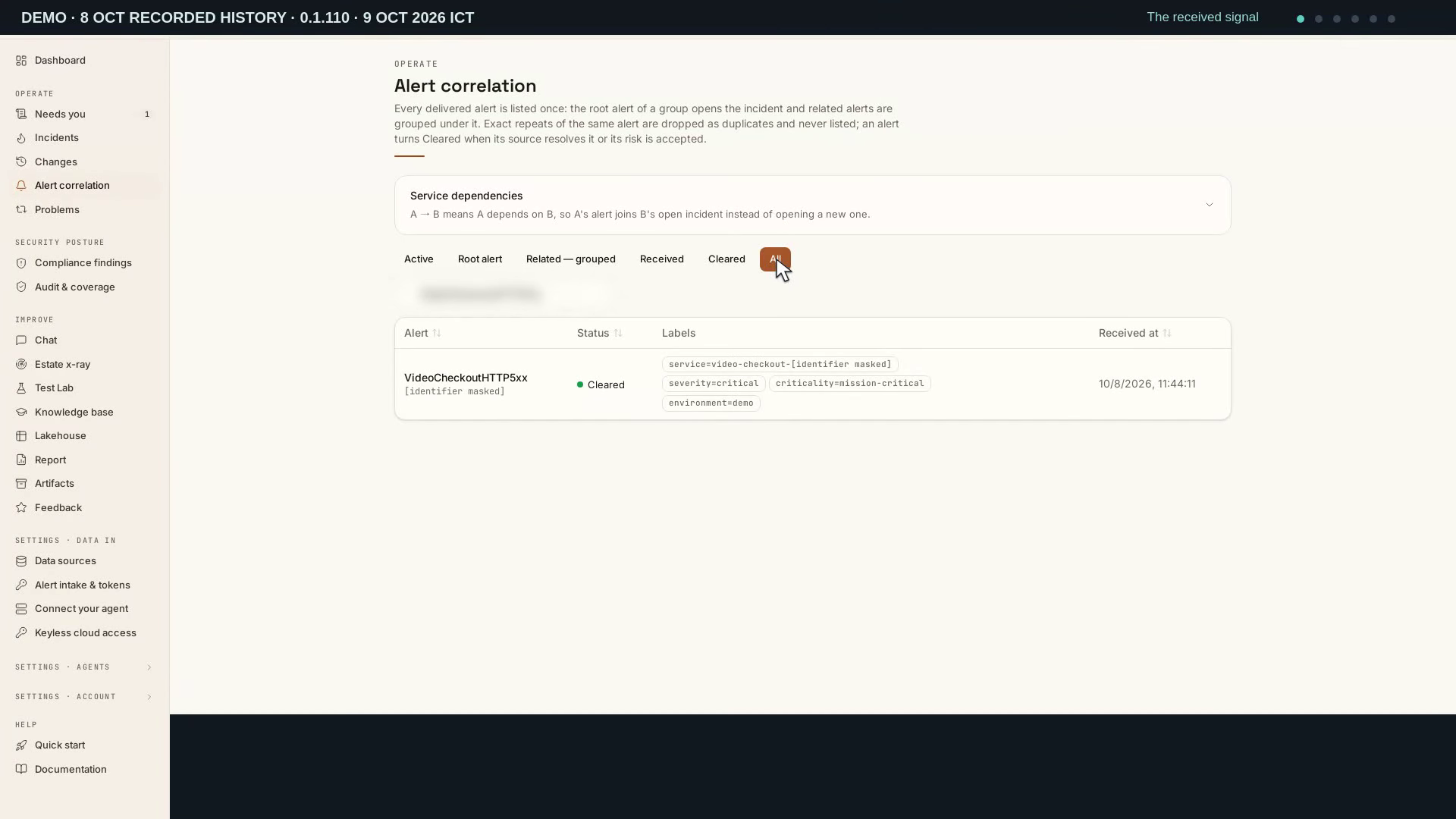
Video: From alert to incident — Watch (2 min) · Captions
Recorded 9 Oct 2026 on 0.1.110 — the page has changed since; see Alert sources and intake rules.
Read the transcript · Caption file.
Transcript
Recorded 9 October 2026. Source: Demo workspace · synthetic history from 8 October; read-only 0.1.110 review.
Let's follow the alert and incident recorded on October eighth. We will inspect the saved evidence on the current platform. This saved signal was received and cleared on October eighth. Alert correlation now includes Service dependencies. Open the panel to read the workspace relationships. This workspace has no dependencies recorded. Close the panel, then open the retained alert. Read the incident's severity and priority beside its title. The sender marked this service mission critical. That declared criticality can raise priority. A priority is not a diagnosis. This incident has no assignee recorded. Open Ingestion to inspect the original signal. Its service label links the signal to this incident. The source clear is dated October eighth. The retained record shows what arrived, without claiming a live fault. The October eighth delivery receipts record one exact replay. That repeat created no second alert or incident. This incident still has one stored alert and one investigation. A repeated delivery differs from a new condition on the same service. Open the recorded investigation and inspect what it established. The recorded investigation had no live datasource to inspect. Read its actual outcome and the evidence limits. The incident was closed as an expected test. No remediation or recovery is claimed. Open Documentation and read Send your first alert. Use a stable service label and prepare the intake credential privately. Cloud alarms send their detections through the supported webhooks. The lakehouse supplies evidence; it does not create these alerts.
A13: Record and revoke a risk decision
Purpose: Human risk decision. Recorded: 9 October 2026. Source: Trial workspace · decision on already cleared history; 0.1.110 decision workflow recorded 9 October.
Who: approvals.decide to decide/revoke; report.view for the register. Prerequisites: An accessible finding, decision statement and intended expiry.
- Read the Human risk decision procedure and select the intended workspace or platform chain.
- Inspect the decision’s resource, reason, owner and expiry; follow the saved decision and revocation history.
- Compare the result and timestamps with the evidence shown; use the chapter’s troubleshooting when a check fails.
Expected result and limits: native acceptance and revocation of a human decision on already-cleared RDS.6 history, with the saved reason, owner, expiry and audit trail. The finding remains cleared and its incident resolved afterwards. This 0.1.110 recording does not demonstrate a cloud repair, new investigation, Posture trend or export. Review the current risk-decision procedure for the scope and consequences of an actual decision.
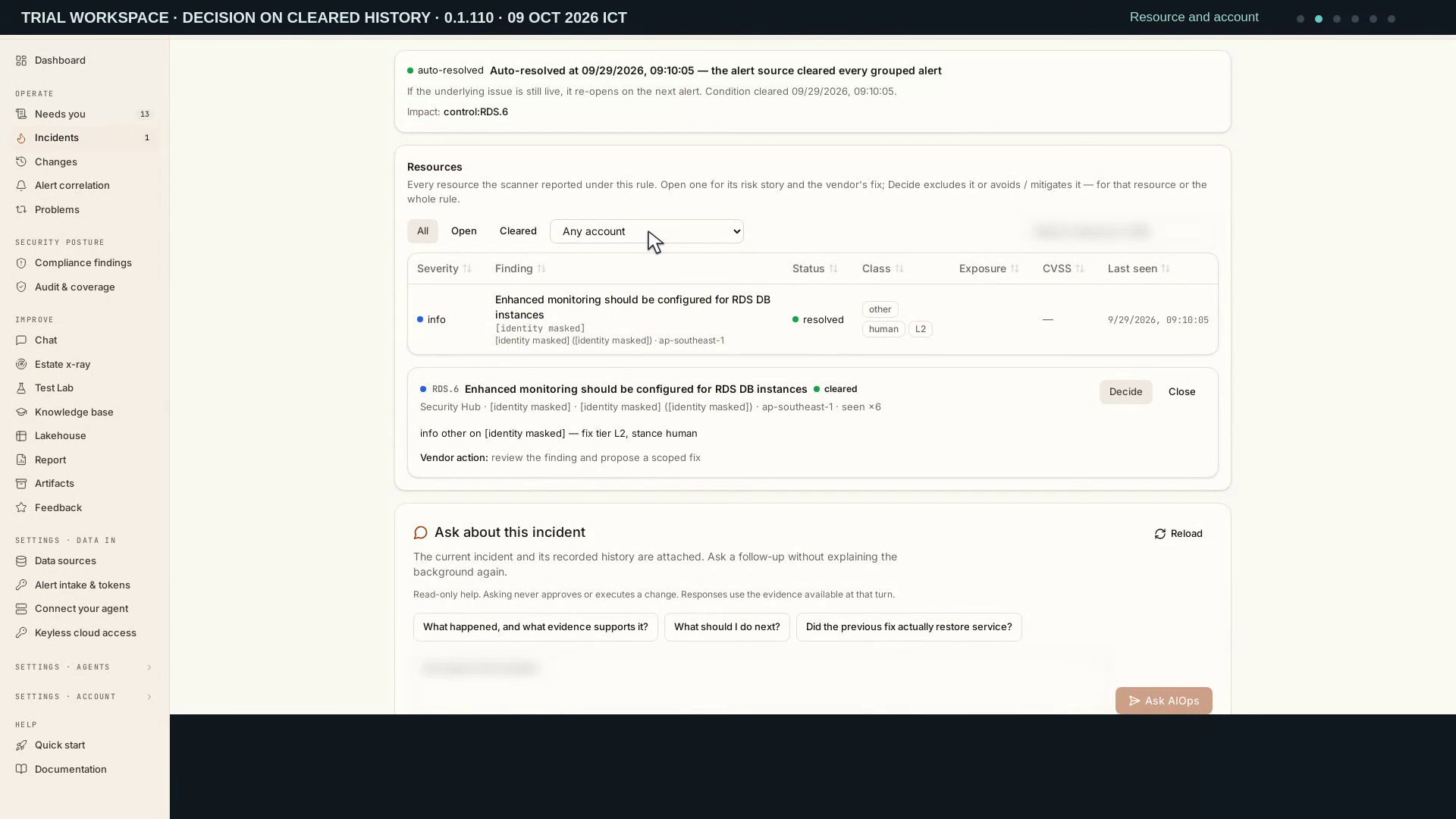
Video: Record and revoke a risk decision — Watch (2 min) · Captions
Recorded 9 Oct 2026 on 0.1.110 — the page has changed since; see Security posture.
Read the transcript · Caption file.
Transcript
Recorded 9 October 2026. Source: Trial workspace · decision on already cleared history; 0.1.110 decision workflow.
Let’s record a scoped risk decision and then revoke it. The selected trial finding has already been cleared. This rule concerns enhanced monitoring for a trial database. The scanner cleared it on September twenty-ninth. Its linked incident is resolved. This exercise demonstrates the risk-decision workflow. It does not claim a new remediation. Open the retained resource record. The Resources card includes an Account selector. Connection names and account identifiers are masked here. Confirm the cleared source state and the scope of this finding. Then open Decide to review the available risk positions. Exclude records a reason and a re-review date. Keep the scope limited to this finding. Enter the short-lived demonstration reason and expiry. Leave suppression at the source unchecked. Avoid and Mitigate open change work, so they are not selected here. Record the decision once. Now open the risk register under Audit and coverage. Read its reason, recorded owner, expiry and current state. The export button is available but is not used in this take. Acceptance records a risk position; it does not repair the resource. Revoke this new acceptance now. The register keeps the decision with a revoked state. Its audit history is preserved. No scanner suppression or cloud change was requested. The source finding remains already cleared. The recorded decision belongs to this one finding. Its original scanner clearance predates this walkthrough. Revocation ends the exception without erasing the record. No new investigation or remediation has been started. The final checks preserve the cleared finding and resolved incident.
A06: Rehearse a scoped rollback
Purpose: Scoped rollback. Recorded: 12 October 2026. Source: Trial workspace · review of the 8 October controlled Azure rollback.
Who: incidents.act and the plan’s approval permissions. Prerequisites: A captured before-state, scoped write connection and approved rollback plan.
- Read the Scoped rollback procedure and select the intended workspace or platform chain.
- Read the Validation plan and the Runbook steps (What ran when the change follows no runbook), open the captured before-state from the Rollback plan, then read the restoration result and the linked incident’s validation verdict.
- Compare the result and timestamps with the evidence shown; use the chapter’s troubleshooting when a check fails.
Expected result and limits: a dated review, through the 0.1.113 interface, of the scoped rollback released by hand on 8 October; it performs no new rollback or cloud write, and the restored state was the deliberately introduced trial exposure, not a safe baseline. The change page has since added the checksum and class-reason lines, which this take does not show, and since renamed its Verification and Safety net cards to Validation plan and Rollback plan. This film establishes the shown result only; follow the linked procedure for current execution, permissions, recovery checks and related API/MCP operations.
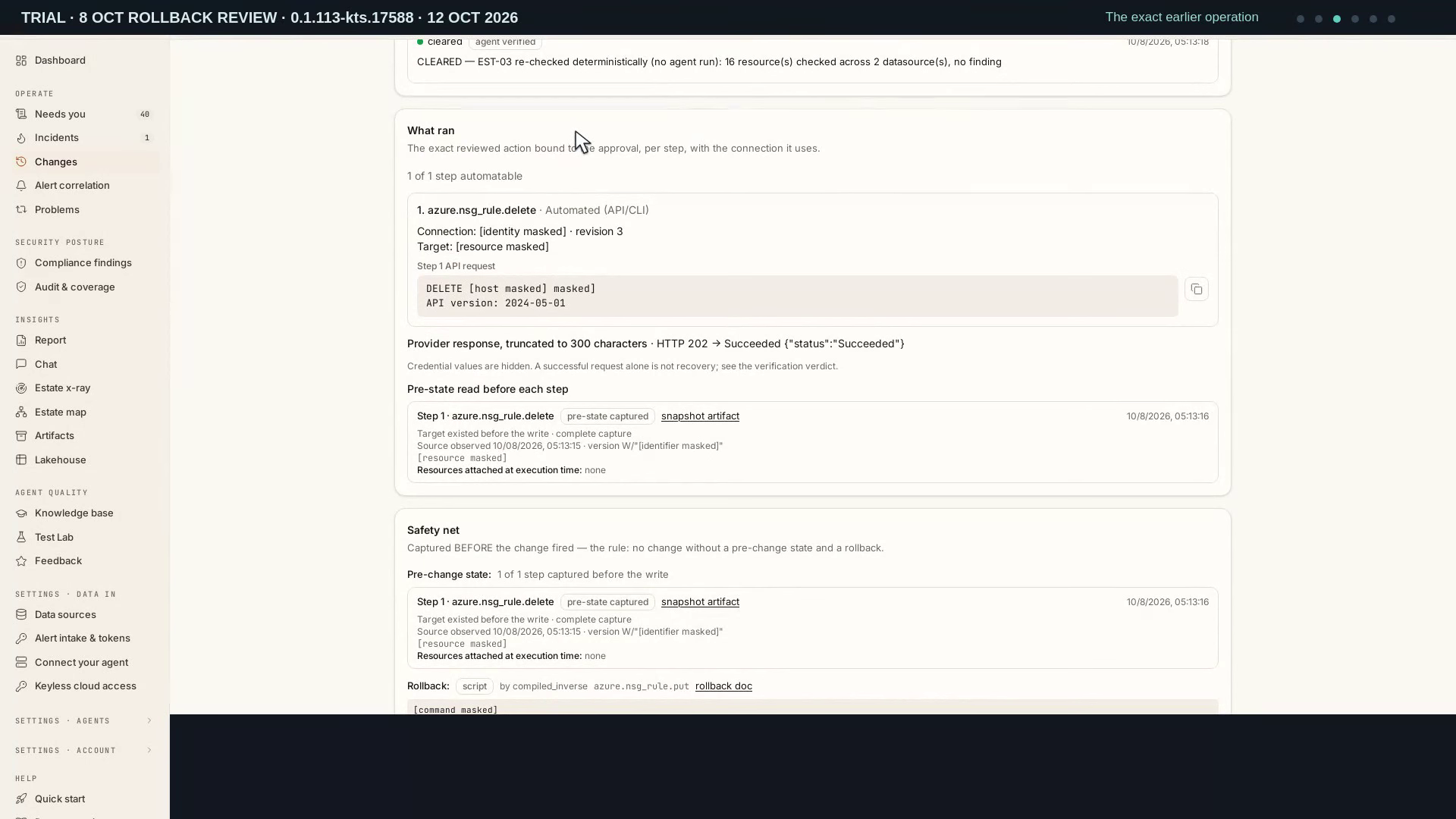
Video: Review a recorded scoped rollback — Watch (3 min) · Captions
Recorded 12 Oct 2026 on 0.1.113 — the page has changed since; see Review execution in Changes.
Read the transcript · Caption file.
Transcript
Recorded 12 October 2026. Source: Trial workspace · review of the 8 October controlled Azure rollback.
Let’s review the recorded rollback of an isolated Azure change. We’ll distinguish restored test exposure from a safe final baseline. This change was rolled back on the eighth of October. We are reading that history through the current interface. The target was an unattached trial network group. This review performs no new rollback or cloud write. The later cleanup is a separate part of the record. The Verification section records the earlier forward fix. The rule deletion was followed by a cleared control check. That result came before the rollback restored the captured rule. Keep the forward verdict separate from the restoration read. Neither is a fresh resource check performed by this review. What ran identifies the forward operation and its revision. It deleted one exact Azure network security rule. The retained write connection belonged to that approved operation. The resource identity is masked in this review. Reading this record grants no permission to execute it again. Open the captured before-state artifact from the Safety net. The inverse restores the rule captured before the forward deletion. That was the deliberately introduced trial condition. It was not the empty baseline from before the exercise. Return to the change to read its separate restoration result. The Safety net records the compiled rollback and its result. The restoration read confirmed the captured configuration returned. Restored exposure does not mean safe production recovery. The temporary rule was then removed in a separate cleanup. The saved cleanup receipt confirms the empty, unattached baseline. The linked incident retains the earlier validation verdict. Read its time alongside the change and restoration evidence. This was a manually released rollback, recorded on October eighth. The failed-change recovery sweep was not exercised by that take. Final cleanup was checked separately; no new recovery is claimed.
A14: Connect controls and change evidence
Purpose: Control and change evidence. Recorded: 12 October 2026. Source: Trial workspace · dated control and change evidence.
Who: incidents.view/report.view; controls and scans require their named permissions. Prerequisites: Configured control checks and retained control/change rows.
- Read the Control and change evidence procedure and select the intended workspace or platform chain.
- Read a change’s history and its linked incident’s control context, open the captured event behind the check, then compare Audit & coverage, a saved scan’s control result and the card for checks triggered by a change.
- Compare the result and timestamps with the evidence shown; use the chapter’s troubleshooting when a check fails.
Expected result and limits: a dated review of control and change evidence through the 0.1.113 interface; no fix or scan is run, and a passing scan is not a compliance certificate. The later Unmanaged change wording and the mapped-recheck chips are not part of this take. This film establishes the shown result only; follow the linked procedure for current execution, permissions, recovery checks and related API/MCP operations.
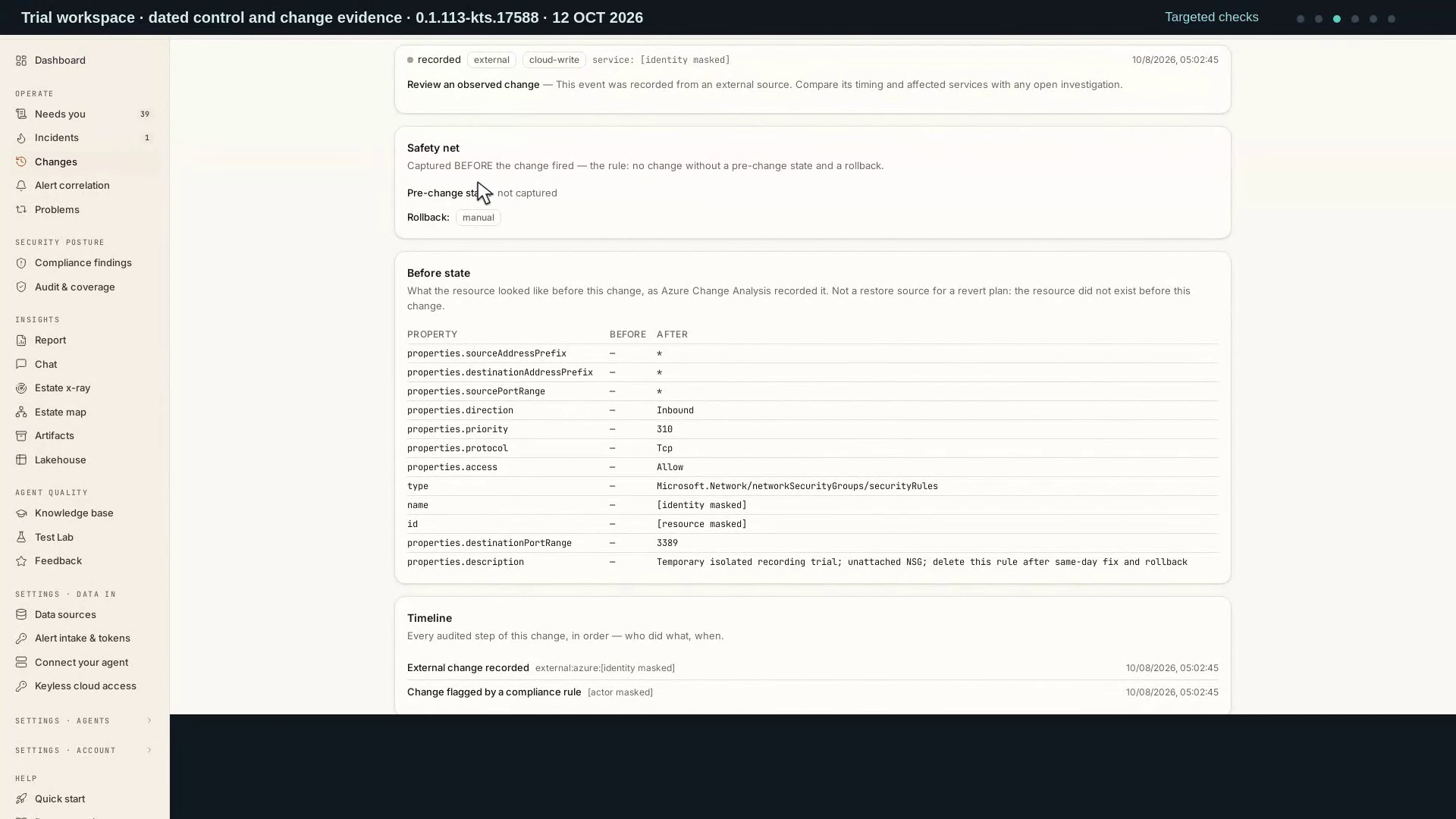
Video: Connect controls and change evidence — Watch (3 min) · Captions
Recorded 12 Oct 2026 on 0.1.113 — the page has changed since; see Security posture.
Read the transcript · Caption file.
Transcript
Recorded 12 October 2026. Source: Trial workspace · dated control and change evidence.
Let’s connect control evidence, framework coverage and a recorded fix. We’ll keep the dates and scope of each check visible. This is the change from the paired fix and rollback demonstration. Its history records the forward action and its verification. The controlled rollback is recorded separately on the same change. We are reviewing that evidence, not running another fix. Open the linked incident to follow its control context. The incident is linked to control E S T zero three. The control detected an open remote-access rule on the trial group. Changes that triggered this check links the original cloud write. Open that recorded event to inspect the connection. A matched change prompted the probe; the probe established failure. This event was captured from the cloud audit log. Its linked control result records what the targeted probe found. Supported change rules recheck the affected platform control. They do not run every framework requirement. Now open Audit and coverage to compare that narrower evidence. Switch between the two framework catalogues. The page distinguishes automated checks from human attestations. Unknown evidence remains unknown. These mappings are an interpretation for review by the security team. A passing scan is not a compliance certificate. Open the saved scan from September twenty-eighth. Then open the network security control result. This is the evidence from that original scan. A later targeted check has its own date and scope. Do not present the saved scan as a fresh full assessment. Read the card for checks triggered by a change. It distinguishes matched writes, repeated probes and opened incidents. The fix followed the change hub in the paired demonstration. That action and its verification stay in their own recorded history. Scanner clearance, platform checks and framework coverage are distinct.
A05: Review a verified cloud fix
Purpose: Approved cloud fix. Recorded: 12 October 2026. Source: Trial workspace · review of the 8 October fix and rollback.
Who: incidents.act and the plan’s approval permissions. Prerequisites: Scoped write access, connection execution consent and the exact approved plan.
- Read the Approved cloud fix procedure and select the intended workspace or platform chain.
- Read the forward validation record and the Runbook steps (What ran when the change follows no runbook), open the before-state snapshot from the Rollback plan, then read the compiled rollback’s restoration result and the linked incident’s Validation verdict.
- Compare the result and timestamps with the evidence shown; use the chapter’s troubleshooting when a check fails.
Expected result and limits: a dated review of the fix executed and rolled back on 8 October, read through the 0.1.113 interface; no provider action is performed. The change page has since added the checksum and class-reason lines, which this take does not show, and since renamed its Verification and Safety net cards to Validation plan and Rollback plan. This film establishes the shown result only; follow the linked procedure for current execution, permissions, recovery checks and related API/MCP operations.
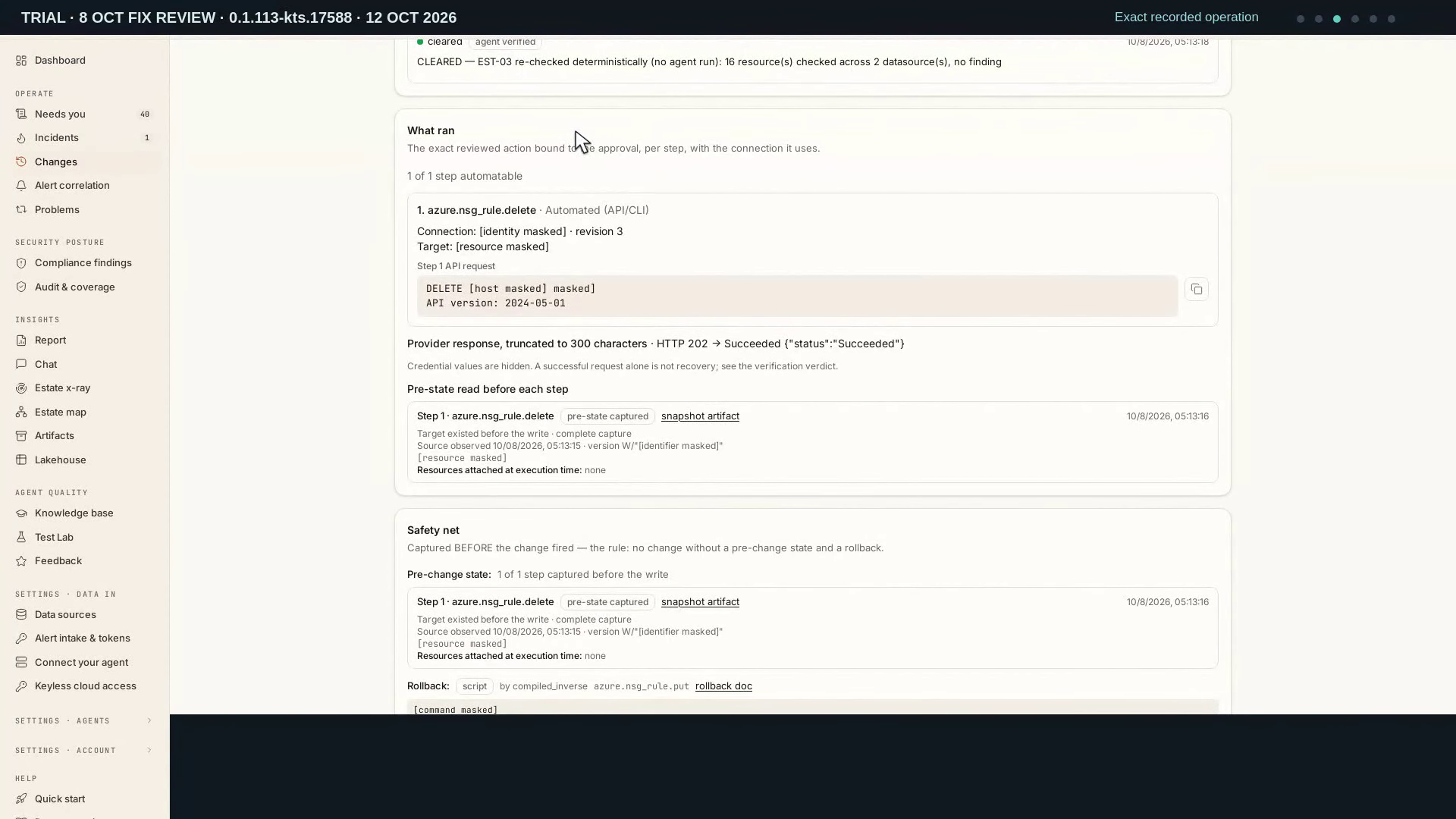
Video: Review a verified cloud fix — Watch (3 min) · Captions
Recorded 12 Oct 2026 on 0.1.113 — the page has changed since; see Review execution in Changes.
Read the transcript · Caption file.
Transcript
Recorded 12 October 2026. Source: Trial workspace · review of the 8 October fix and rollback.
Let’s review a verified cloud fix and its later rollback. We’ll follow the recorded evidence without executing another change. This trial change was executed on the eighth of October. Its current status is rolled back. That later state does not erase the earlier forward verification. The target was an unattached trial network group. We will read the separate records in their original order. Scroll to the forward verification record. The receipt records the successful rule deletion. The control recheck then recorded a cleared result. That result belongs to the forward fix, before the rollback. It is not a fresh assessment performed by this review. Read What ran to inspect the executed operation. It deleted one exact Azure network security rule. The record retains its write connection and revision. The resource identity is masked for this recording. The prepared approval applied to this specific operation. Open the snapshot artifact from the Safety net. This is the rule captured before the forward write. The capture records the temporary trial condition. It is evidence of the previous configuration, not proof it was safe. Return to the change record after reviewing its provenance. The same change also records a compiled rollback. Its restoration read confirmed the captured configuration returned. The trial rule was then removed in separate cleanup. The original empty and unattached baseline was checked off camera. This review does not perform another rollback or another fix. Open the linked incident and its Validation section. Read the recorded verdict together with its check time. The report retains the attempt and its outcome. Keep forward verification, rollback and final cleanup distinct. That chronology is the evidence behind the recorded fix.
A05-AWS: Run an isolated AWS fix and rollback
Purpose: Isolated AWS repair and rollback. Recorded: 12 October 2026. Source: Trial workspace · review of the 8 October isolated AWS fix and rollback.
Who: incidents.act and the plan’s approval permissions. Prerequisites: An isolated, scoped AWS target and exact approved repair/rollback plans.
- Read the Isolated AWS repair and rollback procedure and select the intended workspace or platform chain.
- Read the forward validation record and the Runbook steps (What ran when the change follows no runbook), open the before-state snapshot from the Rollback plan, then read the restoration result and the linked incident’s Validation section.
- Compare the result and timestamps with the evidence shown; use the chapter’s troubleshooting when a check fails.
Expected result and limits: a dated review of the isolated AWS fix and rollback executed on 8 October, read through the 0.1.113 interface; the 12 October take does not repeat that cloud cycle and performs no new fix or rollback. This film establishes the shown result only; follow the linked procedure for current execution, permissions, recovery checks and related API/MCP operations.
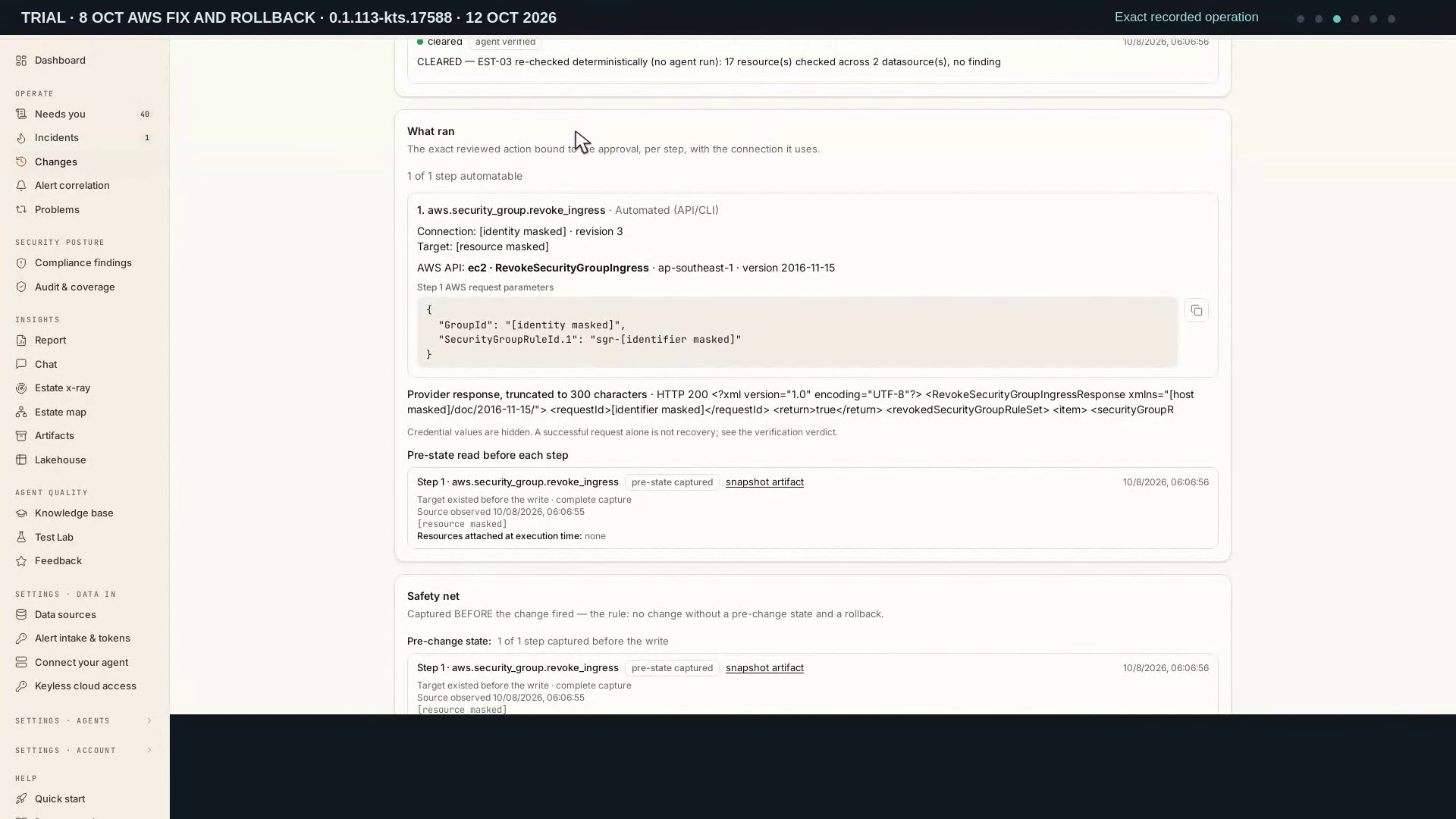
Video: Review an isolated AWS fix and rollback — Watch (2 min) · Captions
Recorded 12 Oct 2026 on 0.1.113 — the page has changed since; see Review execution in Changes.
Read the transcript · Caption file.
Transcript
Recorded 12 October 2026. Source: Trial workspace · review of the 8 October isolated AWS fix and rollback.
Let’s review an isolated AWS fix and its later rollback. We’ll read the saved evidence without changing the cloud. This trial change was executed on October eighth. Its current status is rolled back. The target was a temporary security group with no attached network interfaces. The original cleanup removed that group. This review follows the recorded evidence. Read the forward verification record. The execution receipt records removal of one ingress rule. The control recheck then recorded a cleared result. That check belongs to the forward fix, before rollback. It is not a fresh assessment of a running resource. Read What ran to inspect the approved operation. It removed one remote-access ingress permission from the trial group. The recorded connection and resource identity are masked here. The approval and execution applied to that specific change. Open the snapshot artifact from the Safety net. It preserves the state captured before the forward write. That permission was deliberately introduced for the trial. A captured configuration is not automatically a safe configuration. Return to the same change to read its restoration result. The change retains the compiled rollback and its restoration check. The recorded pre-change state was restored. That restored permission was still the trial exposure. The original cleanup then removed both the rule and the unattached group. This review performs no new fix or rollback. Open the linked incident and its Validation section. Keep each verdict beside its check time. The recorded forward fix, rollback and cleanup have separate meanings. An execution response alone is not proof of recovery. The retained history lets an operator review what happened.